


.png)


When you're building vehicle spins into a dealership inventory workflow, getting the upload right is only part of the process.
The CloudPano Spin API accepts a walk-around video and processes it into a 360° vehicle spin. But like any API-driven workflow, problems can occur during authentication, upload, lookup, or processing.
Understanding the difference between these failures makes troubleshooting much easier.
The full technical reference is available in the Spin API documentation. This guide focuses on the practical side of error handling: what each failure means, why it happens, and what you can do next.
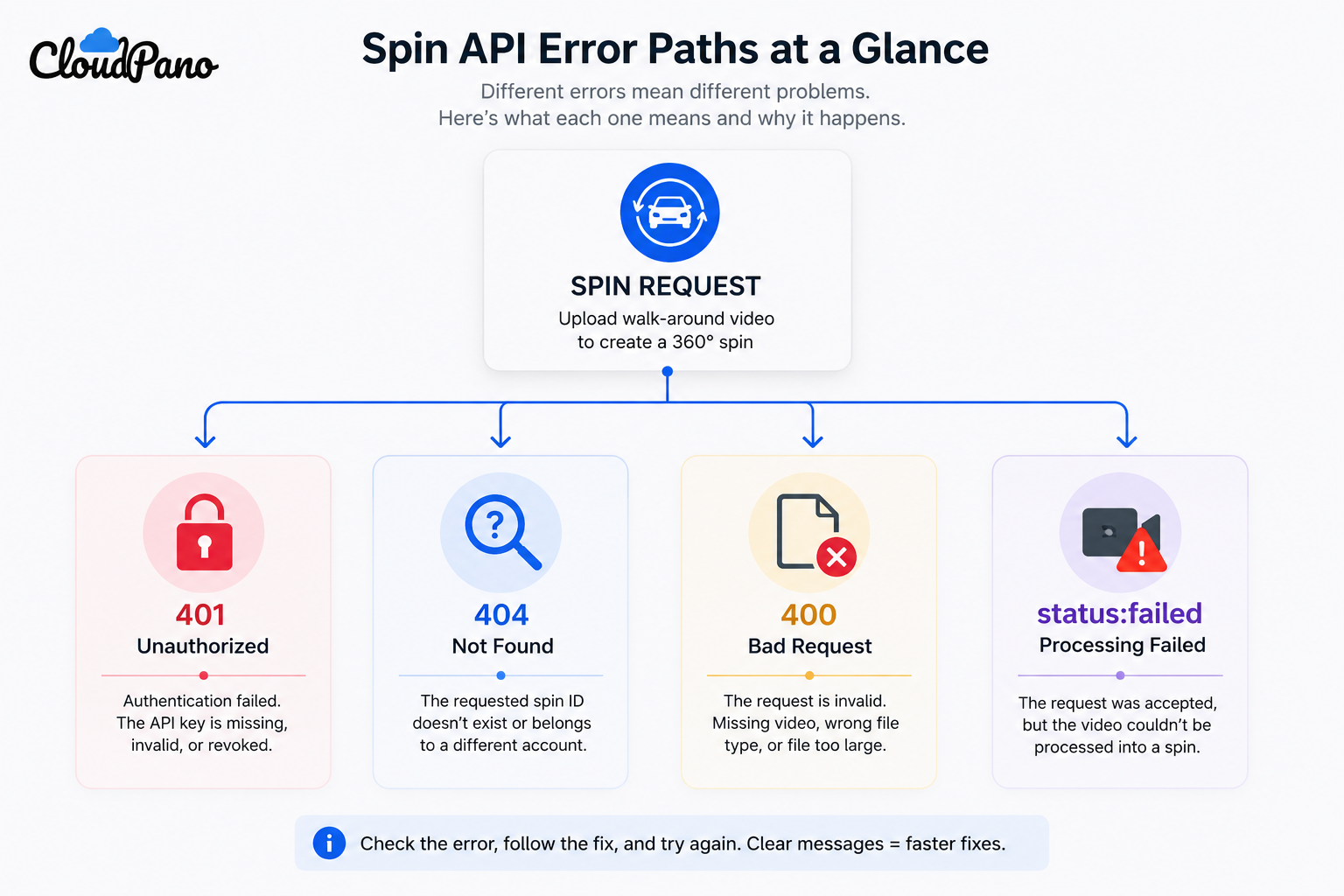
Before looking at individual errors, there's one important distinction to understand.
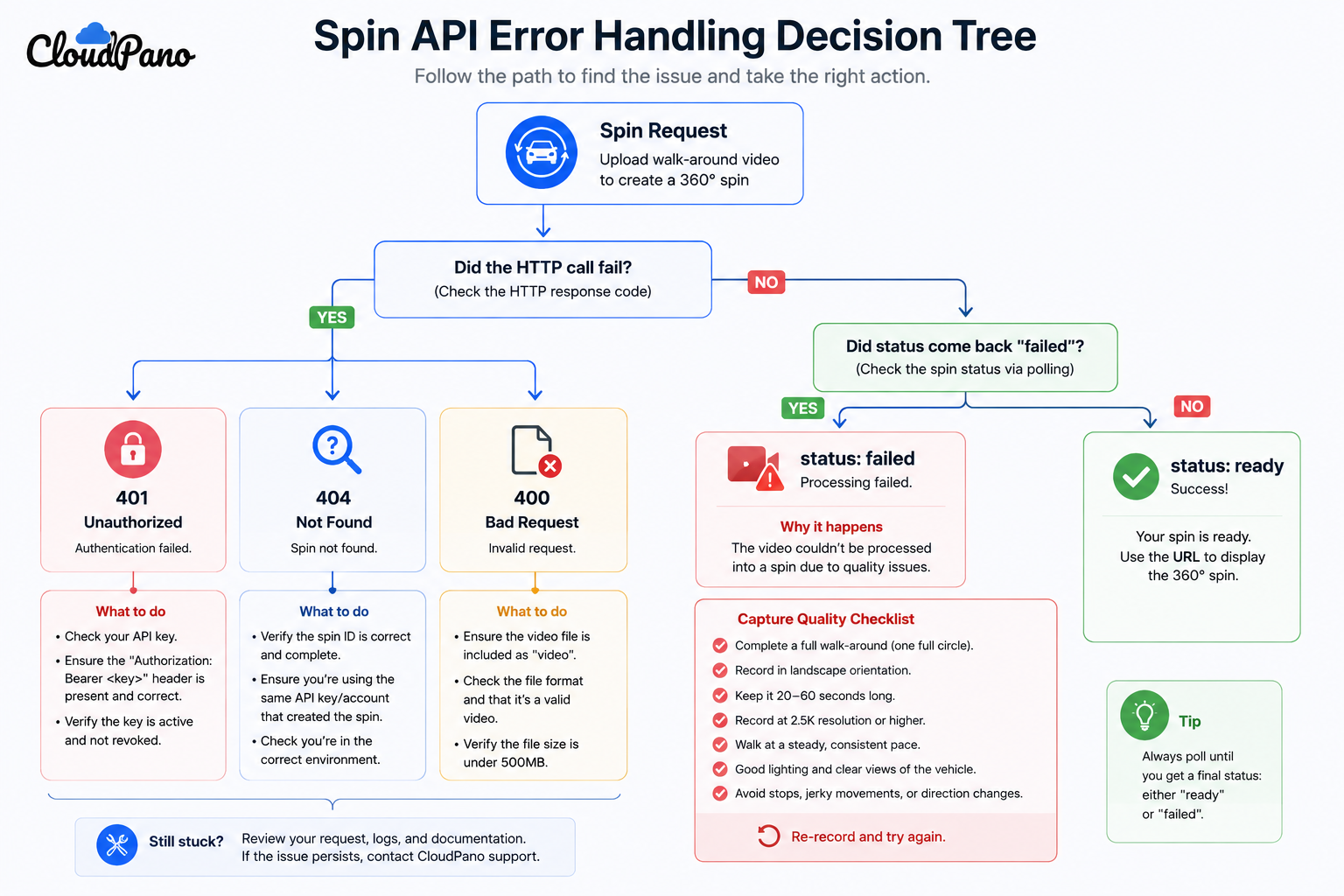
Spin API problems generally fall into two categories:
HTTP-level errors happen when the request itself cannot be completed successfully.
These include:
A failed processing status, on the other hand, happens after the request has already been accepted. The API was able to receive the job, but the supplied footage couldn't be turned into a completed spin.
These situations require different solutions, so your integration should treat them separately.
A 401 Unauthorized response indicates an authentication problem.
The request may be missing the required API credential, the credential may be malformed, or the key may no longer be active.
You may encounter a 401 response when:
Start by confirming that your application is using the expected API key and that the credential is still active.
If you've recently rotated credentials, make sure every application, service, or background worker that communicates with the Spin API has been updated.
It's also useful to maintain separate credentials for different environments rather than unnecessarily sharing the same key across production, staging, and testing.
For more information about securely managing credentials, see Authenticating With the Spin API.
A 404 Not Found response means the requested vehicle spin couldn't be found in the context of the request.
This can happen because the stored spin ID is incorrect or because the lookup is being performed using the wrong account or credential context.
Check for:
Make sure the complete spin ID is stored when the job is initially created.
If your infrastructure uses multiple credentials or environments, also verify that the service checking the spin is operating in the correct account context.
Keeping the upload and processing information together can prevent confusing 404 errors later in the workflow.
A 400 Bad Request response generally indicates that authentication succeeded but something about the submitted request wasn't acceptable.
For vehicle uploads, possible causes include a missing video, an invalid or corrupted file, or a video that exceeds the 500 MB upload limit.
A 400 response may occur when:
Many upload-related problems can be detected before sending a large video file.
If you're building a dealership-facing upload interface, validate the selected file before beginning the upload.
Instead of displaying a generic error, tell the user exactly what needs attention.
For example:
File too large: Choose a smaller video or adjust the recording settings.
Unsupported or invalid video: Select a supported video file.
Missing video: Select a walk-around recording before continuing.
This makes the workflow much easier for dealership employees who don't need to understand HTTP status codes to correct the problem.
For additional capture and upload guidance, see Uploading Walk-Around Video to the Spin API.
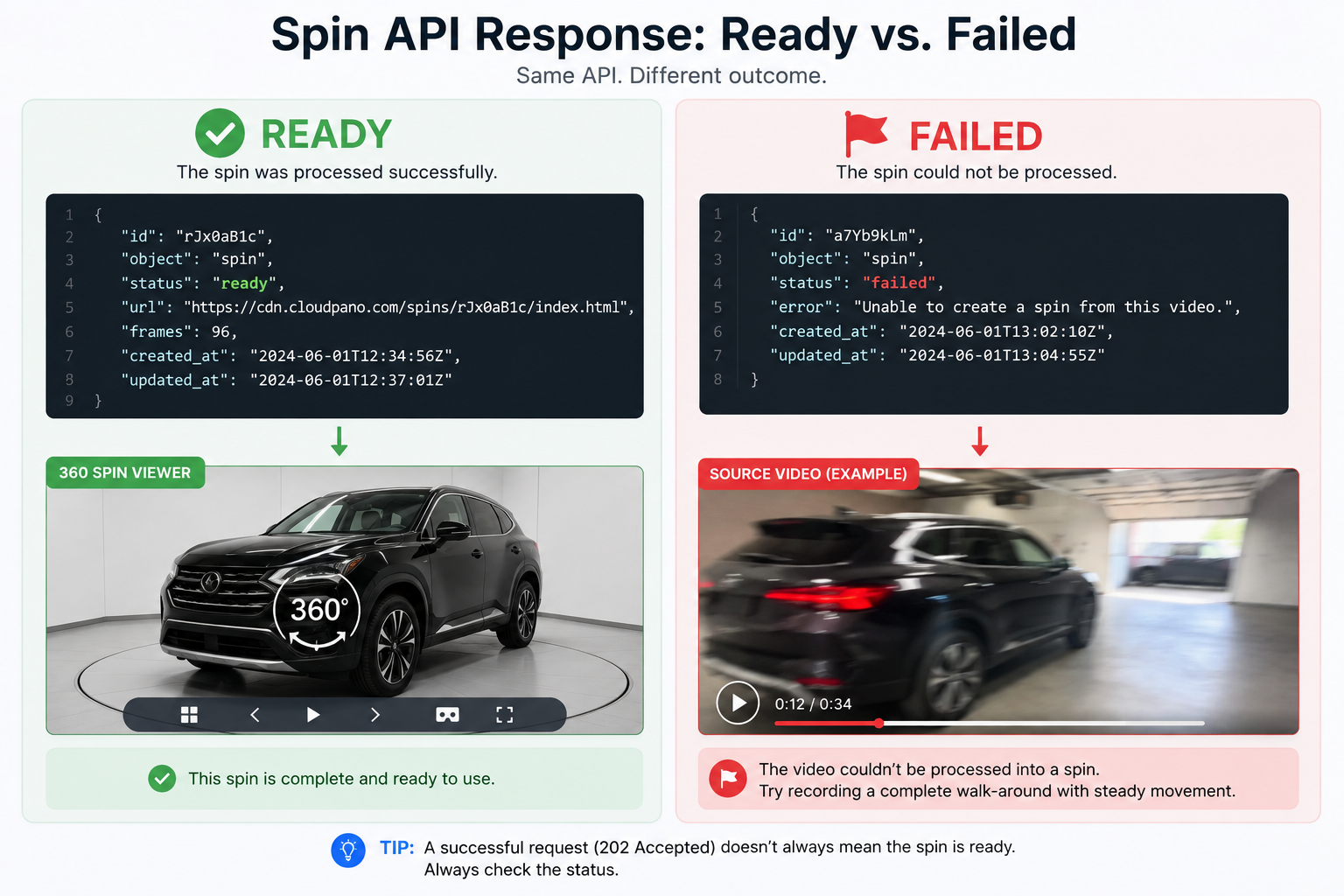
This failure is different from a 400, 401, or 404 response.
The vehicle footage can be uploaded successfully and the processing job can begin normally, but the system may later determine that it cannot create a usable spin from the supplied footage.
In that situation, the job reaches a failed state rather than a ready state.
That's an important distinction:
HTTP error → Something went wrong with the request or access.
Failed processing status → The request was accepted, but the vehicle spin couldn't be completed.
Your application should treat these as separate failure types.
Processing failures are often related to the quality or completeness of the source footage.
Possible causes include:
In these situations, repeatedly submitting the same footage may not solve the problem.
The better next step is often to record the vehicle again using the recommended capture technique.
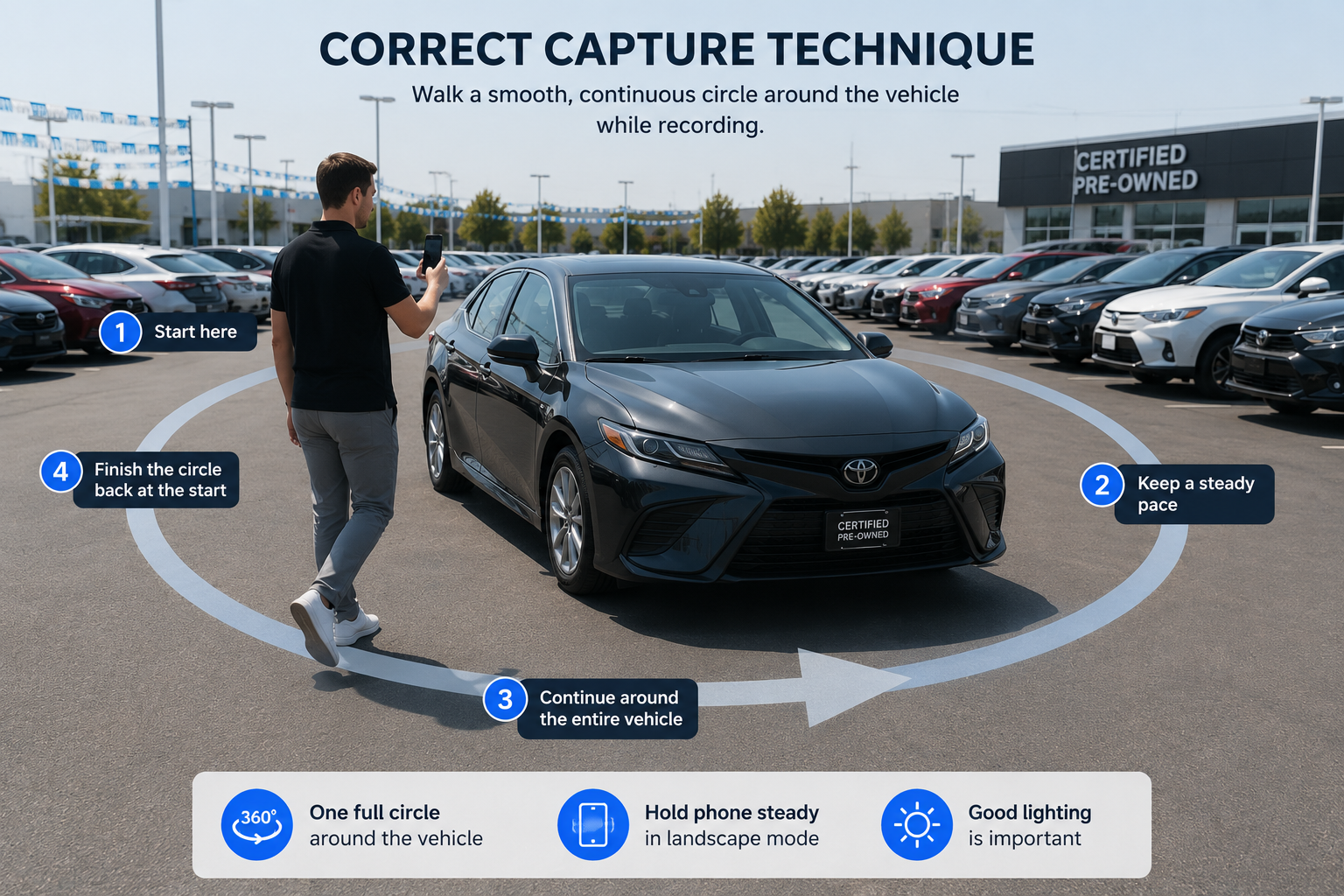
If you're repeatedly encountering failed processing jobs, review the source footage before assuming there's a problem with the API.
Capture one complete circle around the vehicle.
Avoid stopping halfway, reversing direction, or skipping a portion of the vehicle.
Use landscape orientation when recording the vehicle walk-around.
Keeping the phone orientation consistent throughout the recording provides more suitable footage for the vehicle-spin workflow.
The recommended capture duration is approximately 20 to 60 seconds.
This gives the system enough footage to work with while keeping the walk-around focused on a single continuous rotation.
Higher-resolution source footage provides more visual information for processing.
The source guidance recommends 2.5K or higher for better results.
Walk at a reasonably consistent pace.
Avoid abrupt movements, unnecessary stops, reversing direction, or changing camera operators during the recording.
Try to keep the vehicle clearly visible throughout the entire walk-around.
Extreme backlighting, deep shadows, or dramatic lighting changes can make the source footage more difficult to process.
A strong integration shouldn't simply tell dealership staff:
“Something went wrong.”
The message should explain what they can do next.
For example:
Authentication problem: Check the API credential.
Spin not found: Verify the spin ID and account context.
Invalid upload: Check the video file and upload requirements.
Processing failed: Record a new walk-around and try again.
The person recording vehicles doesn't need to understand the technical architecture behind the API. They need a clear instruction that helps them solve the problem.
One of the most important lessons when working with asynchronous processing is that a successful request doesn't necessarily mean the final vehicle spin is ready.
Your integration needs to distinguish between:
Request success and processing success.
A job can be accepted successfully and still fail during processing.
That's why your workflow should continue monitoring the processing state until the spin reaches its final outcome.
For more information about handling asynchronous processing, see Polling the 360 Spin API.
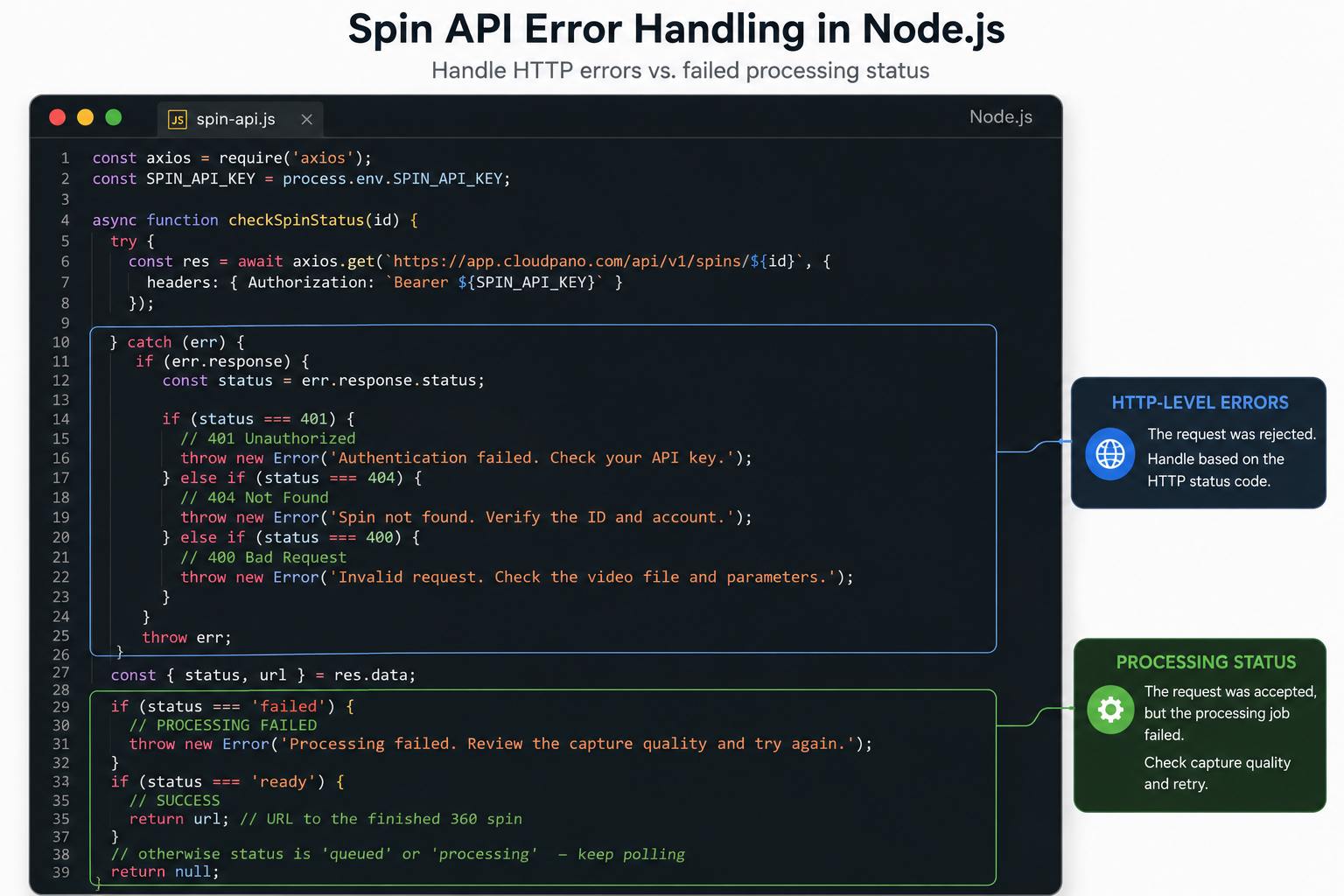
Good error handling isn't only about reacting after something fails.
You can prevent many problems before they reach the API.
For dealership-facing workflows, consider checking:
The clearer you make these requirements during capture, the fewer avoidable errors your integration will need to handle afterward.
Reliable Spin API error handling comes down to understanding what kind of failure you're dealing with.
A 401 points toward authentication.
A 404 points toward the requested spin or account context.
A 400 points toward the submitted request or video.
A failed processing status means the request was accepted, but the footage couldn't be turned into a completed spin.
Once your integration distinguishes between these situations, troubleshooting becomes much more straightforward.
Validate uploads before they're submitted, keep credentials and environments organized, monitor processing until completion, and give dealership staff clear instructions when something needs to be corrected.
For the workflow leading into error handling, see How to Create a Car 360 Spin With One API Call and Uploading Walk-Around Video to the Spin API.
If you haven't configured authentication yet, Authenticating With the Spin API covers API key management and rotation in more detail.
The Spin API documentation contains the current endpoint information, parameters, authentication requirements, processing statuses, and error-handling details.
Use the documentation as the technical reference and this guide as a practical troubleshooting framework for building a more reliable vehicle-spin workflow.


Compact, ready to go anywhere
Interchangeable lens that’s upgradeable
Dual 1-inch sensors for improved clarity and low light performance
Dynamic range and 6K 360° capture
360° photo resolution at 21MP

8K 360° video recording for ultra-detailed visuals.
4K single-lens mode for traditional wide-angle shots.
Invisible selfie stick effect for drone-like perspectives.
2.5-inch touchscreen with Gorilla Glass protection.
Waterproof up to 33ft for underwater shooting.

360° photo resolution in 23MP
Slim design at 24 mm thick
Built-in image stabilization for smooth video capture.
Internal 19GB storage for photo and video storage.
Wireless connectivity for remote control and sharing.

60MP 360° still images for high-resolution photography.
5.7K 360° video recording at 30fps.
2.25-inch touchscreen for intuitive control.
USB Type-C port for fast charging and data transfer.
MicroSD card slot for expandable storage.
.png)

.png)

Try it free. No credit card required. Instant set-up.







.svg)


.svg)