


.png)



Every dealership trying to standardize vehicle photography eventually runs into the same challenge. A dedicated turntable photo booth requires equipment, space, and staff, while manual photography can produce inconsistent results from one vehicle to the next.
Different framing, lighting, and capture techniques can make it difficult to maintain a consistent presentation across an entire inventory.
A car 360 spin API offers another approach.
Instead of relying on a turntable, lighting rig, and specialized photography workflow, you can capture a walk-around video with a phone and submit it for processing through an API.
The Spin API documentation covers the complete technical specifications. In this guide, we'll walk through how the process works, what information you can provide, what happens after a video is uploaded, and what to consider before integrating the workflow into your inventory system.
The most important thing to understand before getting started is that uploading the video does not immediately return a finished spin. The upload creates a processing job, and your application monitors that job until the finished vehicle spin is ready.
The Spin API accepts a vehicle walk-around video along with optional processing settings and starts an asynchronous processing job.
Depending on the selected options, the workflow can extract and normalize frames from the original video, improve the consistency of the vehicle's rotation, center the vehicle within the frame, process the surrounding background, and generate hosted assets for displaying the finished vehicle spin.
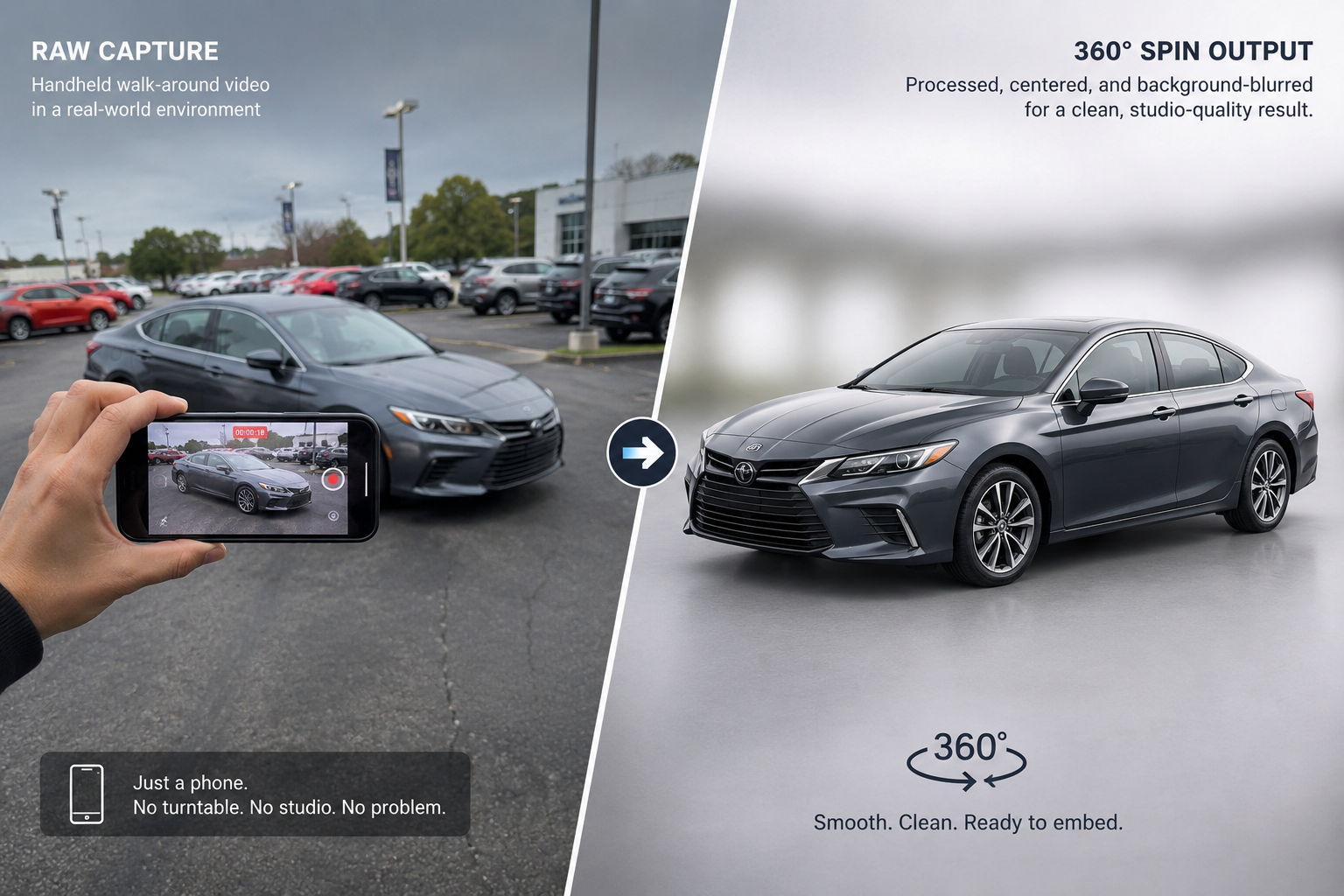
Additional processing features can also be requested when supported.
All of this processing happens after the video has been uploaded. Your application submits the footage, keeps track of the resulting processing job, and checks its status until the finished assets are available.
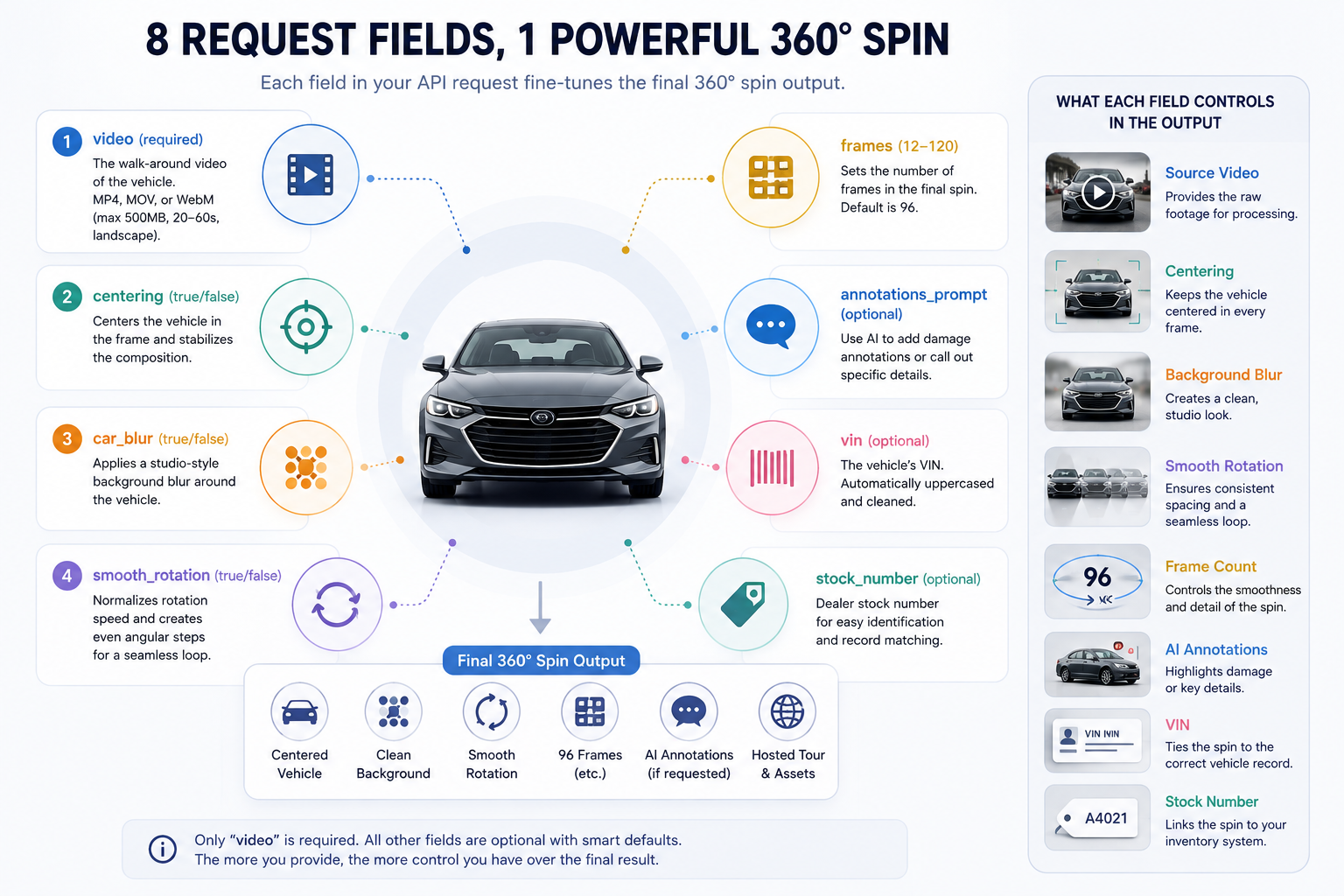
The most important input is the walk-around video itself.
The footage should capture one complete circle around the vehicle so the processing system has the necessary viewing angles to create the finished rotation.
Supported video formats currently include MP4, MOV, and WebM, with uploads capped at 500MB. The source material should be captured in landscape orientation and run between 20 and 60 seconds. Higher-resolution footage is recommended for cleaner frame extraction.
Beyond the video itself, several optional settings can be used to control how the finished spin is processed.
Centering helps keep the vehicle consistently positioned within the finished spin as the viewing angle changes.
This is particularly useful with handheld footage because the person recording the vehicle will naturally move closer or farther away and won't keep the car in exactly the same position throughout the entire walk-around.
The processing workflow can compensate for some of that natural movement to create a more consistent presentation.
A dealership lot isn't a photography studio.
Other vehicles, buildings, pavement, signage, and people may appear behind the vehicle while it's being recorded.
Background processing can reduce those visual distractions and create a cleaner presentation around the vehicle.
This allows dealerships to capture inventory in a normal lot environment rather than requiring every vehicle to be moved into a dedicated photography space.
Walking around a vehicle at exactly the same speed for an entire circle is difficult.
Someone may slow down around the front of the vehicle, speed up along the side, or slightly overshoot the starting position.
Smooth rotation processing helps normalize those differences so the resulting frames move more consistently from one viewing angle to the next.
The number of frames determines how many individual viewing angles make up the finished vehicle spin.
More frames can create smaller visual changes between angles, while fewer frames can reduce the amount of media a viewer needs to load.
The right balance depends on your website, viewer, connection requirements, and the type of vehicles you're displaying.
Because supported ranges and defaults can change, check the Spin API documentation for the current options before configuring your integration.
The Spin API can also support additional processing features such as AI-generated annotations.
An annotation can be used to identify or describe a particular area of a vehicle, which can be useful for workflows involving vehicle condition information rather than simply creating marketing imagery.
For example, a condition-reporting workflow could associate an annotation with visible damage on a particular area of the vehicle.
Because these features may require additional processing, they should be considered separately from the basic vehicle-spin workflow.
Creating a good vehicle spin is only part of the job when you're managing hundreds or thousands of inventory records.
You also need to know which vehicle the finished media belongs to.
Vehicle information such as the VIN and stock number can be associated with a submitted spin. This makes it easier to connect the resulting media with the appropriate dealership inventory record.
For dealer groups, marketplaces, and inventory platforms, preserving these identifiers throughout the workflow can make automated matching considerably easier.
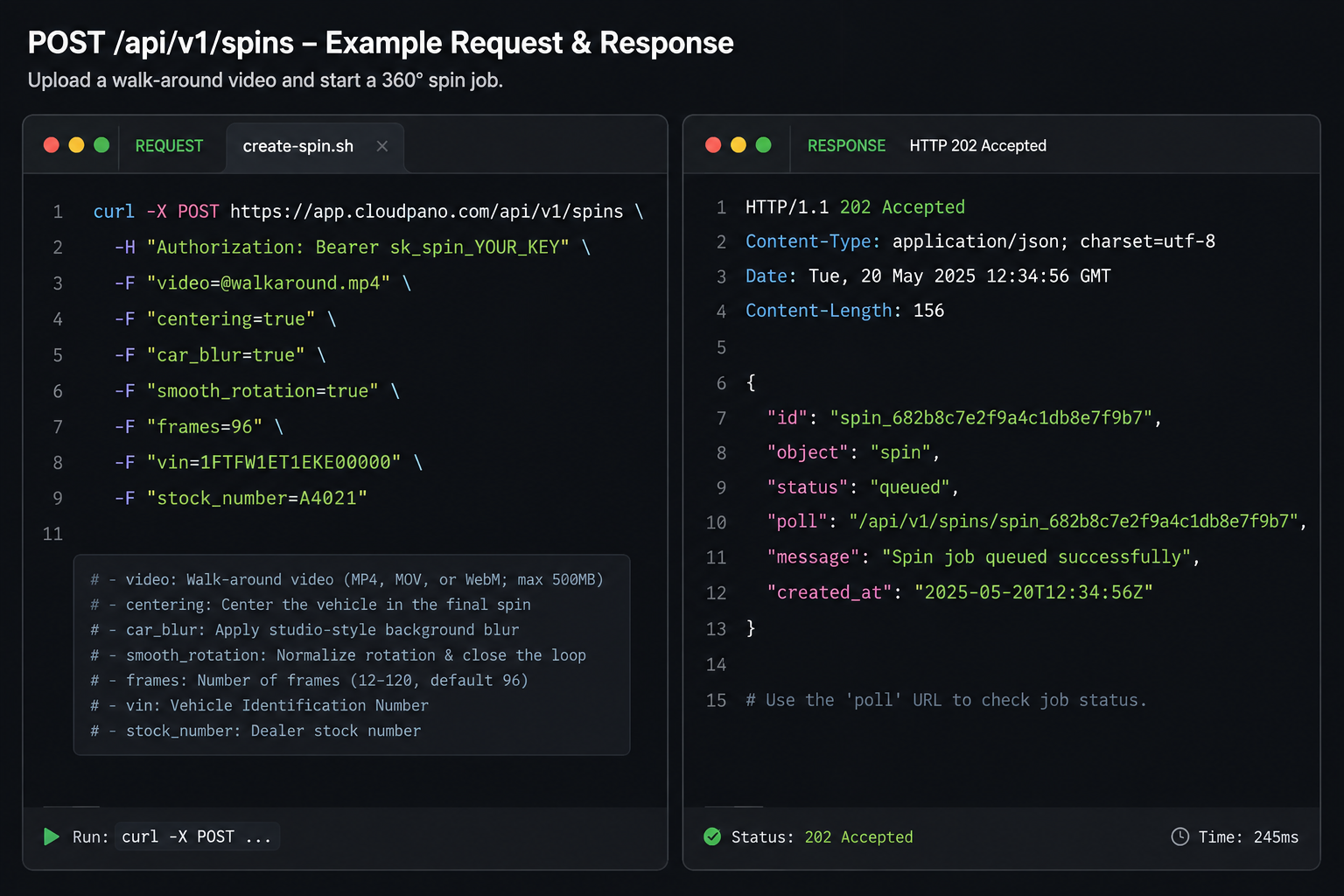
This is one of the most important parts of the workflow.
Uploading a walk-around video starts a processing job rather than immediately returning the finished vehicle spin.
Once the upload has been accepted, the job moves through different processing stages while the system prepares the vehicle media.
Your application can monitor that processing status and determine when the spin is ready or whether processing has failed.
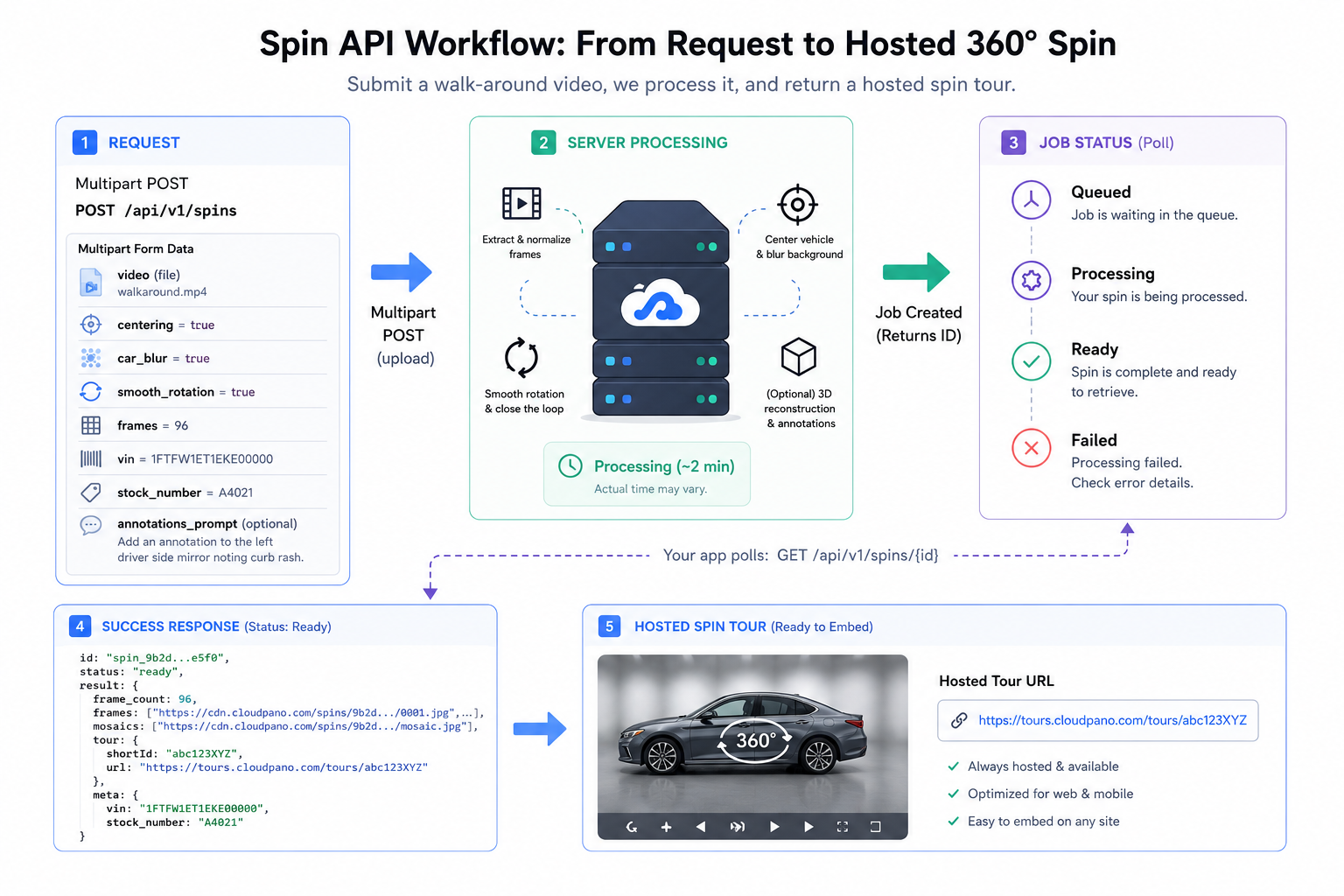
The general workflow looks like this:
Upload → Queued → Processing → Ready
A job can also reach a failed state when processing can't be completed successfully.
For a deeper explanation of this part of the integration, see our guide to polling the 360 Spin API.
Once processing is complete, the finished result can contain several types of assets and information.
The finished vehicle spin can include individually hosted images representing different viewing angles around the vehicle.
These frames can be used by compatible vehicle viewers to create an interactive rotation experience on a vehicle detail page.
Mosaic assets combine multiple vehicle frames into larger image resources.
These can be useful when building a web-based spin viewer because they provide another way to load and manage the images needed for the interactive rotation.
The result can also include information for a hosted vehicle experience.
This gives you another way to review or share the finished spin without necessarily building the entire viewing experience yourself.
The resulting data can preserve vehicle information submitted earlier in the workflow, including the VIN and stock number.
This becomes especially important when processing inventory in batches because your system needs to know which finished assets belong to which vehicle.
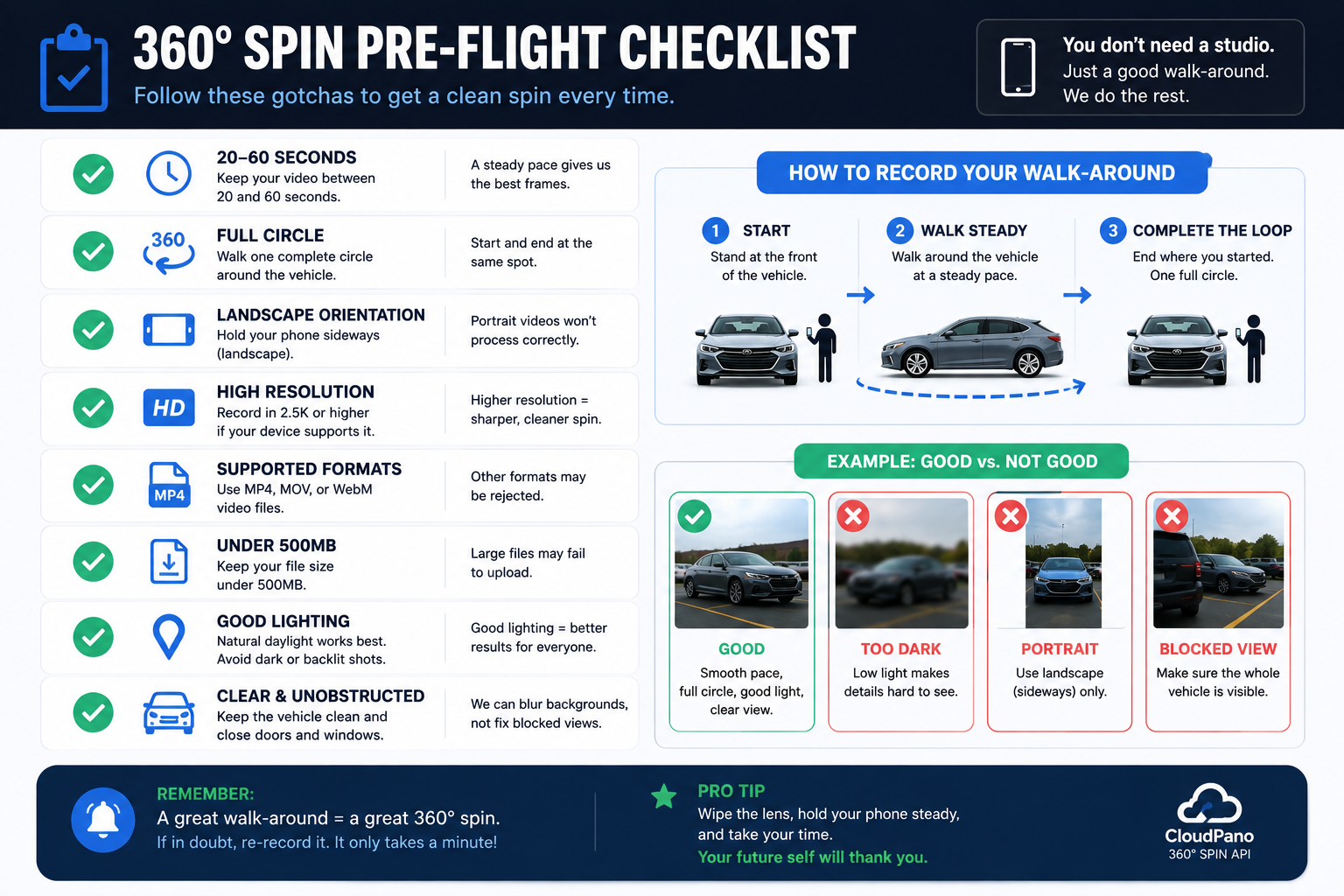
Processing can compensate for some of the natural inconsistencies of handheld footage, but it still needs usable source material.
A complete walk-around is particularly important because the system can't create a vehicle angle that was never captured.
When creating instructions for dealership staff, clearly communicate the current requirements for orientation, duration, vehicle coverage, resolution, format, and file size.
Keeping the capture process simple and repeatable can prevent avoidable processing failures later.
Your application shouldn't assume that every submitted vehicle will eventually become ready.
A processing job can also fail.
Your workflow should recognize both successful and unsuccessful completion so it doesn't continue waiting for a job that has already ended.
When a failure occurs, the returned information can help determine whether the original request needs to be corrected or the vehicle footage needs to be captured again.
Validate vehicle footage before uploading it whenever possible.
Checking the file format, size, and basic capture requirements early can prevent unnecessary processing attempts and give dealership staff faster feedback when something needs to be corrected.
The current documentation specifies supported video formats and upload limits, so those requirements should also be incorporated into any capture application or staff training process.
API credentials should be treated like any other production secret.
They shouldn't appear publicly on dealership websites, in screenshots, public documentation, or anywhere an unauthorized person could retrieve them.
Using separate credentials for different environments or integrations can also make access easier to manage.
At a high level, creating a car 360 spin through the API follows a straightforward workflow:
Capture a walk-around video → upload it → monitor processing → retrieve the finished vehicle assets.
The complicated image-processing work happens behind the API, while your integration focuses on submitting vehicle media, tracking the processing job, and connecting the resulting assets with the correct inventory record.
If you're implementing the workflow for the first time, start with one vehicle.
Capture a complete walk-around and submit it for processing. Confirm that your system can follow the job through each processing stage and recognize when the finished spin is ready.
Then inspect the resulting frames, hosted experience, and vehicle metadata before introducing additional processing options or scaling the workflow across your inventory.
Once that first vehicle moves successfully through the entire process, you'll have a much clearer picture of how the workflow fits into your dealership or automotive platform.
The complete field reference, current processing requirements, supported options, and technical implementation details are available in the Spin API documentation.


Compact, ready to go anywhere
Interchangeable lens that’s upgradeable
Dual 1-inch sensors for improved clarity and low light performance
Dynamic range and 6K 360° capture
360° photo resolution at 21MP

8K 360° video recording for ultra-detailed visuals.
4K single-lens mode for traditional wide-angle shots.
Invisible selfie stick effect for drone-like perspectives.
2.5-inch touchscreen with Gorilla Glass protection.
Waterproof up to 33ft for underwater shooting.

360° photo resolution in 23MP
Slim design at 24 mm thick
Built-in image stabilization for smooth video capture.
Internal 19GB storage for photo and video storage.
Wireless connectivity for remote control and sharing.

60MP 360° still images for high-resolution photography.
5.7K 360° video recording at 30fps.
2.25-inch touchscreen for intuitive control.
USB Type-C port for fast charging and data transfer.
MicroSD card slot for expandable storage.
.png)

.png)

Try it free. No credit card required. Instant set-up.







.svg)


.svg)