


.png)


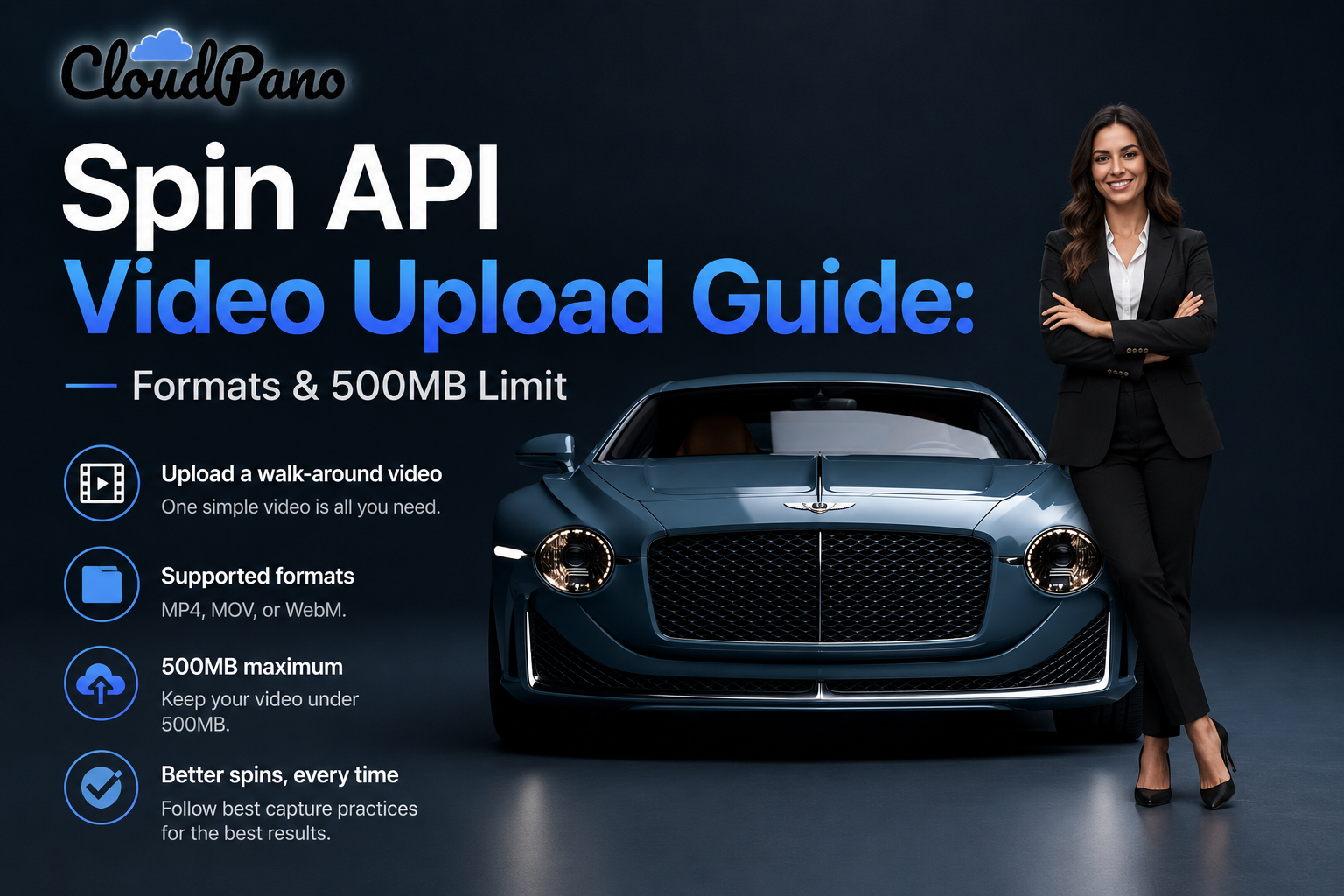
Traditional vehicle turntable systems can require expensive equipment, installation, dedicated space, and a carefully managed capture workflow.
For dealerships processing a steady stream of inventory, that can create unnecessary complexity. And when vehicle spins are inconsistent — with uneven framing, distracting backgrounds, or choppy rotation — the quality of the vehicle detail page (VDP) can suffer.
The CloudPano Spin API offers another approach.
Instead of moving every vehicle into a dedicated photo booth, dealership staff can capture a single handheld walk-around video and submit it for processing into an interactive 360° vehicle spin.
The full parameter list, response details, and authentication requirements are available in the Spin API developer documentation.
This guide focuses on one of the most important parts of that workflow: capturing and uploading footage that can be processed successfully.
The primary input for creating a vehicle spin is a walk-around video.
Additional settings can be used to control aspects of the finished result, including vehicle centering, background processing, rotation smoothing, frame count, annotations, VIN, and stock number.
Once the video has been successfully submitted, processing happens asynchronously rather than requiring the original upload request to remain open.
The job moves through several processing stages until the finished vehicle spin is ready.
If you want to understand the complete upload-to-spin workflow, see How to Create a Car 360 Spin With One API Call.
The Spin API currently accepts three video formats:
If you're building a capture or upload workflow for dealership staff, limiting uploads to supported formats can prevent unnecessary errors before processing begins.
There is also a 500 MB maximum upload size.
That limit is important when capturing footage with modern smartphones, particularly when recording at very high resolutions or frame rates.
The goal isn't necessarily to record the largest possible file. It's to capture enough visual detail for a high-quality spin while keeping the footage within the supported upload limits.
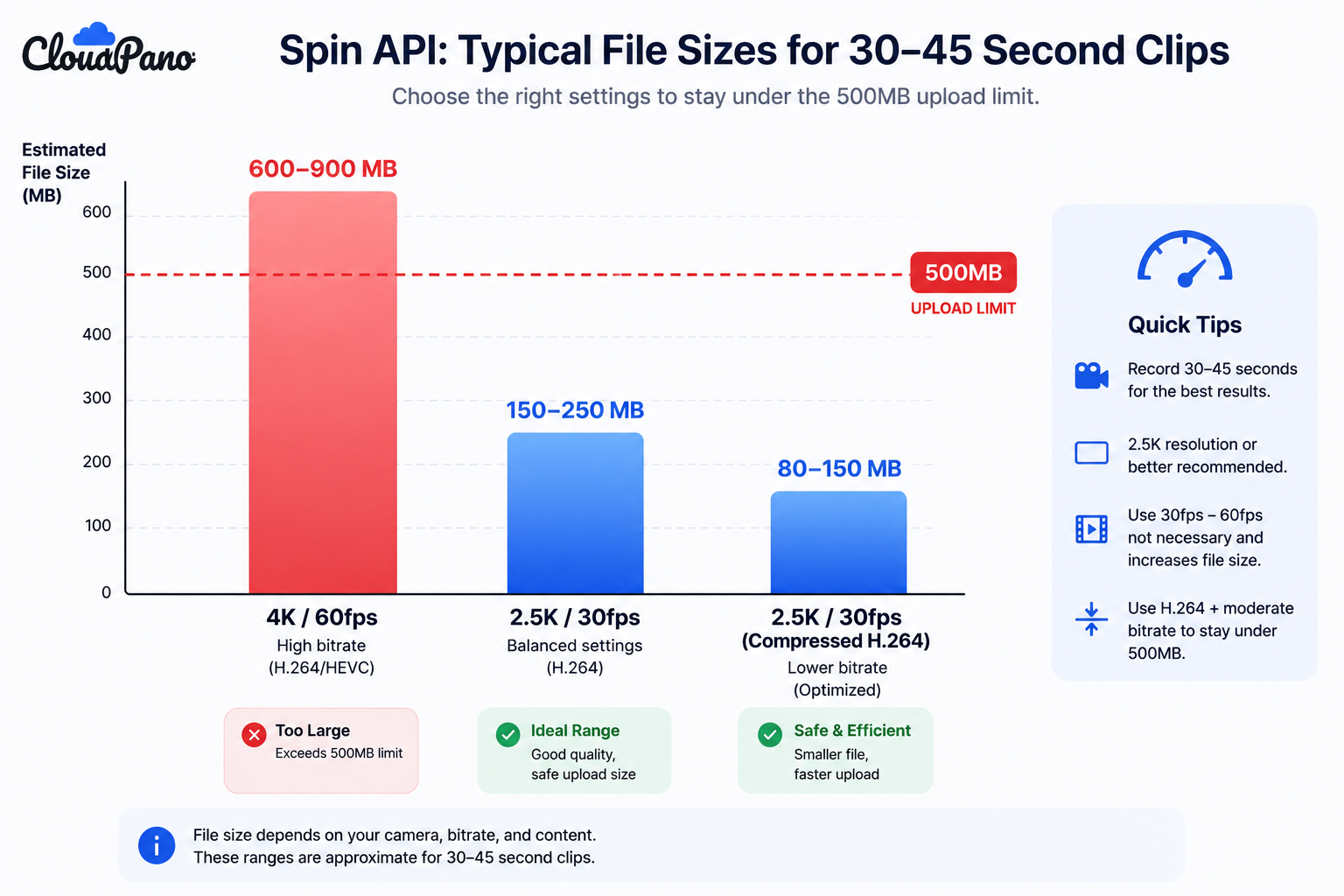
The source documentation recommends 2.5K or higher resolution for good visual detail in the finished vehicle frames.
At the same time, the resulting file needs to remain under the 500 MB upload limit.
A practical approach is to focus on the settings that have the biggest impact on file size, including frame rate, bitrate, recording duration, and compression.
For many workflows, recording at around 30 frames per second can provide sufficient source footage without creating unnecessarily large files.
Keeping the walk-around within the recommended capture window also helps control file size while providing enough viewing angles for processing.
If you're collecting footage from many different phones or dealership locations, standardizing capture settings can also make the resulting uploads more consistent.
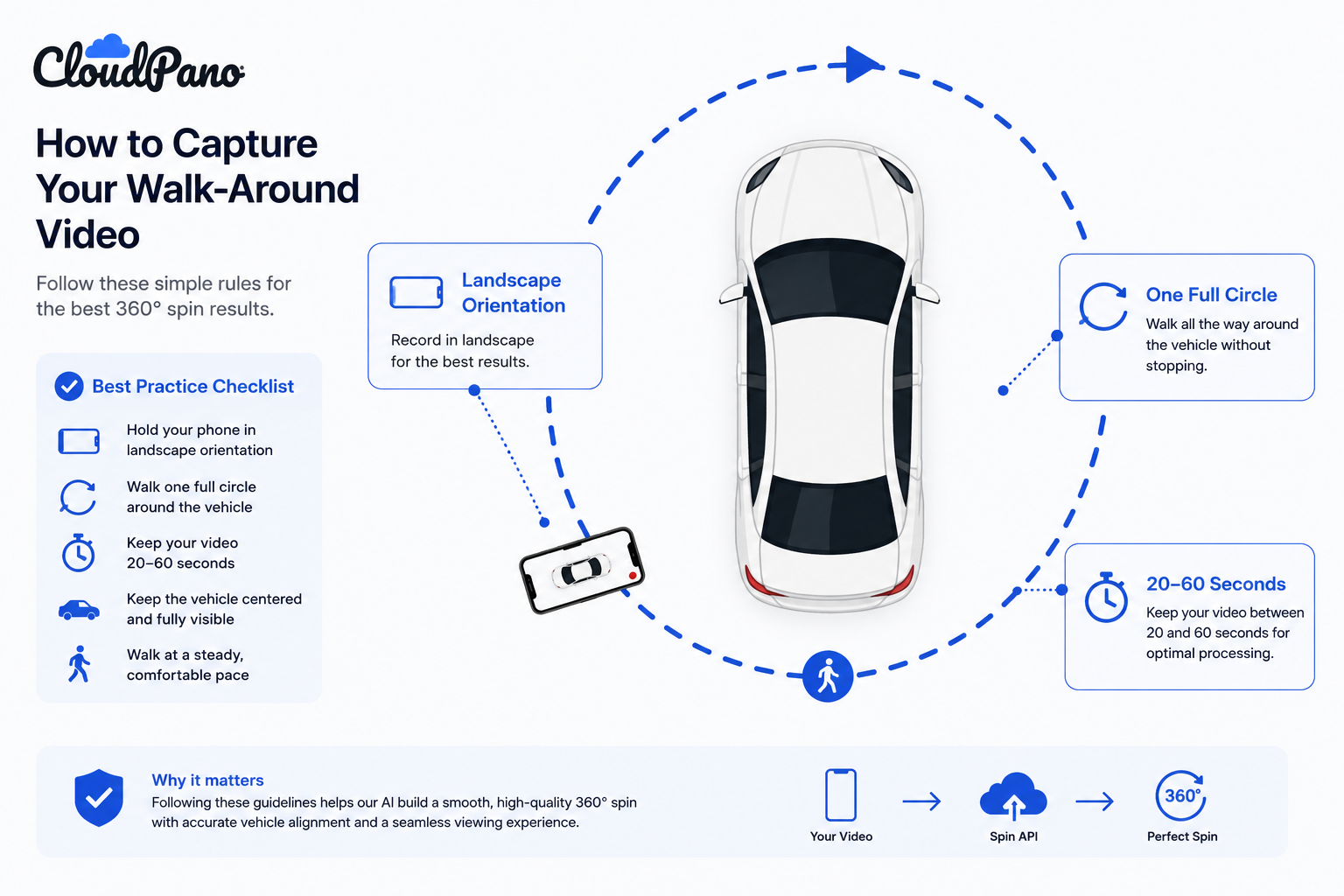
The capture process itself is simple, but several requirements matter.
Walk completely around the vehicle rather than recording only part of it.
The vehicle should remain the main subject throughout the recording, with the camera following a continuous path around it.
A complete walk-around provides the system with the different viewing angles needed to create the resulting rotation.
Capture the walk-around in landscape orientation.
This gives the footage the appropriate framing for a vehicle walk-around and helps maintain consistent geometry throughout the recording.
The recommended recording length is approximately 20 to 60 seconds.
That provides enough footage to capture the vehicle from multiple angles while helping keep the recording manageable in size.
Try to maintain a comfortable and reasonably consistent walking pace rather than rushing around the vehicle or stopping repeatedly.
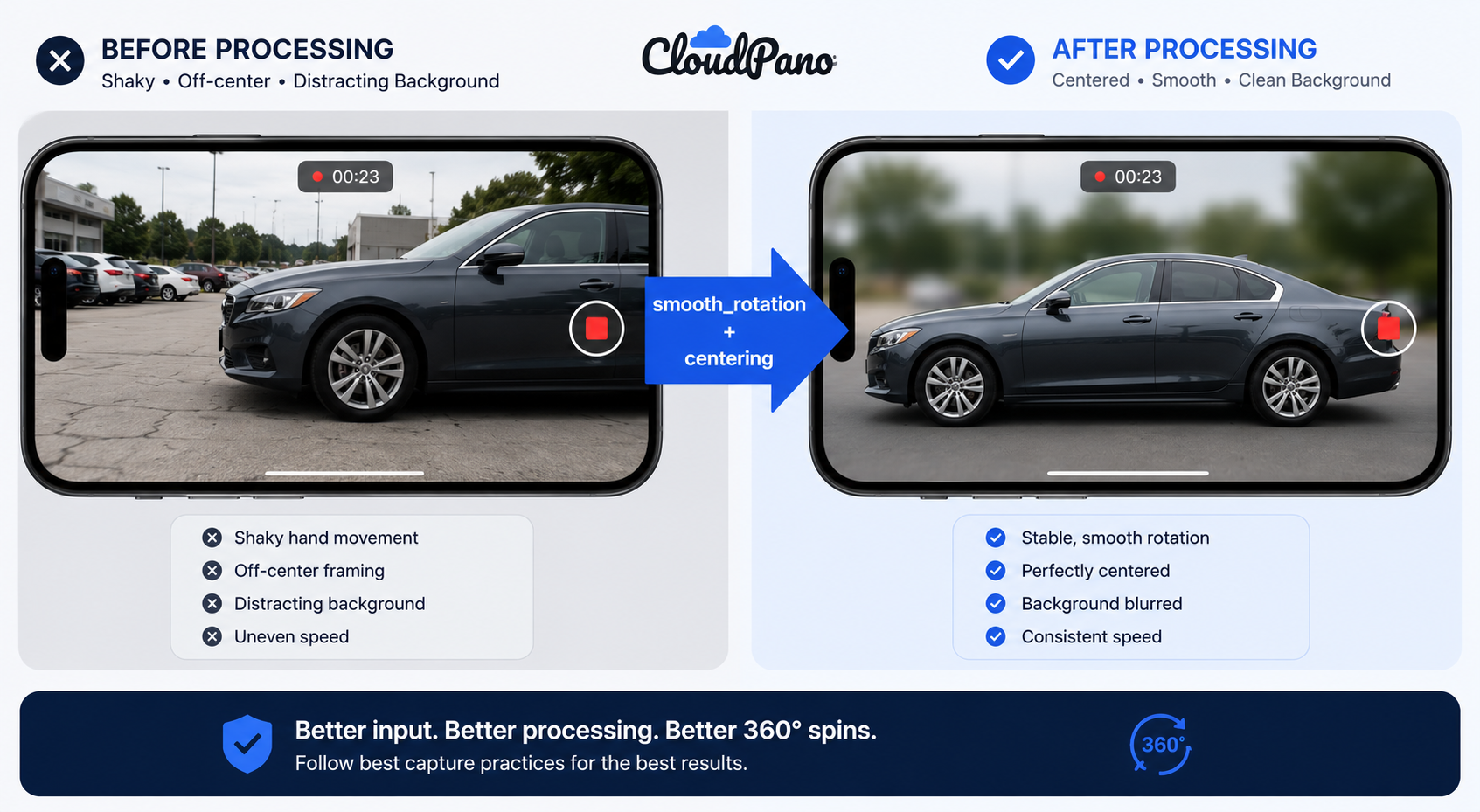
One advantage of the workflow is that dealership staff don't necessarily need a turntable, gimbal, or professional camera setup for every vehicle.
The Spin API includes processing options designed to help improve the consistency of handheld footage.
Rotation smoothing can help compensate for variations in walking speed, while vehicle centering helps keep the car positioned more consistently throughout the finished spin.
Background processing can also help reduce visual distractions around the vehicle.
These features don't eliminate the need for usable footage, but they make the capture process more forgiving than a workflow that requires every individual frame to be positioned manually.
The practical goal is straightforward:
Walk one complete, reasonably paced circle around the vehicle, record in landscape orientation, and keep the vehicle clearly visible throughout the capture.
For a deeper look at these processing options, see The 360 Spin API for Car Dealerships.
Not every unsuccessful vehicle spin fails for the same reason.
There is an important difference between a problem with the upload itself and a problem that occurs after processing begins.
Understanding that distinction can make troubleshooting much easier.
An upload can be rejected before vehicle processing begins if the request doesn't contain a valid supported video or if the uploaded file exceeds the maximum size.
Examples include:
These are generally problems with the file or upload itself rather than the visual quality of the walk-around.
The solution may be as simple as selecting the correct file, using a supported format, or reducing the file size before uploading again.
A different type of problem can occur after a video has already been accepted.
In this situation, the upload itself succeeded, but the footage couldn't be processed into a usable vehicle spin.
Possible causes can include an incomplete walk-around, the vehicle disappearing from the frame for an extended period, excessive motion blur, or footage that doesn't provide enough consistent visual information for reconstruction.
In those situations, the best solution may be to capture the vehicle again rather than repeatedly submitting the same footage.
If you're building your own capture interface, don't treat every unsuccessful attempt as the same generic “upload failed” error.
The message should help the person capturing the vehicle understand what needs to happen next.
For example, a file that's too large may simply need to be compressed or recorded using more appropriate settings.
An incomplete or unusable walk-around, on the other hand, probably needs to be recorded again.
Making that distinction clear can reduce confusion for dealership staff and make the capture workflow easier to manage across multiple locations.
The easiest way to avoid processing problems is to standardize the capture workflow before rolling it out across your dealership or dealer group.
A simple checklist for staff would be:
These guidelines give the processing system usable source footage without requiring dealership employees to become professional automotive photographers.
Before rolling the workflow out across an entire dealership group, start with a few vehicles.
Capture a complete walk-around using the same phone and settings your staff will use in production. Upload the footage, review the resulting vehicle spin, and identify any adjustments that would make the process easier or more consistent.
Once you've established a reliable capture routine, document those instructions for dealership staff so every location follows roughly the same process.
The goal is to make capturing a vehicle spin repeatable:
Take out the phone → walk around the vehicle → upload the video → let the system process the spin.
The Spin API documentation contains the current upload requirements, supported parameters, processing information, authentication requirements, and other technical details.
Once you've established a reliable capture process, you can begin connecting it to the rest of your inventory workflow — from vehicle uploads and processing to interactive 360° spins on your VDPs.


Compact, ready to go anywhere
Interchangeable lens that’s upgradeable
Dual 1-inch sensors for improved clarity and low light performance
Dynamic range and 6K 360° capture
360° photo resolution at 21MP

8K 360° video recording for ultra-detailed visuals.
4K single-lens mode for traditional wide-angle shots.
Invisible selfie stick effect for drone-like perspectives.
2.5-inch touchscreen with Gorilla Glass protection.
Waterproof up to 33ft for underwater shooting.

360° photo resolution in 23MP
Slim design at 24 mm thick
Built-in image stabilization for smooth video capture.
Internal 19GB storage for photo and video storage.
Wireless connectivity for remote control and sharing.

60MP 360° still images for high-resolution photography.
5.7K 360° video recording at 30fps.
2.25-inch touchscreen for intuitive control.
USB Type-C port for fast charging and data transfer.
MicroSD card slot for expandable storage.
.png)

.png)

Try it free. No credit card required. Instant set-up.







.svg)


.svg)