


.png)



Every dealership looking to improve vehicle photography eventually faces a similar challenge. Traditional turntable systems require equipment, dedicated space, and a consistent capture process. Standard vehicle photography is easier to set up, but it may not provide the same interactive experience as a 360° vehicle spin.
A handheld walk-around video processed through a 360 Spin API offers another option. Instead of relying on dedicated turntable equipment, dealership staff can capture a vehicle with a phone and submit the footage for processing.
But there's an important technical consideration: the finished spin isn't available immediately after the video is uploaded.
The footage needs time to process.
This guide explains how to handle that waiting period properly so your application can remain responsive while the finished vehicle spin is being created.
The CloudPano Spin API accepts a single handheld walk-around video of a vehicle and processes it into a 360° spin.
The source footage should capture one complete circle around the vehicle, typically between 20 and 60 seconds, in landscape orientation.
During processing, the system can perform several operations, including frame extraction, vehicle centering, background processing, rotation smoothing, and generation of assets used for the finished spin.
These operations take time, which is why the API uses an asynchronous processing workflow.
Instead of keeping your original connection open while the vehicle media is processed, the system creates a processing job that your application can monitor.
If you haven't uploaded your first vehicle yet, start with our guide to creating a car 360 spin with one API call.
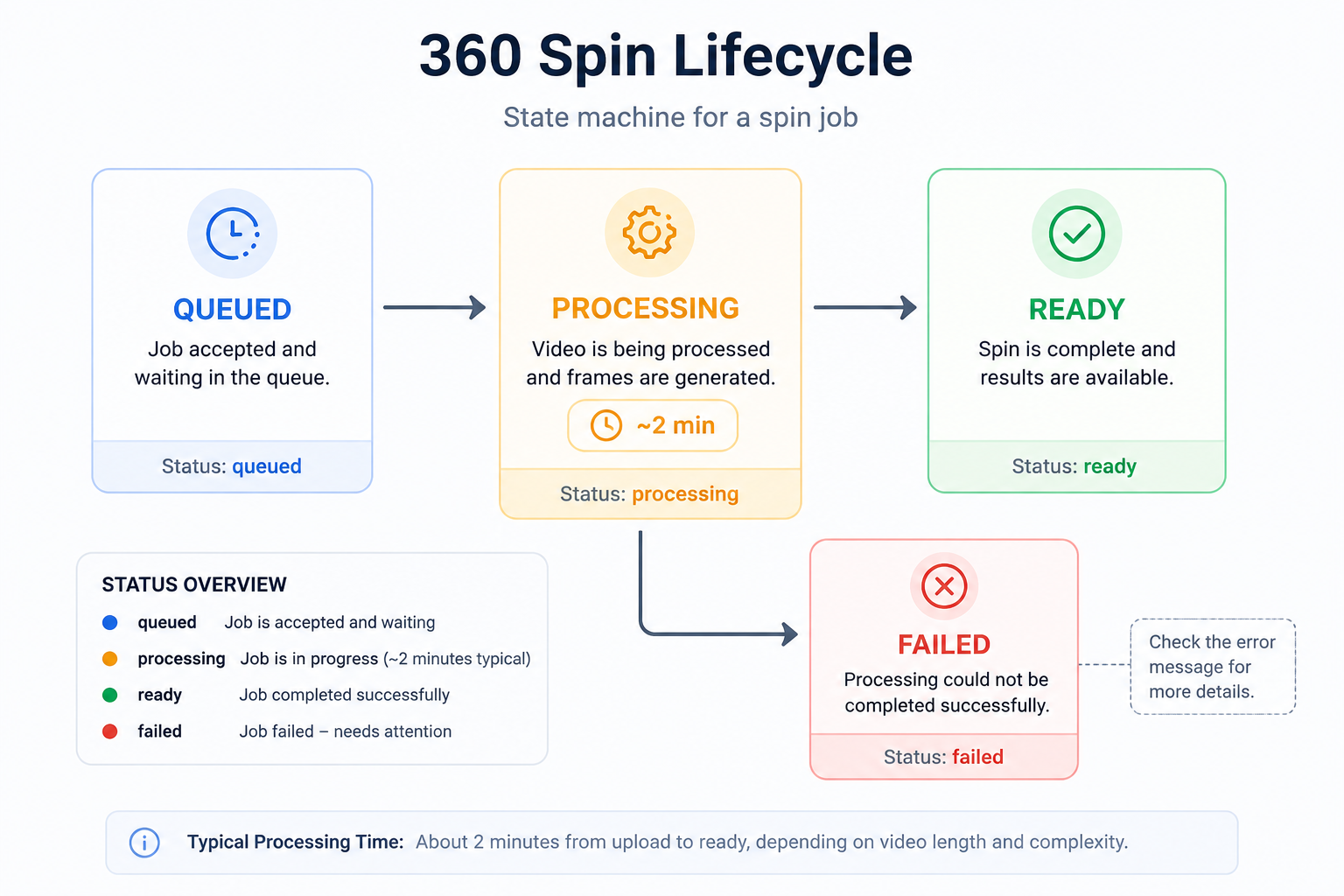
After a walk-around video has been successfully submitted, the resulting job moves through a small number of processing stages.
The typical progression is:
Queued → Processing → Ready
A job can also end in a failed state if the footage or processing request can't be completed successfully.
The important thing for your application to understand is that queued does not mean finished.
It simply means the video has been accepted and is waiting to be processed.
Once processing begins, the status changes accordingly. When all required processing has been completed successfully, the job becomes ready and the finished vehicle assets become available.
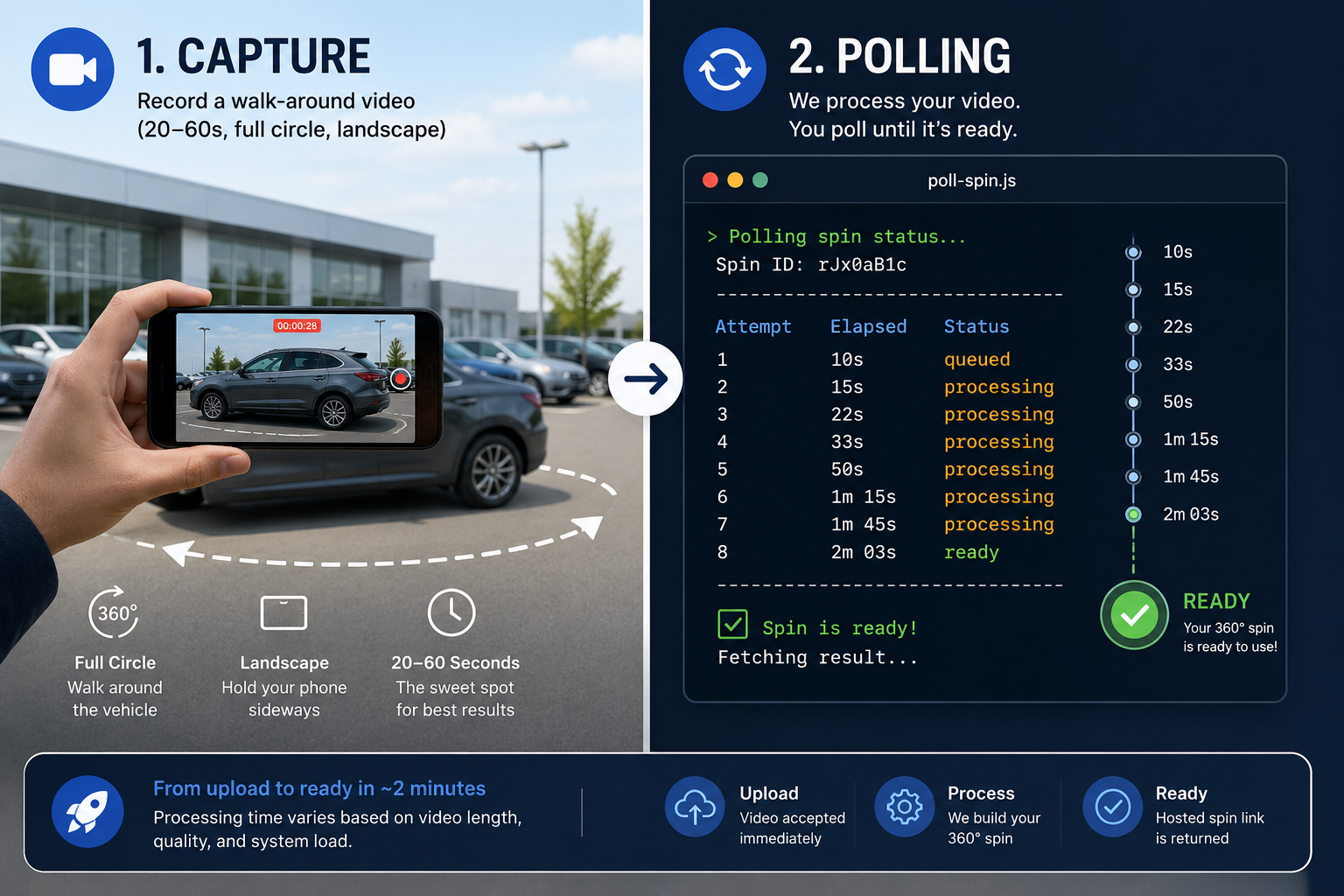
Your application needs a way to determine when processing has finished.
CloudPano's currently documented Spin API workflow uses polling, which means your application periodically checks the processing status of the vehicle spin.
If the job is still queued or processing, your application waits before checking again.
Once the job becomes ready, it can retrieve and use the finished assets.
If the job fails, your application should stop checking and handle the failure appropriately.
This approach allows the image-processing work to happen separately from the rest of your application rather than forcing a user or browser session to remain open while processing takes place.
Polling doesn't mean continuously asking whether the vehicle spin is ready.
Checking too frequently creates unnecessary requests without making the actual processing finish any faster.
Instead, your application should use a reasonable interval between status checks.
Because vehicle processing generally takes some time, allowing a short pause between checks gives the system time to work while keeping your application informed about the job's progress.
The exact interval you choose should balance responsiveness with efficiency.
The goal is simple: check often enough to detect completion promptly, but not so often that your application generates unnecessary traffic.
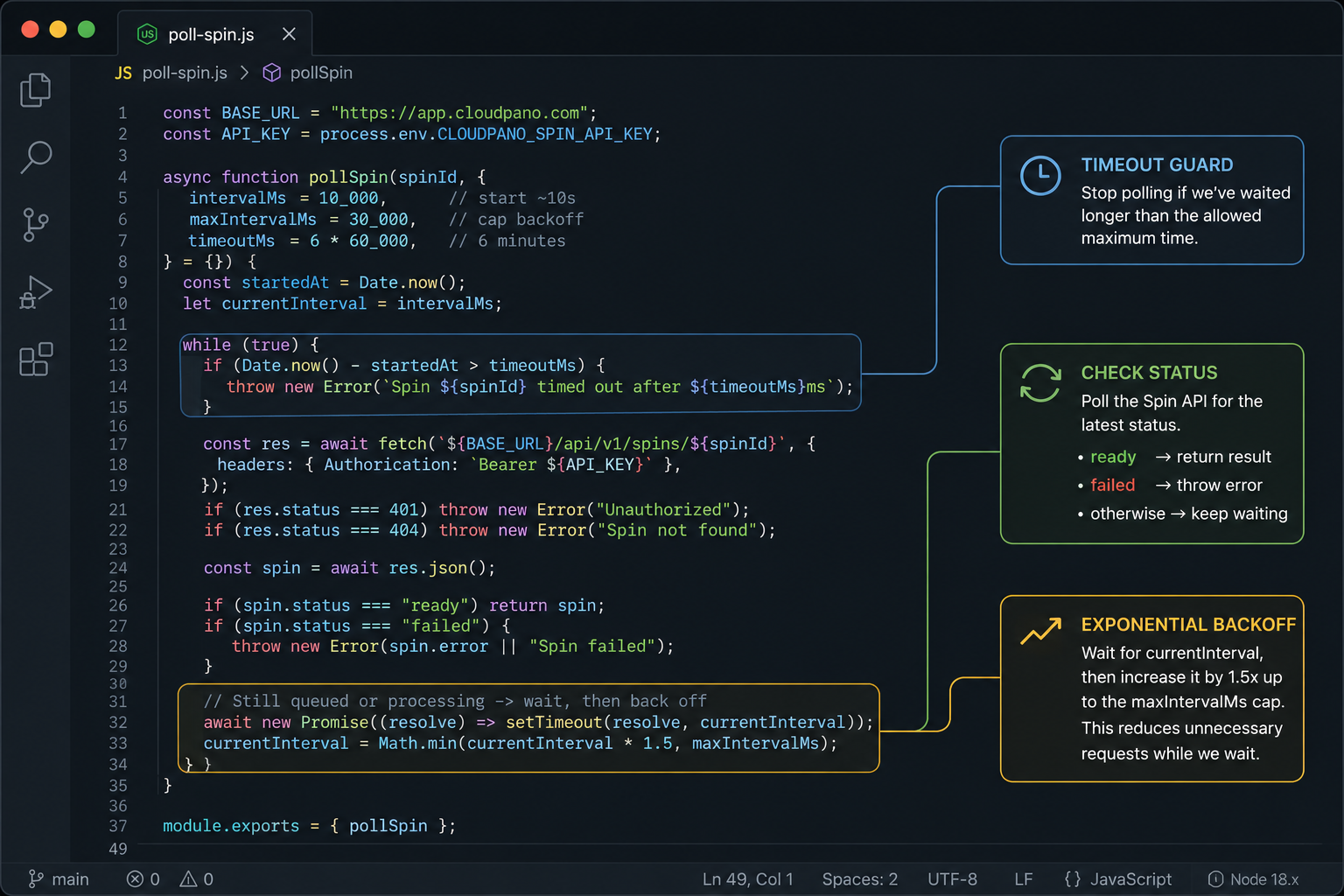
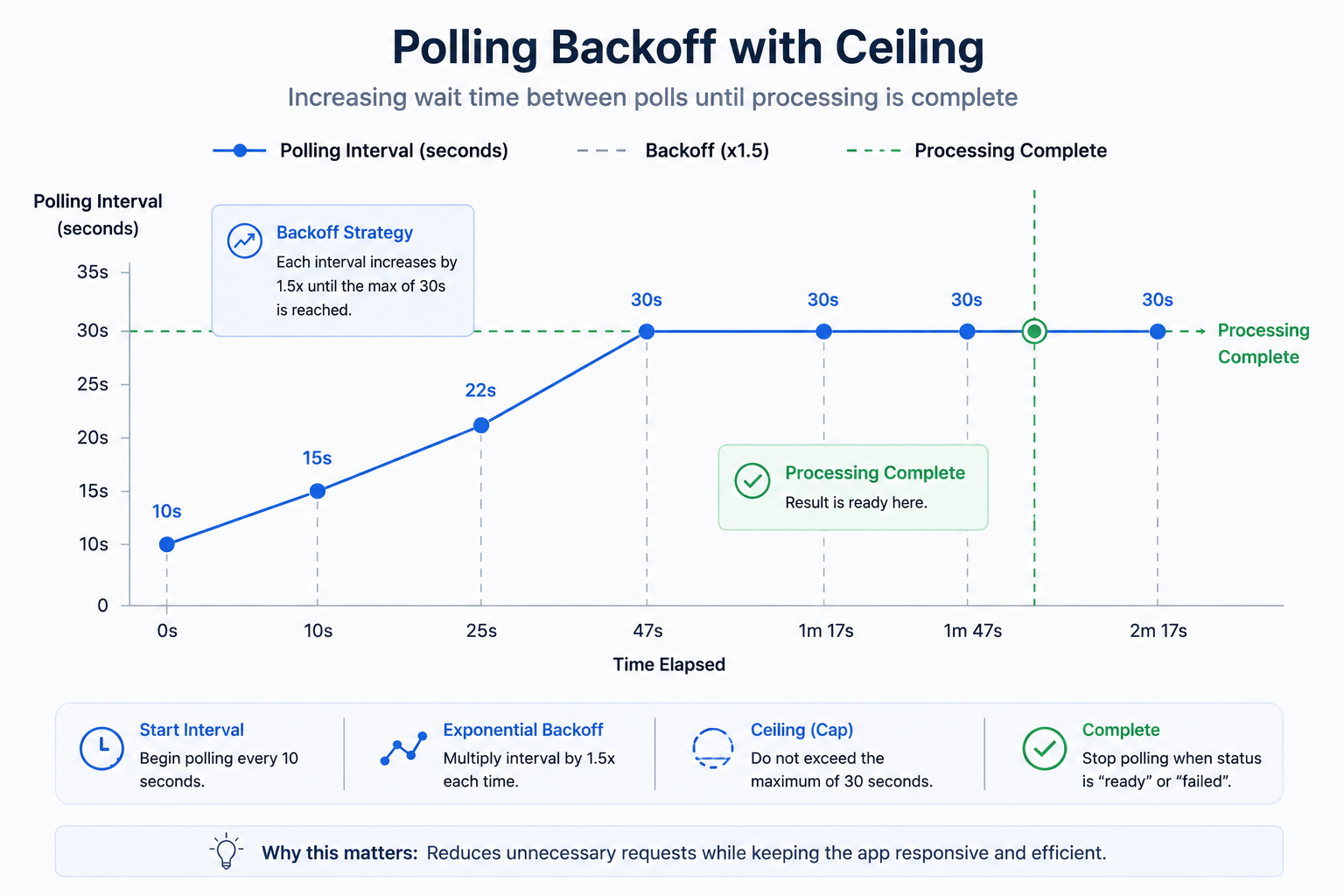
Another approach is to gradually increase the amount of time between status checks when a vehicle remains in processing.
For example, your application might check relatively soon after the upload and then wait progressively longer if processing continues.
This is commonly known as backoff.
The advantage is that your application remains responsive during the early stages of processing without repeatedly checking a job that may still need additional time.
It's also useful to establish a maximum interval so the application doesn't eventually wait an unnecessarily long time before discovering that a vehicle spin has finished. The original implementation example uses this type of capped backoff strategy.
Your application should never continue checking the same processing job indefinitely.
Even when most vehicle spins finish within the expected processing window, network issues, unusual source footage, or other processing problems can occur.
Set a reasonable maximum waiting period for each job.
If that limit is reached without the vehicle becoming ready or failing, stop the polling process and surface the job for additional handling.
A timeout doesn't necessarily mean the underlying job failed. It means your application has stopped waiting indefinitely and can now decide what should happen next.
This makes the integration more predictable and prevents abandoned jobs from consuming resources forever.
A failed job is a completed state from your application's perspective.
Once processing has failed, continuing to check the same job doesn't provide any benefit.
Instead, stop polling and inspect the available error information.
Failures may be associated with problems in the original vehicle footage, such as an incomplete walk-around, obstructed views, or footage that doesn't provide enough usable information for processing.
In those situations, capturing new footage may be more useful than repeatedly submitting the same problematic source material.
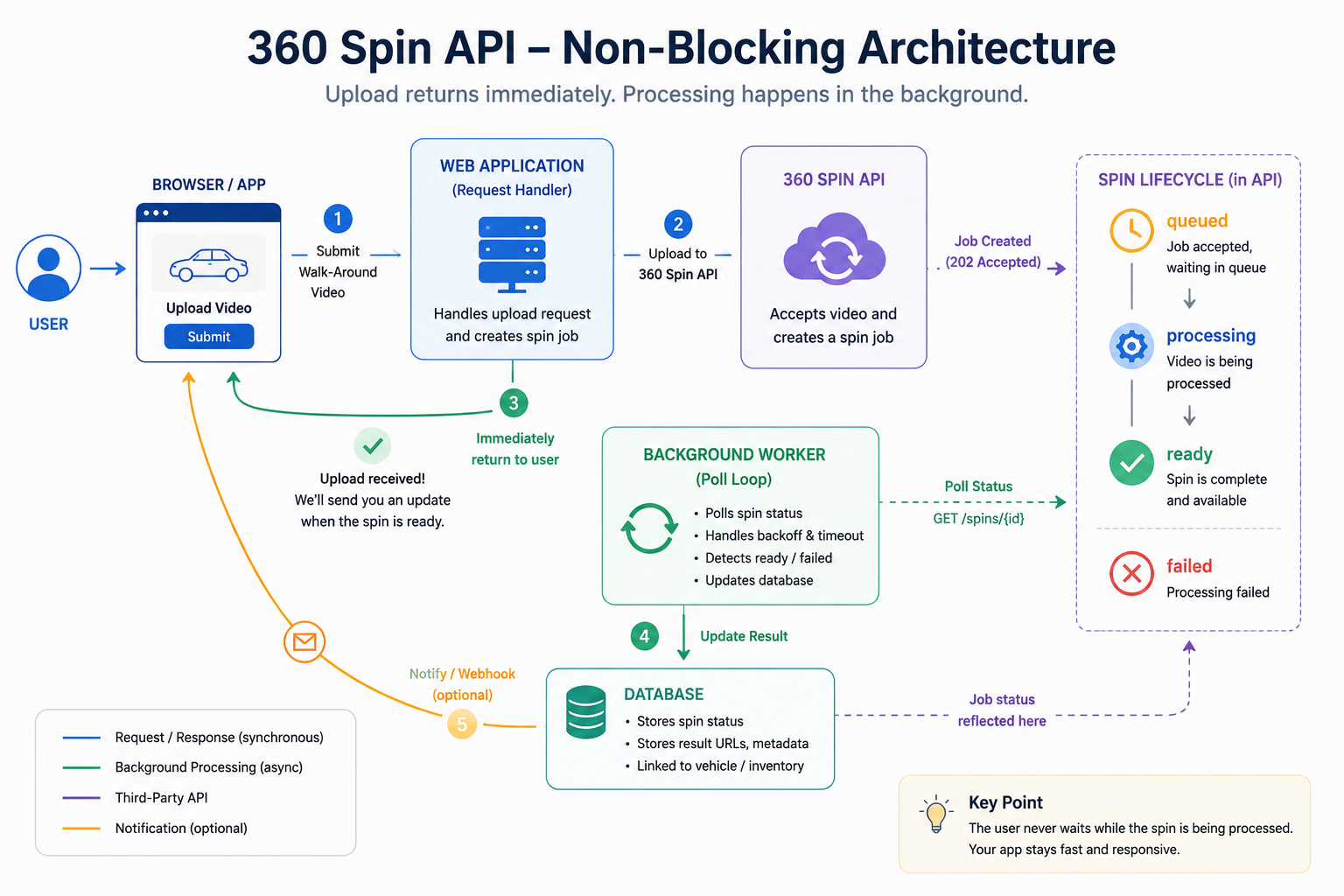
One of the most important implementation decisions is where polling happens.
The vehicle-processing wait should not block the page, upload request, or user interaction that originally submitted the footage.
Instead, your application should allow the upload interaction to finish and handle the remaining processing work separately.
This allows the user interface to remain responsive while the vehicle spin is being created in the background.
For dealership applications, the experience might look something like:
Vehicle uploaded → Processing → Spin ready
The employee doesn't need to keep a browser connection open while the system waits.
Once processing is complete, your application can update the vehicle's status and make the finished spin available.
Once processing reaches the ready state, the finished result can include several types of vehicle media and information.
The result can include the individual hosted images that make up the vehicle's rotation.
These frames can be used by a compatible 360° viewer to allow shoppers to rotate the vehicle and inspect it from different angles.
The resulting media can also include mosaic or sprite-sheet assets that combine multiple vehicle frames.
These can be useful for web-based viewers designed to display interactive vehicle rotations efficiently.
Depending on the processing workflow and available output, the finished result can include information associated with the vehicle's reconstructed geometry.
These assets support some of the processing and advanced capabilities associated with the resulting spin.
The completed result can include a hosted viewing experience for the finished vehicle spin.
This provides a convenient way to review or share the vehicle without requiring your application to build the entire viewing experience itself.
The resulting data can also include information associated with the vehicle and processing job, such as the VIN, stock number, frame count, and processing information.
Preserving these identifiers is particularly useful when processing multiple vehicles because your inventory system needs to know which finished media belongs to each record.
Checking a processing job more frequently doesn't make the underlying vehicle processing happen faster.
Choose a sensible interval and avoid unnecessary requests.
If a job remains in processing, gradually increasing the time between checks can reduce unnecessary traffic.
Set a reasonable upper limit so your application still detects completion promptly.
No processing job should be checked forever.
Define a maximum waiting period and determine how your application should handle jobs that remain unresolved beyond that point.
Your application needs to know when to stop checking.
Both ready and failed represent terminal states and should end the polling process.
Don't force users to wait on an open page or request while vehicle media is being processed.
Let the upload complete, handle processing separately, and update the user-facing experience when the result becomes available.
This becomes particularly important when a dealership processes multiple vehicles at the same time.
Every interaction with the Spin API requires authentication, so credential management should be part of the integration from the beginning.
Avoid exposing API credentials in public-facing applications or sharing one credential unnecessarily across every service and environment.
Separate credentials can make it easier to manage development, staging, production, or different services independently.
CloudPano currently supports multiple active API keys per account, allowing integrations to separate credentials where appropriate.
At a high level, the complete workflow is straightforward:
Upload the walk-around video → create the processing job → monitor its status → retrieve the finished spin when it's ready.
The key is to treat vehicle processing as background work rather than something that must finish during the original upload interaction.
Your application submits the footage and lets the processing system do its work. Meanwhile, your user interface remains available and responsive.
Once processing finishes, your system can retrieve the resulting vehicle assets, associate them with the appropriate inventory record, and make the finished 360° spin available on the VDP.
If you're implementing the workflow for the first time, start with a single vehicle.
Upload one complete walk-around, follow it through each processing stage, confirm that your application correctly handles both successful and unsuccessful outcomes, and inspect the resulting media.
Once that workflow is reliable, you can begin scaling it across larger inventories and multiple dealership locations.
The Spin API documentation contains the current processing workflow, available output fields, authentication requirements, and other implementation details.
If you haven't created your first vehicle spin yet, start with creating a car 360 spin with one API call.
Once those pieces are in place, your application can handle the processing wait without blocking the user experience — and automatically make the finished 360° vehicle spin available when it's ready.


Compact, ready to go anywhere
Interchangeable lens that’s upgradeable
Dual 1-inch sensors for improved clarity and low light performance
Dynamic range and 6K 360° capture
360° photo resolution at 21MP

8K 360° video recording for ultra-detailed visuals.
4K single-lens mode for traditional wide-angle shots.
Invisible selfie stick effect for drone-like perspectives.
2.5-inch touchscreen with Gorilla Glass protection.
Waterproof up to 33ft for underwater shooting.

360° photo resolution in 23MP
Slim design at 24 mm thick
Built-in image stabilization for smooth video capture.
Internal 19GB storage for photo and video storage.
Wireless connectivity for remote control and sharing.

60MP 360° still images for high-resolution photography.
5.7K 360° video recording at 30fps.
2.25-inch touchscreen for intuitive control.
USB Type-C port for fast charging and data transfer.
MicroSD card slot for expandable storage.
.png)

.png)

Try it free. No credit card required. Instant set-up.







.svg)


.svg)