


.png)


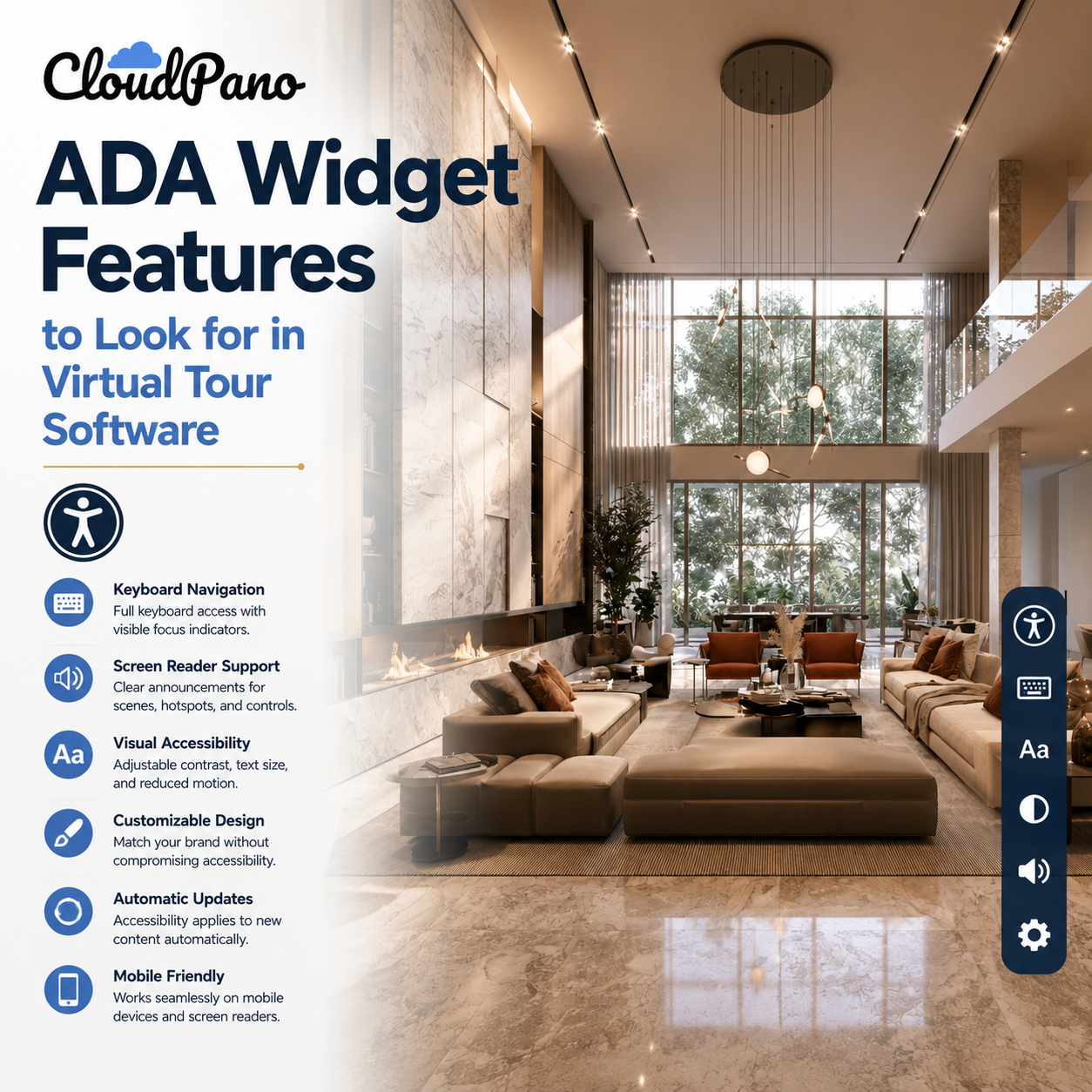
Plenty of virtual tour platforms now advertise "ADA compliance" or "accessibility support" somewhere on their feature pages. Far fewer explain exactly what that means in practice. If you're evaluating virtual tour software and want to make an informed decision, it helps to understand the specific ADA widget features that separate a genuinely useful accessibility tool from a simple marketing checkbox.
This is one of the most important distinctions to understand before evaluating anything else. Many accessibility widgets on the market were originally designed as general website overlays for standard pages containing text, images, forms, and other traditional web elements. These tools may not always address the unique accessibility challenges of an interactive virtual tour.
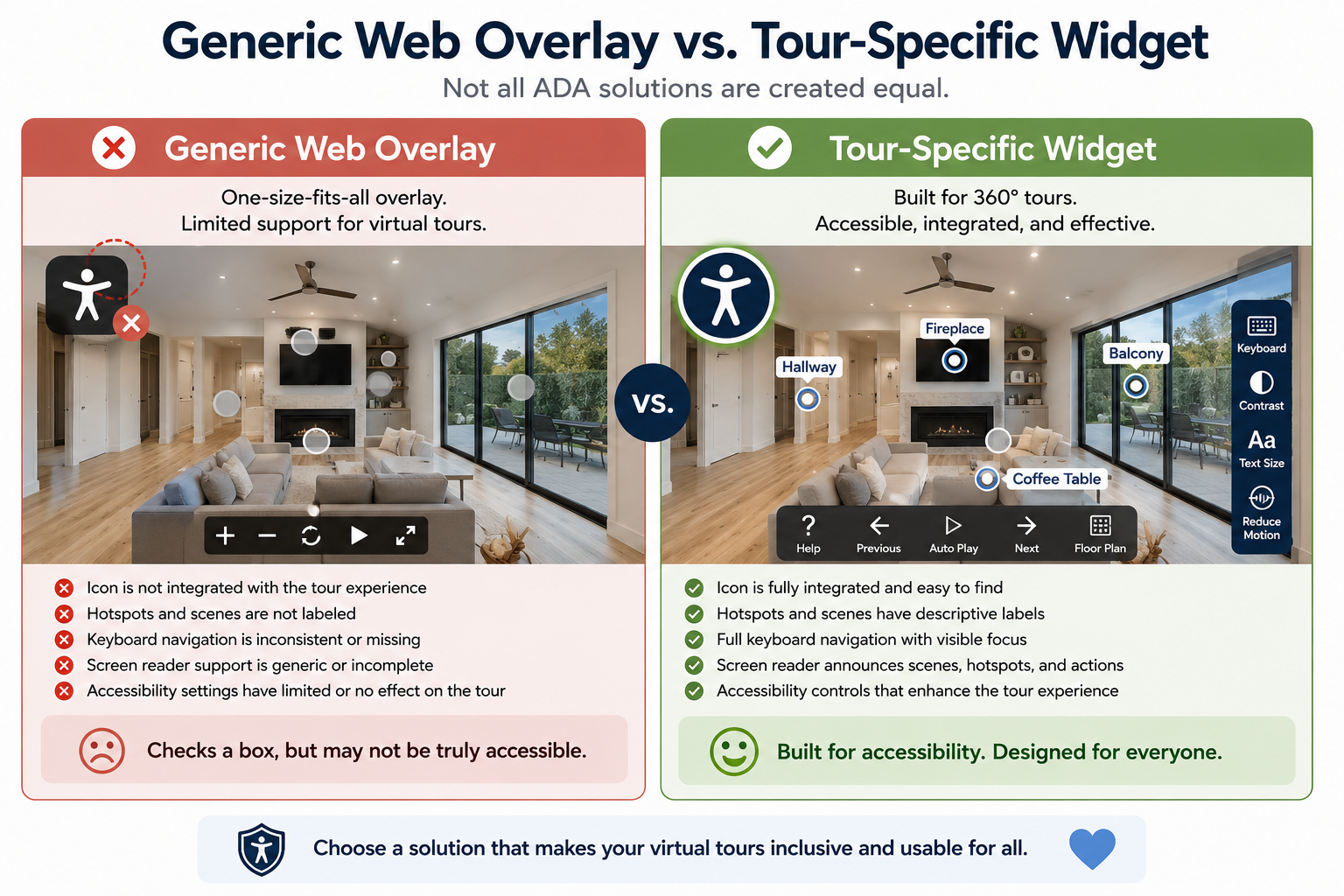
A solution designed specifically for interactive 360° content can account for tour-specific elements such as scenes, hotspots, navigation transitions, and embedded media within a spatial environment. A generic overlay may not fully understand or address these elements, which is why it's important to evaluate how well the accessibility features actually work within the tour itself.
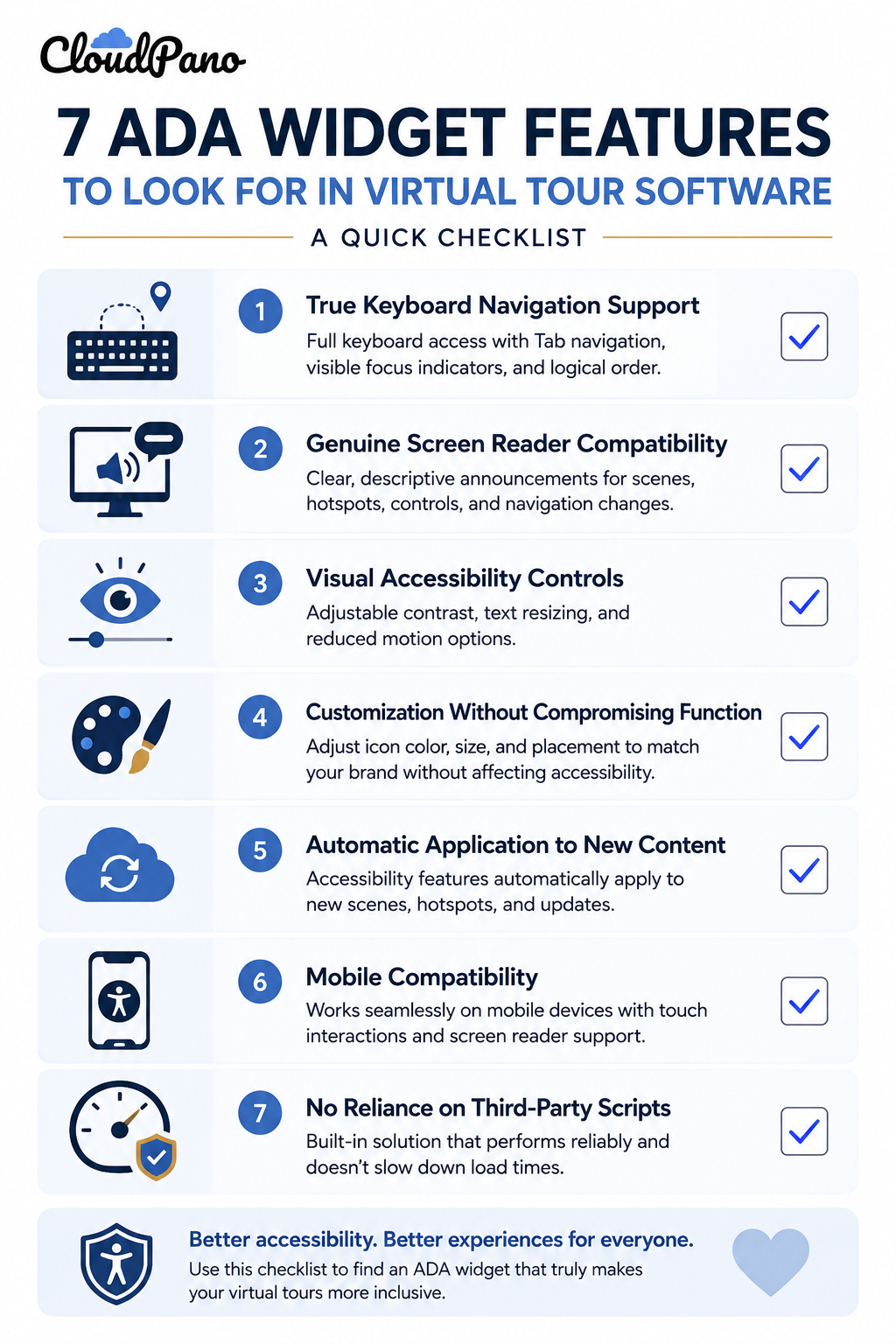
Look for a widget that provides keyboard navigation through scenes, hotspots, and other interactive controls, along with visible focus indicators and a logical focus order — not just a general "keyboard accessible" claim without specifics.
Ask directly: Can a user navigate through the tour's interactive elements using the keyboard and activate controls without relying on a mouse?
If a vendor can't answer that clearly, it's worth testing the experience yourself before committing.
This goes beyond simply "working with screen readers" in a technical sense. A quality implementation should provide meaningful information about scene names, hotspot labels, controls, and navigation changes rather than presenting users with generic labels such as "button" or leaving important elements unannounced.
This supports the broader accessibility principles described in WCAG's guidance, including providing meaningful alternatives and accessible names for non-text and interactive content.
Look for features such as adjustable contrast and text resizing. Reduced-motion options can also be valuable for tours that use auto-rotating scenes, animated transitions, or other movement that may cause discomfort for some visitors.
These controls give users greater flexibility to adjust the experience according to their individual accessibility needs and preferences.
A widget should allow you to adjust elements such as icon color, size, and placement to complement your brand without compromising the accessibility features themselves.
Be cautious when customization options allow important accessibility characteristics — such as sufficient contrast, visibility, or predictable behavior — to be unintentionally weakened.
Another important practical consideration is how accessibility features work as your tour changes. Does the platform's accessibility functionality continue to support new scenes and hotspots as you add them, or does every update require additional manual configuration?
Platform-level solutions — such as CloudPano's ADA widget — can help streamline accessibility across the virtual tour experience. However, tour creators should still ensure that content-specific information, such as scene names and hotspot descriptions, remains meaningful and descriptive.
Given how much virtual tour traffic comes from phones and tablets, confirm that the accessibility experience functions properly on mobile devices.
Don't check only whether the accessibility icon appears. Evaluate whether touch interactions, mobile screen readers such as VoiceOver and TalkBack, visual controls, and other accessibility features work as expected on smaller screens.
Accessibility features shouldn't unnecessarily interfere with the performance of the virtual tour. Some third-party solutions depend on additional external scripts, so it's worth evaluating their impact on loading speed, reliability, and compatibility.
Regardless of how the accessibility functionality is implemented, test the complete tour experience on different devices and browsers to make sure it remains responsive and reliable.
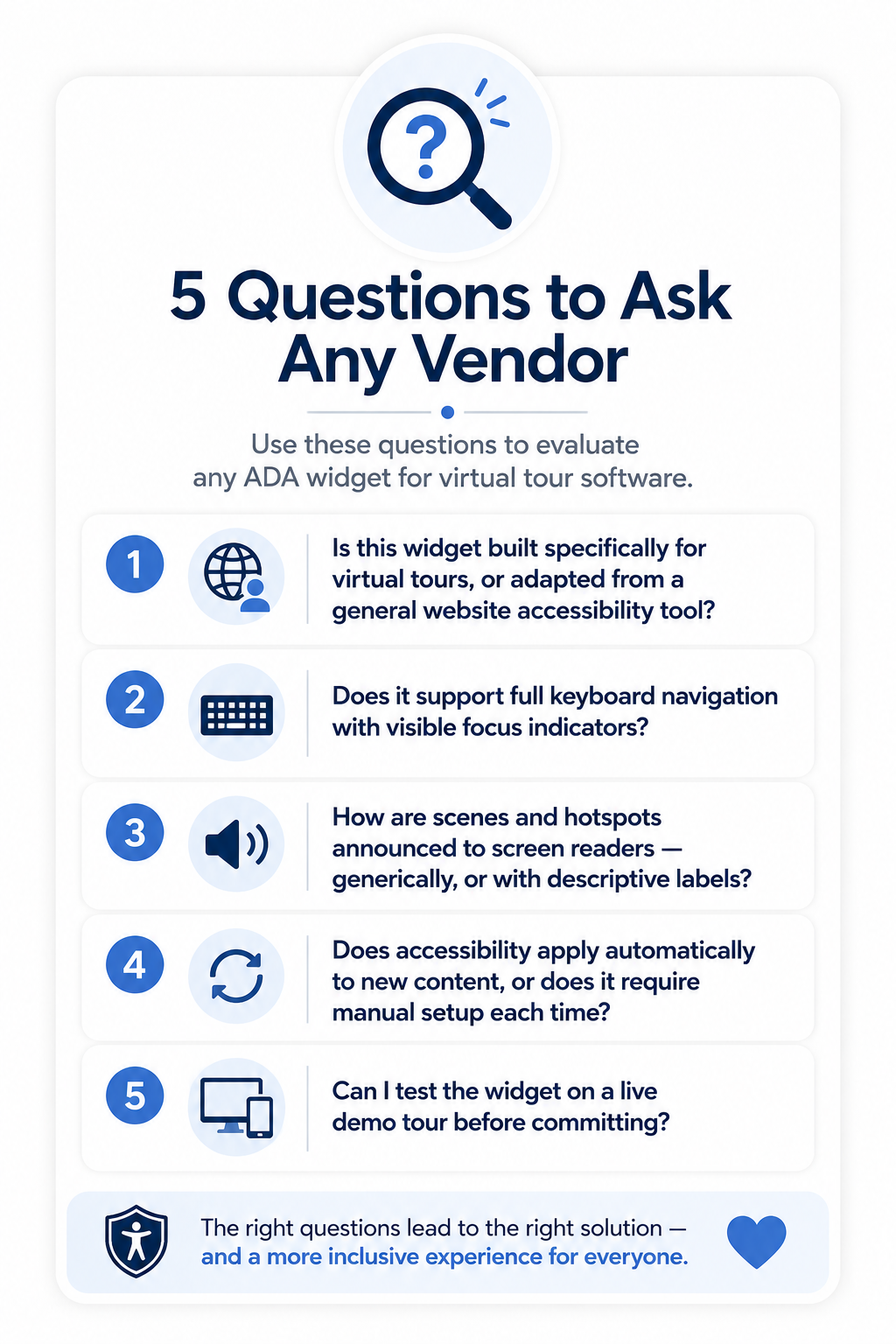
An ADA widget that looks impressive on a marketing page but doesn't perform well during keyboard or screen reader testing may create a false sense of security. That's why hands-on testing should be part of the evaluation process rather than relying solely on a vendor's feature list or accessibility claims.
Accessibility evaluation can include automated testing, manual keyboard testing, and testing with assistive technologies. Resources from Section508.gov provide additional guidance on accessibility testing and evaluating digital content beyond automated scans alone.
If you're currently evaluating virtual tour platforms and want to see how accessibility features can be incorporated into an interactive tour experience, CloudPano's ADA compliance page explains the platform's accessibility offering, while the full CloudPano feature set shows how accessibility fits alongside the rest of the virtual tour workflow.
This article is for general informational purposes only and does not constitute legal advice.


Compact, ready to go anywhere
Interchangeable lens that’s upgradeable
Dual 1-inch sensors for improved clarity and low light performance
Dynamic range and 6K 360° capture
360° photo resolution at 21MP

8K 360° video recording for ultra-detailed visuals.
4K single-lens mode for traditional wide-angle shots.
Invisible selfie stick effect for drone-like perspectives.
2.5-inch touchscreen with Gorilla Glass protection.
Waterproof up to 33ft for underwater shooting.

360° photo resolution in 23MP
Slim design at 24 mm thick
Built-in image stabilization for smooth video capture.
Internal 19GB storage for photo and video storage.
Wireless connectivity for remote control and sharing.

60MP 360° still images for high-resolution photography.
5.7K 360° video recording at 30fps.
2.25-inch touchscreen for intuitive control.
USB Type-C port for fast charging and data transfer.
MicroSD card slot for expandable storage.
.png)

.png)

Try it free. No credit card required. Instant set-up.







.svg)


.svg)