


.png)


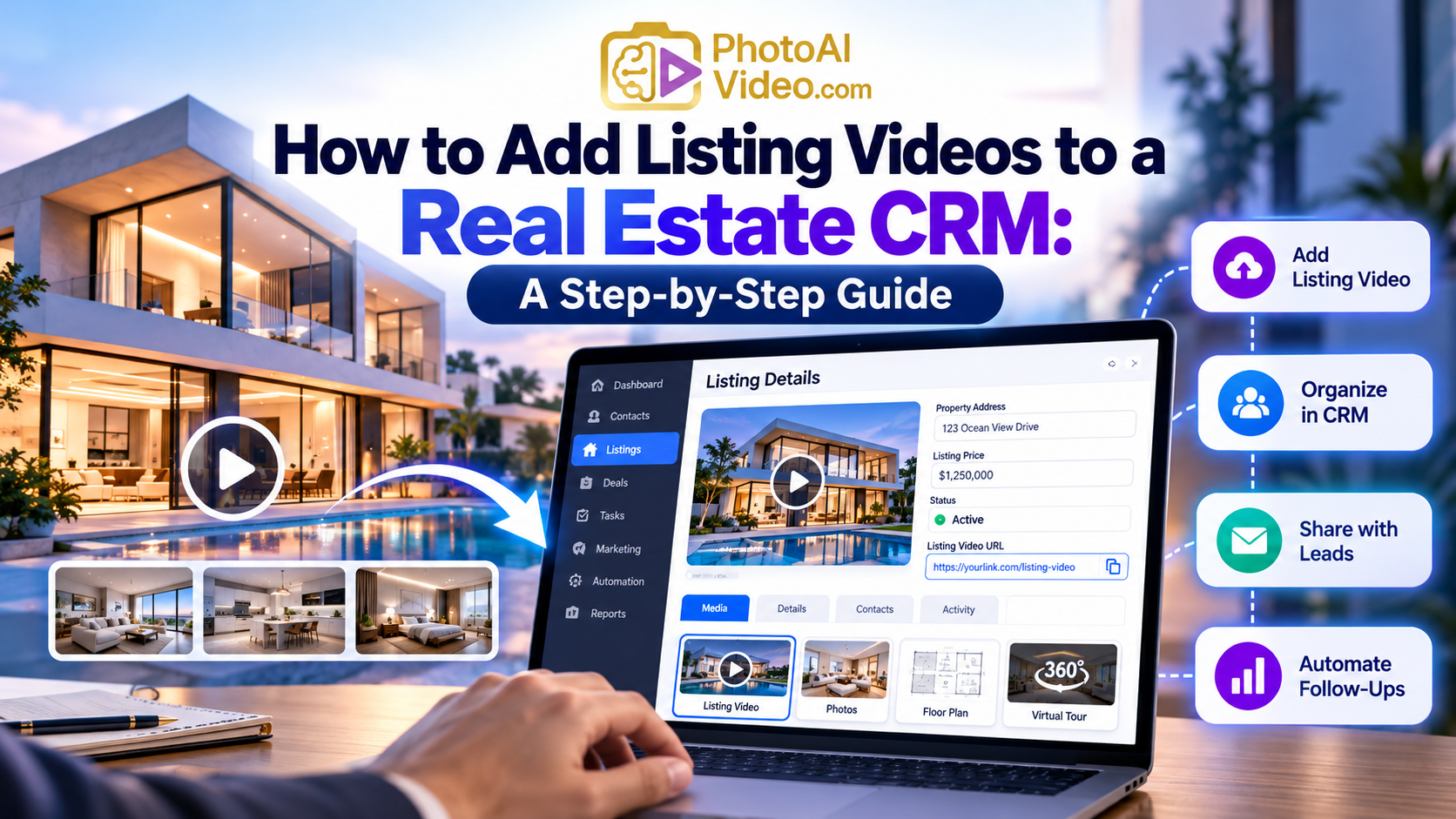
To add listing videos to a real estate CRM, first create or upload your property video to a hosting platform. Copy its shareable URL and save it in the appropriate property record or custom CRM field. You can then include the video in emails using a clickable thumbnail, add it to lead follow-up workflows, or connect your video platform through supported integrations. Test the links and automation before using them with clients.
A listing video can help buyers understand a property in ways that photographs alone sometimes cannot. It can show how rooms connect, highlight important features, and give potential buyers a better sense of the home's layout before they schedule a showing.
But creating a listing video is only half the process.
If your video sits in a folder and has to be manually located every time a buyer asks about a property, you're missing an opportunity to make your marketing workflow more efficient.
That's where your real estate customer relationship management (CRM) system comes in.
By connecting listing videos to your CRM, you can organize property content, share videos with interested leads, and incorporate them into follow-up emails and automated marketing campaigns.
The good news? You don't need an advanced technical setup to get started. In many cases, a hosted video URL and a properly configured CRM field are enough.
This guide explains how to add listing videos to a real estate CRM, how to automate video follow-ups, and how to keep everything organized as your property inventory grows.
Adding listing videos to a real estate CRM means making property video content accessible within the system you use to manage leads, contacts, listings, and communications.
Depending on the CRM, you might upload a video file, attach a link to a property record, add a video thumbnail to an email, or connect a video platform through an integration.
For example, imagine a buyer inquires about a three-bedroom home. Instead of searching through folders, you open the corresponding listing record and immediately find its video.
You can share that video in a personalized email or include it in a follow-up workflow.
Importantly, the CRM doesn't always need to host the video itself. Many teams find it easier to store a video on a dedicated hosting platform and save its URL inside the CRM.
Connecting listing videos to your CRM can improve several parts of your property marketing process.
Faster follow-ups. When someone requests information about a listing, you can send the relevant video without manually locating or uploading it.
More personalized communication. You can match videos to a lead's preferred location, property type, or specific inquiry.
Better organization. Videos become part of a repeatable listing workflow rather than being scattered across folders, emails, and messaging apps.
More consistent marketing. Team members can access the same approved video, reducing the risk of sharing outdated or incorrect property content.
Opportunities for automation. Depending on your CRM's capabilities, a new property inquiry can trigger an email containing the relevant listing video.
These benefits are particularly useful for agents managing several listings or brokerages coordinating marketing across multiple team members.
Before integrating a video into your CRM, make sure it's ready to share.
A useful listing video should accurately represent the property and highlight its most important features. This might include exterior views, living spaces, kitchens, bedrooms, outdoor areas, and amenities.
Pay attention to video clarity, pacing, and mobile compatibility. Buyers should be able to understand the property without struggling through an unnecessarily long presentation.
You also need a repeatable way to create videos as new listings become available.
For example, PhotoAIVideo provides a way to create property marketing videos from photographs, which can be useful when a full video shoot isn't available.
If your team already has professional listing photographs, turning those images into videos may help you produce additional marketing content without starting from scratch.
Whatever method you choose, check the finished video for accuracy. Avoid showing property features or improvements that don't exist unless they're clearly disclosed as conceptual or virtually staged.

A ready-to-share property video is the starting point for an organized CRM video marketing workflow.
Next, decide where your listing videos will live.
Some CRMs support file attachments or direct video uploads. Others are designed to work with externally hosted media.
For many real estate teams, external hosting is the more practical choice.
Platforms such as YouTube and Vimeo can provide shareable video links, while dedicated real estate video platforms may offer additional property-specific features.
Before selecting a hosting platform, consider whether it provides stable links, mobile playback, privacy settings, and the ability to update or replace videos.
You should also check whether the video is publicly accessible or requires a login.
A buyer who clicks a property video should not unexpectedly encounter an access restriction.
Recommended approach: Host the video once, then reuse its link throughout your CRM, emails, and approved property marketing channels.
This keeps the CRM focused on managing relationships and communication rather than duplicating large media files.
Once your video is hosted, you need a consistent place to store its URL.
Many CRM platforms allow users to create custom properties or fields for information that isn't included in their default setup.
For example, HubSpot's custom property documentation explains how users can create and manage properties for CRM records.
For a real estate workflow, useful fields might include:
If your CRM supports dedicated property or listing records, store the main video link there rather than copying it into every contact record.
This helps prevent duplication and makes it easier to update the video when necessary.
If your CRM only supports contact records, you may need a custom field, note, or linked external listing database.
The best structure depends on how your CRM organizes properties and contacts.
Now you're ready to connect the video to its listing.
Open your video hosting platform and copy the appropriate shareable URL.
Then open the corresponding property record in your CRM and paste the link into the listing video field.
Save the record and test the link.
Confirm that it opens the correct property video, works on a mobile device, and doesn't require permissions your buyers won't have.
If your CRM supports clickable URL fields, agents may be able to launch the video directly from the record.
A simple structure might look like this:
CRM field
Example
Property
123 Example Street
Listing ID
LIST-1042
Video Title
123 Example Street Property Tour
Video URL
https://example.com/videos/list-1042
Status
Active

Storing a listing video URL with its property record helps agents find and share the correct video quickly. Illustrative CRM interface.
Use unique listing identifiers whenever possible. Two properties may have similar addresses, but a listing ID can help prevent accidental mismatches.
Once the video link is available in your CRM, you can include it in email campaigns and individual follow-ups.
However, embedding a fully playable video inside an email isn't always dependable.
Email clients differ in how they handle embedded media, and some restrict video playback.
A more reliable approach is to use a clickable thumbnail that opens the hosted video in a browser.
For example, Mailchimp's guide to adding video to email explains how video links and thumbnails can be used in email campaigns.
Similarly, HubSpot's video content documentation covers video options across supported marketing content.
A typical property email might include a short introduction, a video thumbnail, and a call to action such as “Watch the Property Tour.”
The surrounding message should explain why the listing is relevant to the recipient.
For example, a buyer looking for a home with a large backyard may appreciate a video that highlights the property's outdoor space.
The goal is to make the email useful, not simply to add more visual content.
One of the biggest advantages of connecting videos to a CRM is the opportunity to automate selected follow-up activities.
Many CRMs allow users to create workflows based on contact actions, form submissions, or record updates.
For example, someone who requests information about a listing could automatically receive an email containing its property video.
A later message might offer additional details or invite the buyer to schedule a showing.
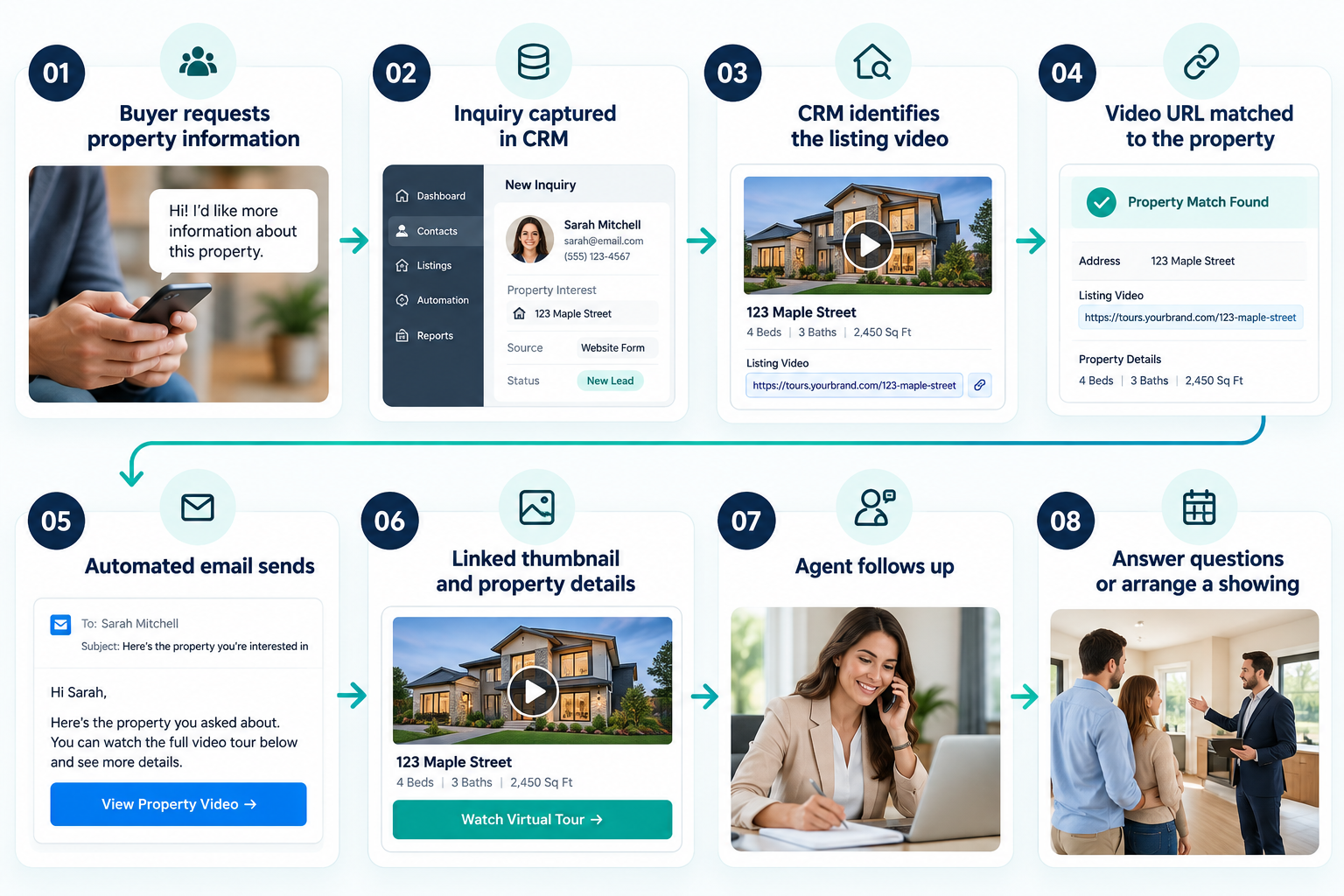
Example CRM automation workflow for sharing listing videos with interested buyers.For a more advanced setup, the CRM might select a video dynamically using a listing identifier.
This is particularly helpful when your team manages a large inventory and doesn't want to build a separate email campaign for every property.
Be careful with automation rules, though. Make sure the correct video is selected, messages aren't duplicated, and communication preferences are respected.
For real estate businesses looking to improve efficiency, optimizing a video API can make it easier to manage video generation, reduce unnecessary processing, and support smoother integrations with CRM systems. Our guide to Optimize Real Estate Video API explores practical ways to improve API performance and build more efficient automated video marketing workflows.
As your listing inventory grows, manually copying video URLs into CRM records may become time-consuming.
That's when integrations can help.
Some platforms offer native CRM connections, while others support automation services, webhooks, or APIs.
An API allows compatible software systems to exchange information programmatically.
For example, when a new property video is generated, an integration could retrieve its URL and update the matching CRM record.
This type of workflow can reduce manual data entry and help keep listing information synchronized.
If you're exploring this approach, see our related guide to Real Estate Video API for a deeper explanation of how video generation can fit into property marketing systems.
You can also link to Turn Listing Photos Into Videos With an API, which explains how teams can automate the creation of video assets from existing property images.
These workflows are especially relevant for brokerages, marketing agencies, and software platforms managing large volumes of property content.
Not every CRM or video service supports the same integration methods, so review the available documentation before choosing an approach.
For example, when a new property video is generated, an integration could retrieve its URL and update the matching CRM record. Platforms such as PhotoAIVideo's Real Estate Video API allow developers to turn property photographs into video clips and combine them into branded property reels. This makes it possible to incorporate video generation into existing listing management and marketing workflows.
For developers building a custom integration, the PhotoAIVideo API Documentation provides technical guidance on authentication, image uploads, video generation requests, job status tracking, and retrieving completed video URLs. These capabilities can support an automated process in which newly generated videos are linked to the appropriate CRM listing records.
Before launching your workflow, test everything.
Start by creating a sample listing record with a hosted video URL.
Open the link from the CRM and confirm it leads to the correct video.
Next, send a test email containing the video thumbnail.
Check how the message appears on desktop and mobile devices.
If you've configured automation, confirm that the correct listing video is selected for each inquiry.
Pay attention to dynamic fields and record associations. A video linked to the wrong property can confuse potential buyers and create unnecessary follow-up work.
You should also test what happens when a property is sold, withdrawn, or temporarily unavailable.
A reliable workflow should prevent outdated videos from being included in new promotional campaigns.
Testing isn't the most exciting part of marketing automation, but it can save your team considerable time later.
Adding a video link is relatively straightforward. Keeping dozens or hundreds of video records accurate requires more planning.
Start with a consistent naming convention. For example, use the property address or listing ID in every video title.
Assign one primary video URL to each listing and make sure team members know where to find it.
It's also helpful to establish a process for reviewing video links when a property's status changes.
When a listing sells, expires, or becomes unavailable, the CRM should prevent outdated promotional messages from being sent.
For teams producing videos regularly, maintain a simple checklist covering video creation, hosting, CRM updates, email testing, and publication.
If you're expanding into other property marketing services, our guide to How to Make Money With Virtual Tours can provide additional context for building a repeatable real estate media workflow.
Once your listing videos are part of your CRM workflow, you can begin measuring how they're used.
Useful metrics include email click-through rates, video views, viewing duration, lead responses, and showing requests.
Not every platform provides all these measurements.
For example, HubSpot documents video performance reporting for supported HubSpot-hosted videos, while externally embedded videos may not generate the same analytics inside HubSpot.
HubSpot Knowledge Base
This distinction matters when deciding how to evaluate results.
A buyer clicking a video link doesn't necessarily mean they watched the entire video. Similarly, a high view count doesn't guarantee that a listing will generate qualified inquiries.
Focus on how video fits into the broader customer journey.
Are interested buyers requesting more information? Are agents spending less time locating marketing assets? Are follow-up messages reaching the right contacts?
These questions can help determine whether your CRM video workflow is delivering practical value.
One common mistake is uploading large video files directly into a CRM without checking file limits or storage restrictions.
Another is assuming that videos will play directly inside every email client.
According to Mailchimp's email video documentation, many email clients do not support embedded video playback, which is why linked thumbnails are a practical alternative.
Other mistakes include using temporary video URLs, associating videos with incorrect listings, sending repetitive automated messages, and failing to update content when property details change.
You should also avoid relying on video engagement alone to determine lead quality.
The most reliable workflow combines accurate property information, thoughtful communication, and regular review.
Adding listing videos to a real estate CRM makes property content easier to organize, share, and reuse.
By storing video links with listing records, agents can respond to inquiries more efficiently, include videos in email campaigns, and automate selected follow-up activities.
For most teams, the simplest approach is to begin with externally hosted videos and well-organized CRM fields.
As the number of listings grows, integrations and APIs can help reduce repetitive tasks and keep video information synchronized.
The goal isn't to make your CRM more complicated. It's to make your property marketing more consistent, useful, and manageable.
When the right video is connected to the right listing and shared with the right buyer, it becomes more than a marketing asset. It becomes a practical part of the customer experience.
Some real estate CRMs allow direct video uploads, file attachments, or native video hosting. Others support video links or integrations with external platforms. The available options depend on the CRM and subscription plan. Storing a hosted video URL is often the simplest approach.
Upload the listing video to a hosting platform, copy its shareable URL, and add a linked thumbnail or video content block to your CRM email template. Recipients can click the image to open the video in their browser.
Yes, if the CRM supports the required automation features. Listing video links can be included in follow-up emails triggered by property inquiries, form submissions, or other lead activities. Dynamic fields can help associate the correct video with each listing.
No. Basic video sharing usually requires only a hosted URL and an appropriate CRM field. APIs, webhooks, or integration platforms become useful when teams want to automatically synchronize videos, listing records, or marketing activities across systems.
Maintain a consistent naming system, associate videos with unique property identifiers, and store one authoritative video link for each listing. Regularly review links, listing status, and automated campaigns to prevent outdated or incorrect property content from being shared.
HubSpot — Create and Edit CRM Properties
https://knowledge.hubspot.com/properties/create-and-edit-properties
HubSpot — Add Videos to HubSpot Content
https://knowledge.hubspot.com/website-and-landing-pages/add-videos-to-hubspot-content
Mailchimp — Add Video to an Email
https://mailchimp.com/help/add-video-to-an-email/
Mailchimp — Use Video Content Blocks
https://mailchimp.com/help/use-video-content-blocks-new-builder/


Compact, ready to go anywhere
Interchangeable lens that’s upgradeable
Dual 1-inch sensors for improved clarity and low light performance
Dynamic range and 6K 360° capture
360° photo resolution at 21MP

8K 360° video recording for ultra-detailed visuals.
4K single-lens mode for traditional wide-angle shots.
Invisible selfie stick effect for drone-like perspectives.
2.5-inch touchscreen with Gorilla Glass protection.
Waterproof up to 33ft for underwater shooting.

360° photo resolution in 23MP
Slim design at 24 mm thick
Built-in image stabilization for smooth video capture.
Internal 19GB storage for photo and video storage.
Wireless connectivity for remote control and sharing.

60MP 360° still images for high-resolution photography.
5.7K 360° video recording at 30fps.
2.25-inch touchscreen for intuitive control.
USB Type-C port for fast charging and data transfer.
MicroSD card slot for expandable storage.
.png)

.png)

Try it free. No credit card required. Instant set-up.





.svg)


.svg)