


.png)



Creating a 360° vehicle spin is only the first part of the integration process. Once processing is complete, you need to decide how the finished spin will actually appear on your vehicle detail page (VDP) or inside your application.
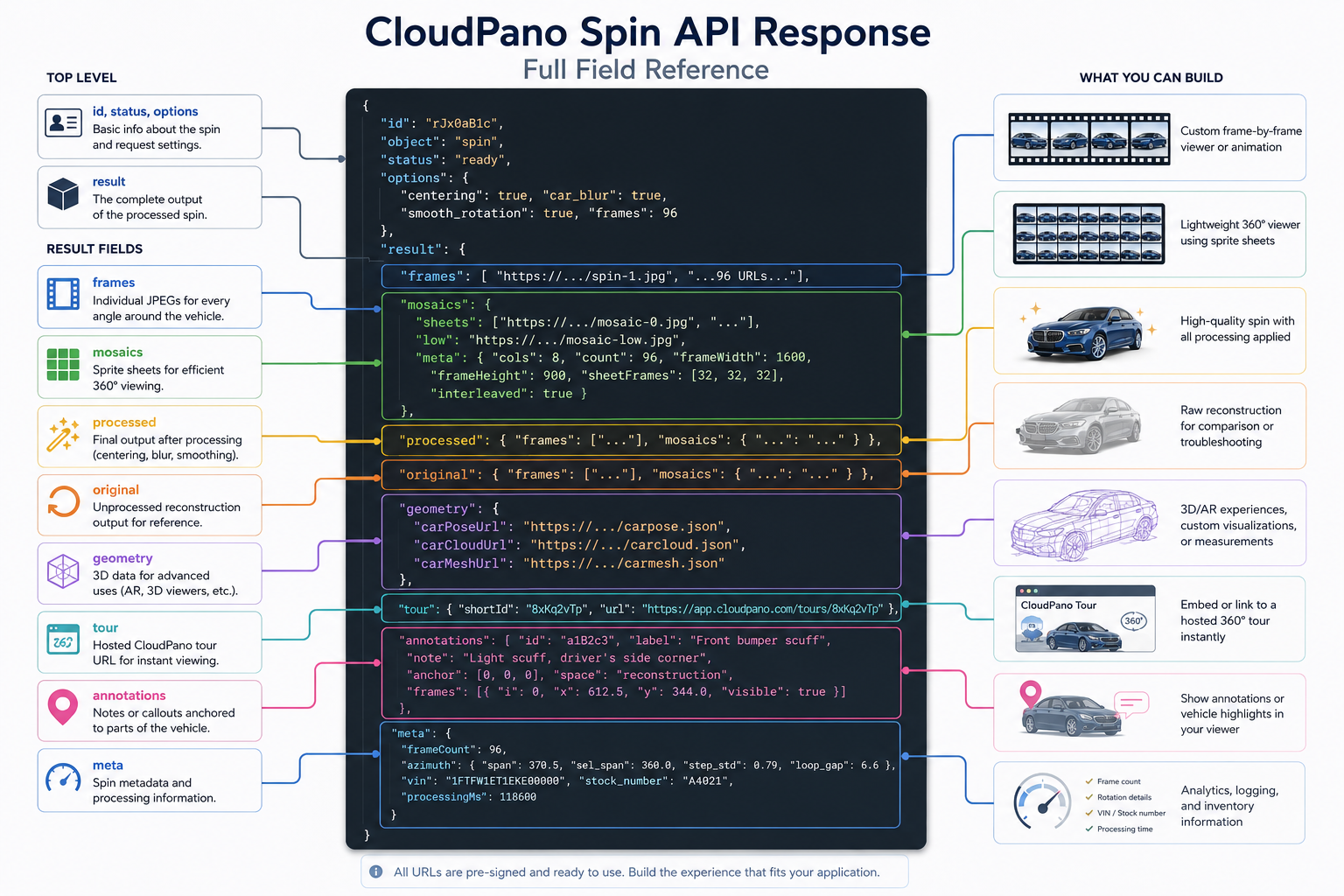
The CloudPano Spin API returns several types of output that can support different use cases — from building a custom frame-by-frame viewer to using an already hosted CloudPano tour.
The full technical schema is available in the Spin API documentation. This guide focuses on what the main response sections mean and when you might use each one.
A vehicle spin moves through different processing states before the final output becomes available.
The important point is that you should wait until the spin reaches ready status before attempting to use the completed output.
Once processing is finished, the response can contain several useful sections, including:
Each serves a different purpose depending on how you want to display or use the vehicle spin.
The frames portion of the response contains an ordered collection of individually hosted vehicle images.
Each image represents a different viewing angle around the vehicle.
These individual frames can be useful when you're building a custom 360° viewer where dragging, scrolling, or another interaction moves through the vehicle's different angles.
This approach gives developers considerable control over the viewing experience.
However, loading many individual images also means the browser may need to make many separate image requests. For that reason, frames aren't necessarily the best choice for every integration.
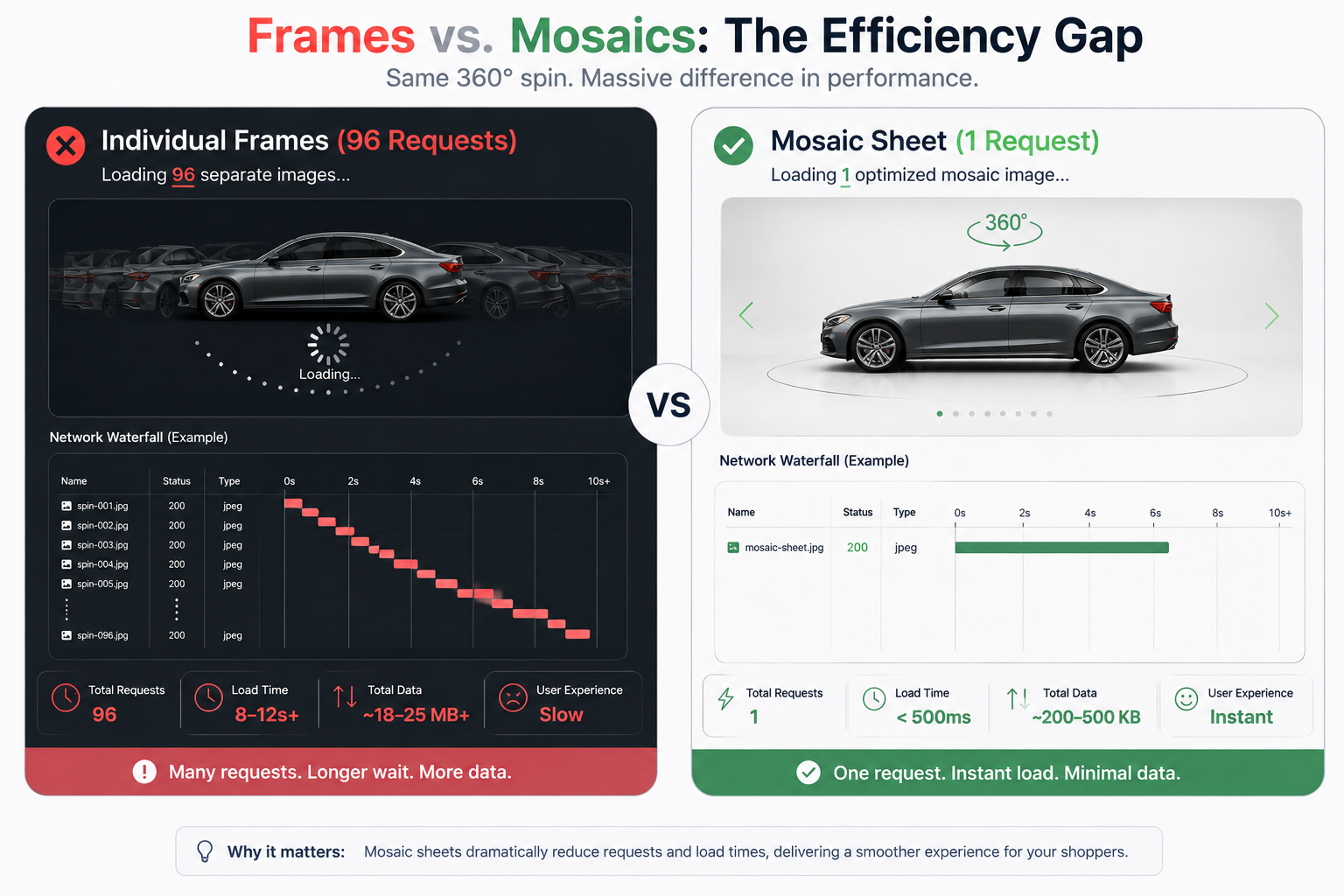
The mosaics output combines multiple vehicle frames into sprite sheets rather than requiring every frame to be loaded as a completely separate image.
This can make it easier to build a responsive spin viewer while reducing the number of individual image requests.
The mosaic information also includes details needed to understand how the individual frames are arranged within those sheets.
For integrations that need a custom 360° viewer, mosaics may be a more efficient starting point than loading every individual frame separately.
The response can also distinguish between processed and original versions of the vehicle imagery.
The processed version reflects the processing options used when creating the spin, which may include features such as:
The original version represents the reconstruction before those processing adjustments.
Most customer-facing integrations will primarily use the processed output.
The original version can still be useful for troubleshooting or comparing the source reconstruction with the processed result.
The geometry section is intended for applications that need more than a standard 2D vehicle spin.
It can provide information related to the vehicle's reconstructed geometry, including camera positioning, point-cloud information, and mesh data.
You generally don't need this information just to display an interactive vehicle spin on a VDP.
Instead, geometry becomes useful for more advanced applications such as:
If your goal is simply to show shoppers an interactive vehicle spin, you can usually focus on frames, mosaics, or the hosted tour instead.
For integrations that don't need a completely custom viewer, the tour output provides a much simpler option.
Once the spin is ready, CloudPano can provide a hosted tour for the completed vehicle spin.
Instead of building your own frame or mosaic viewer, you can use the hosted tour to give customers access to the finished 360° experience.
This is particularly useful when your main objective is simply:
Get the completed vehicle spin onto the VDP without building a custom viewer from scratch.
For many dealership integrations, this may be the most straightforward option.
Annotations are available when annotation functionality was requested during creation of the spin.
They can contain information that allows a marker or callout to be associated with a particular part of the vehicle.
For example, an annotation might identify a visible feature or area of interest and maintain its position as the viewer moves through different angles of the vehicle.
This can be useful for applications that want to add contextual information directly to the interactive vehicle experience.
It's important to remember that annotations are optional. If they weren't requested when the spin was created, you shouldn't expect annotation information to appear in the finished response.
The metadata section provides additional information about the completed vehicle spin.
Depending on the request and resulting output, this can include details such as:
VIN and stock number information can be especially useful when connecting completed spins back to inventory records.
Processing information can also help with internal logging and monitoring, particularly when you're handling larger numbers of vehicle spins.
The metadata can also contain information related to the detected rotation around the vehicle.
These diagnostics can help indicate how consistently the original walk-around captured the vehicle.
For example, they may provide information about the total rotation captured, the portion selected for the finished spin, consistency between viewing angles, and the gap where the rotation loops back to its starting point.
These values are primarily useful for troubleshooting and quality analysis.
A spin may complete successfully while still showing signs that the original walk-around wasn't perfectly even. In that situation, reviewing the finished spin visually can help determine whether another capture would produce a better result.
A failed vehicle spin should be handled differently from a completed one.
If processing doesn't successfully produce a spin, your integration shouldn't attempt to use the normal completed-output information.
Instead, the failure information should be used to determine what happened and what the user should do next.
Processing failures are often related to the source footage, such as an incomplete walk-around, obstructed capture, or unusable video.
In those cases, recording the vehicle again may be more effective than repeatedly submitting the same footage.
For a deeper troubleshooting guide, see Spin API Error Handling.
The right output depends on what you're building.
If you want maximum control over individual viewing angles, frames give you individually accessible vehicle images.
If you want to build a more efficient custom spin viewer, mosaics can reduce the number of individual image requests.
If you're building a 3D or AR experience, geometry provides the reconstruction data needed for more advanced applications.
If you simply want to display a completed interactive spin quickly, the hosted tour is likely the easiest option.
That flexibility allows the same Spin API workflow to support everything from a straightforward dealership VDP to more customized automotive applications.
For many dealership integrations, there's no reason to begin with the most technically complex option.
Start by deciding what the customer actually needs to experience.
If the goal is simply to add an interactive vehicle spin to the VDP, the hosted tour may be enough.
If you need the viewer to match your existing website experience more closely, mosaics provide a path toward a custom implementation.
Individual frames make sense when you need direct control over every viewing angle, while geometry is better reserved for applications that genuinely require 3D reconstruction information.
Choosing the simplest output that meets your requirements can make the integration easier to build and maintain.
A completed Spin API response isn't limited to a single image or viewing option.
It provides several ways to work with the finished vehicle spin:
Frames provide individual viewing angles.
Mosaics provide a more efficient foundation for custom viewers.
Processed and original output allow you to compare the finished result with the underlying reconstruction.
Geometry supports advanced 3D applications.
Tour provides a hosted, ready-to-use viewing experience.
Annotations can add contextual information when requested.
Metadata provides useful information about the vehicle and processing job.
Understanding these outputs makes it much easier to choose the right implementation for your VDP rather than building functionality you don't actually need.
If you haven't set up the creation side yet, see How to Create a Car 360 Spin With One API Call.
For asynchronous processing and status handling, see Polling the 360 Spin API.
The Spin API documentation contains the complete response schema, processing information, authentication requirements, and other technical details.
Use the documentation as your technical reference, then choose the output format that best fits the experience you want to build.


Compact, ready to go anywhere
Interchangeable lens that’s upgradeable
Dual 1-inch sensors for improved clarity and low light performance
Dynamic range and 6K 360° capture
360° photo resolution at 21MP

8K 360° video recording for ultra-detailed visuals.
4K single-lens mode for traditional wide-angle shots.
Invisible selfie stick effect for drone-like perspectives.
2.5-inch touchscreen with Gorilla Glass protection.
Waterproof up to 33ft for underwater shooting.

360° photo resolution in 23MP
Slim design at 24 mm thick
Built-in image stabilization for smooth video capture.
Internal 19GB storage for photo and video storage.
Wireless connectivity for remote control and sharing.

60MP 360° still images for high-resolution photography.
5.7K 360° video recording at 30fps.
2.25-inch touchscreen for intuitive control.
USB Type-C port for fast charging and data transfer.
MicroSD card slot for expandable storage.
.png)

.png)

Try it free. No credit card required. Instant set-up.






.svg)


.svg)