


.png)


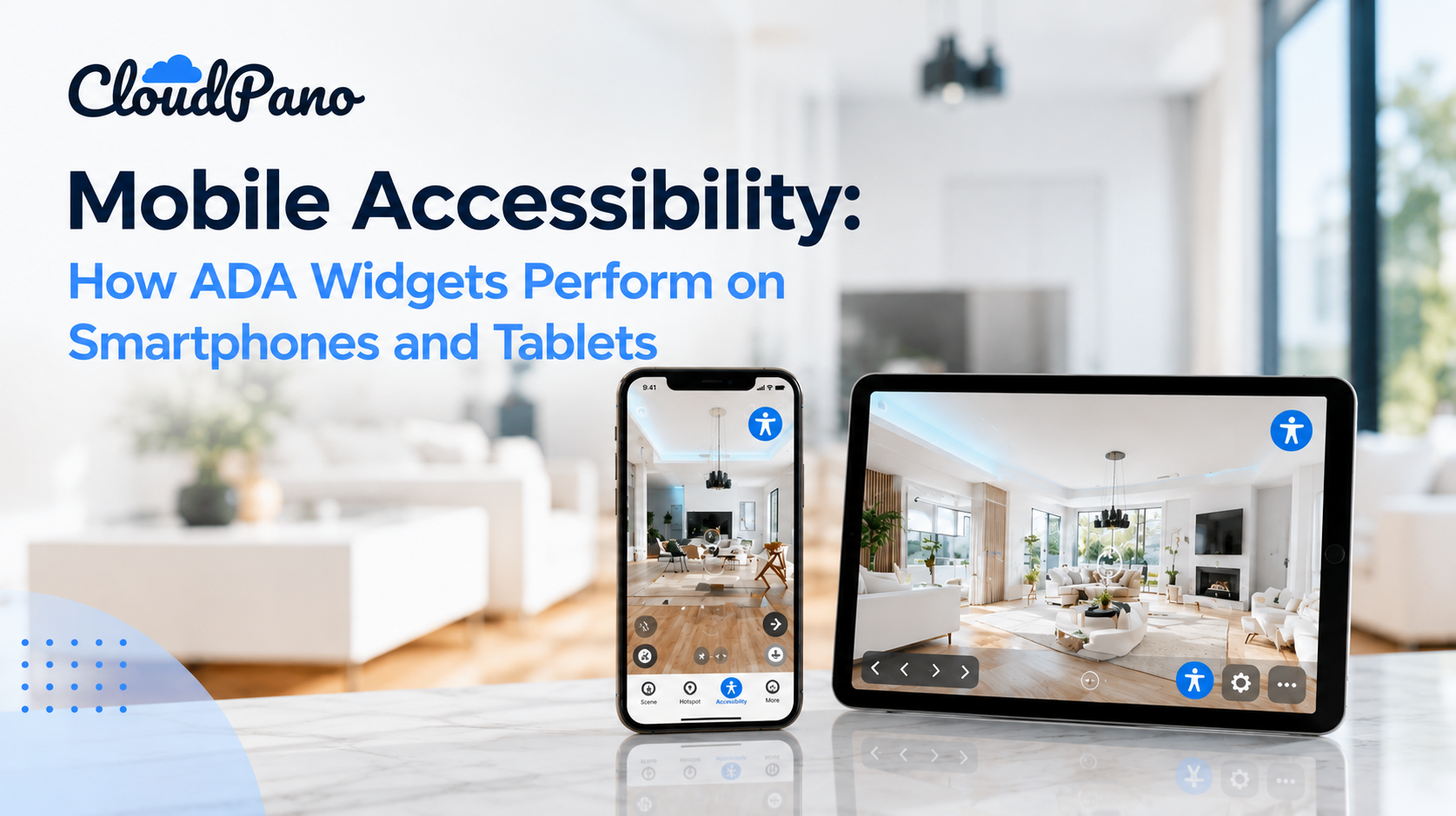
ADA widgets can work well on smartphones and tablets, but only when they are specifically designed and tested for mobile. Mobile visitors use touch gestures, smaller screens and mobile screen readers such as VoiceOver and TalkBack. A mobile-ready widget needs adequate tap targets, screen reader compatibility, responsive positioning, touch-friendly menus and support for both portrait and landscape orientation.
It's easy to design and test a virtual tour primarily on a desktop browser, then assume mobile visitors will get a roughly equivalent experience. For accessibility specifically, that assumption doesn't always hold up. A mobile ADA widget needs to address a different — and, in some ways, more challenging — set of considerations than its desktop counterpart, including smaller screens, touch-based interactions, and mobile-specific assistive technologies.
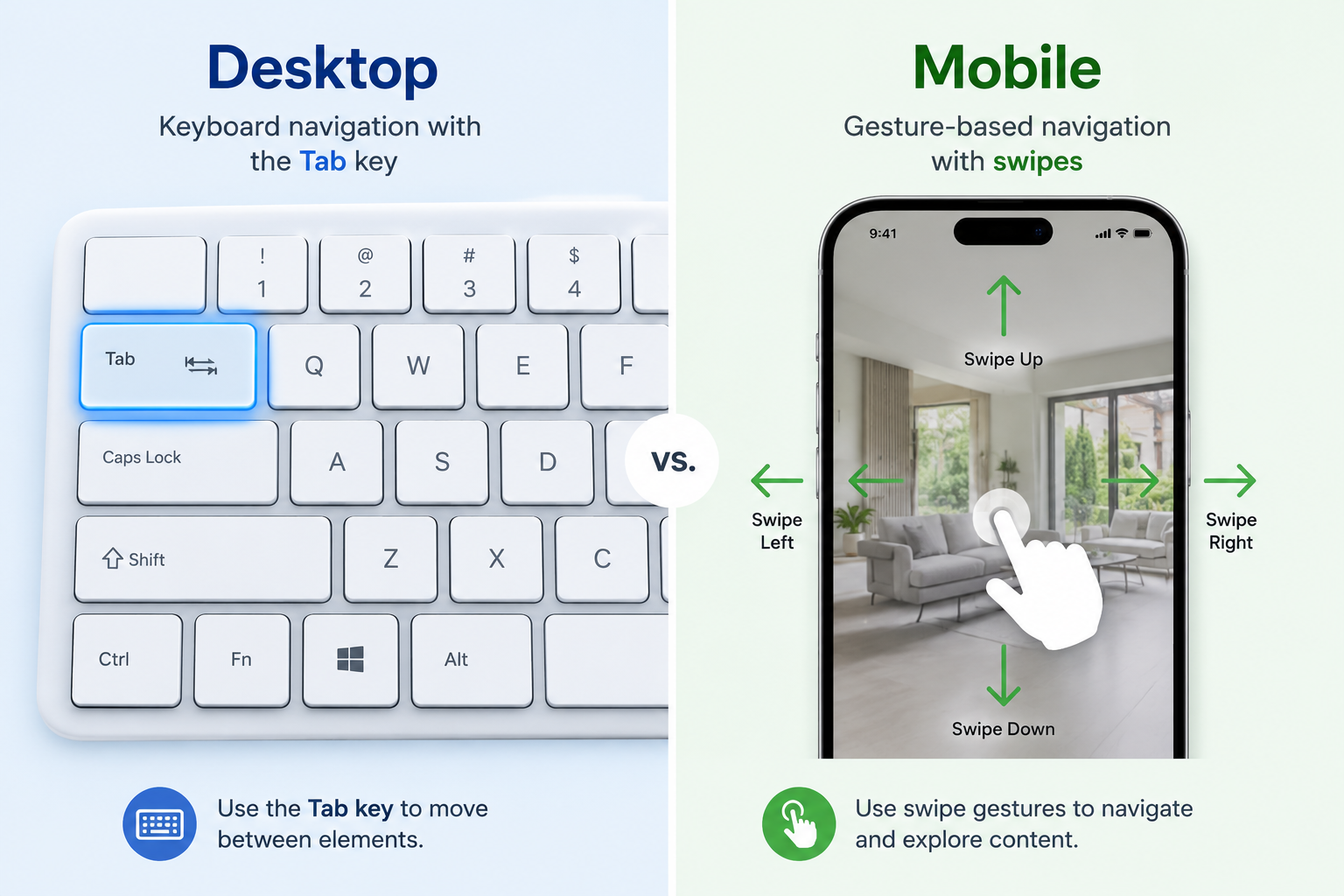
Desktop accessibility testing typically centers on keyboard navigation and desktop screen readers like NVDA or JAWS. Mobile accessibility introduces a different interaction model: touch gestures instead of clicks and keystrokes, mobile screen readers that rely heavily on gesture-based navigation, and significantly smaller screens where tap target size becomes an important usability factor.
A widget that performs well on desktop can still encounter issues on mobile if these differences aren't specifically accounted for in its design. That's why mobile accessibility should be tested as its own part of the overall accessibility experience rather than treated as an extension of desktop testing.
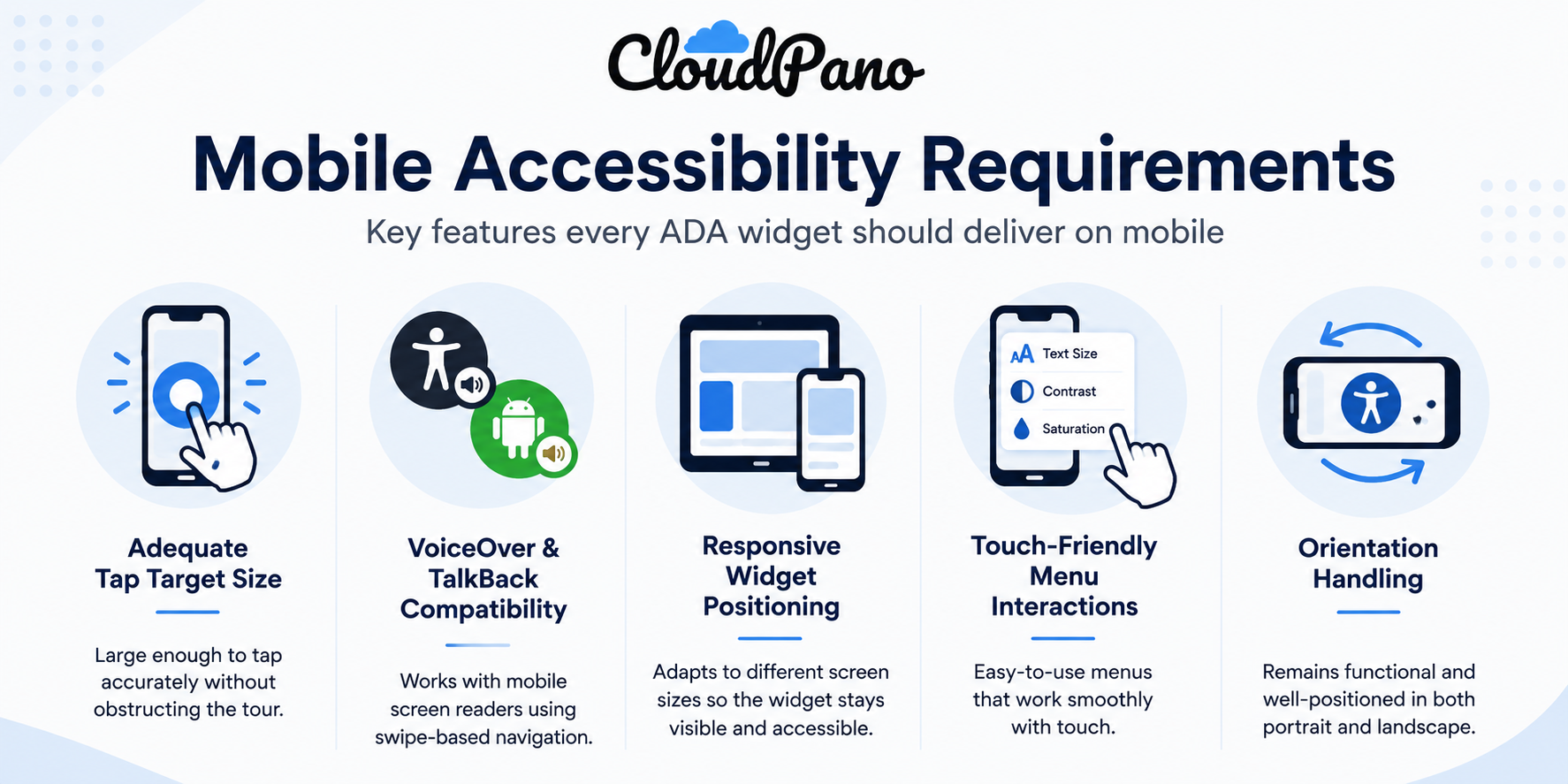
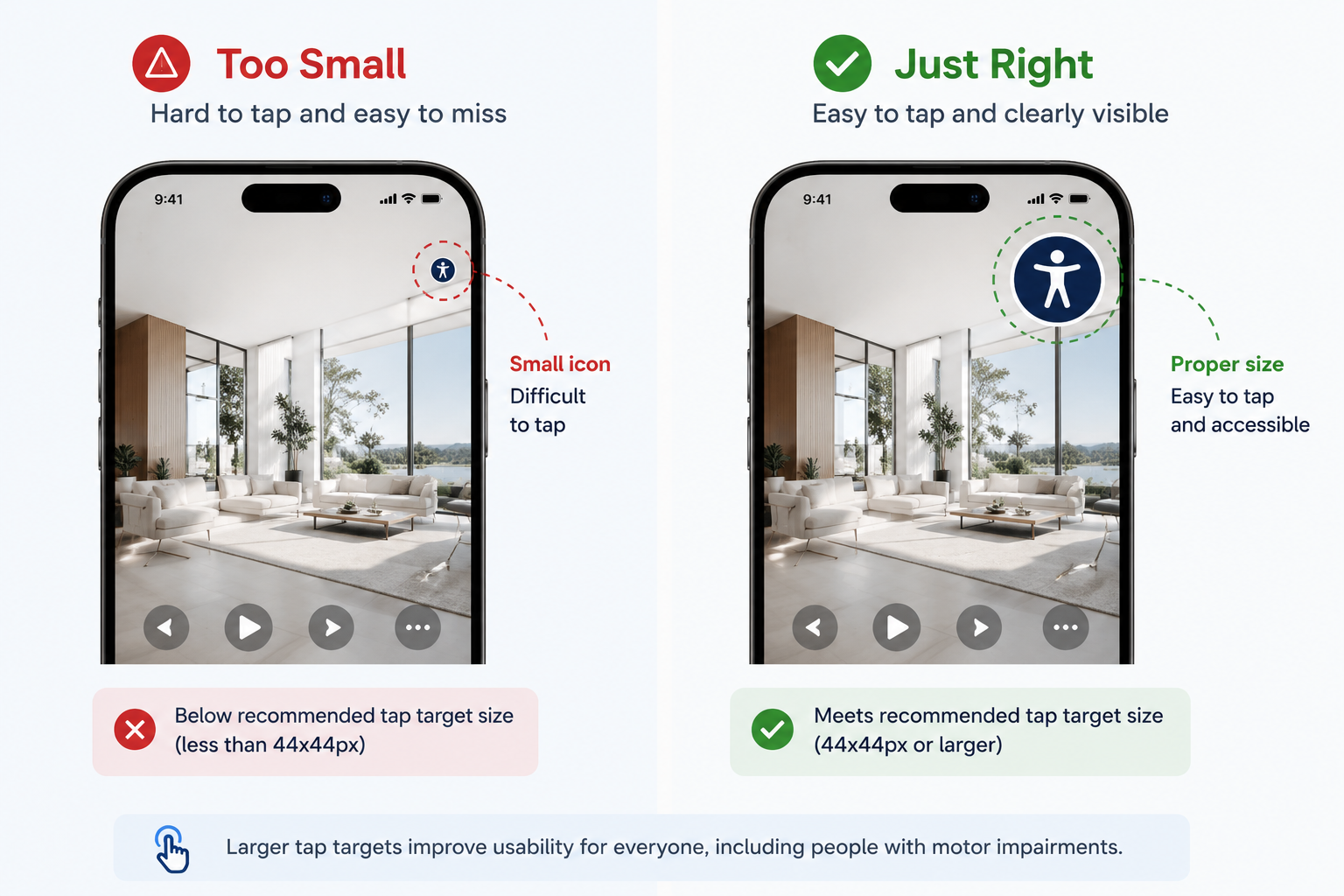
Adequate tap target size. The widget icon and any expanded menu options need to be large enough to tap accurately without being so large that they obstruct the tour itself. The W3C's WCAG guidelines include guidance on target sizes specifically to address this type of usability concern.
VoiceOver and TalkBack compatibility. Mobile screen readers rely heavily on touch gestures and swipe-based navigation rather than traditional keyboard input. A properly designed widget should expose controls, scene names, and hotspot labels in a way that assistive technologies can identify and announce meaningfully.
Responsive widget positioning. A widget positioned perfectly on a desktop viewport can end up overlapping other UI elements or becoming difficult to access on a smaller mobile screen. Responsive design needs to account for different screen sizes and layouts.
Touch-friendly menu interactions. Once a mobile visitor activates the widget, any expanded menu options — such as text size or contrast controls — should work smoothly with touch. Interactions shouldn't depend exclusively on hover states or precise mouse movements that don't translate well to touchscreens.
Orientation handling. Mobile visitors may rotate their devices between portrait and landscape while exploring a tour. Widget positioning and functionality should remain usable and visible in both orientations.
For businesses publishing virtual tours — including real estate listings, hotels, and retail experiences — mobile devices can represent a substantial share of overall traffic. If accessibility features work well on desktop but aren't equally usable on mobile, a significant portion of the audience may not receive the same accessible experience.
A tour-specific solution like CloudPano's ADA widget is designed to integrate accessibility functionality directly into the virtual tour experience, making mobile usability an important part of the overall implementation.
You don't need specialized equipment for basic testing — just your own phone or tablet:
An accessibility solution that works well on desktop won't necessarily provide an identical experience on mobile. VoiceOver and TalkBack use different interaction patterns from desktop screen readers like NVDA or JAWS, making mobile-specific testing important.
When evaluating an accessibility widget, look beyond whether it simply appears on a mobile screen. Test whether its controls remain usable, labels are communicated meaningfully through assistive technology, and the overall tour can be navigated comfortably on a touchscreen.
If you haven't specifically tested your virtual tour's accessibility on mobile, it's worth doing so even if your desktop testing looked good — mobile represents a meaningfully different technical environment. To learn more about how accessibility is handled within CloudPano, visit the ADA compliance page, or explore the CloudPano feature set for more information about the platform's virtual tour tools.
Mobile visitors use touch gestures instead of clicks and keystrokes, rely on gesture-based screen readers, and view tours on much smaller screens. A widget that works well on desktop can still run into problems on mobile, so mobile accessibility should be tested as its own part of the experience, not as an extension of desktop testing.
A mobile-ready ADA widget needs tap targets large enough to select accurately, compatibility with VoiceOver and TalkBack, and responsive positioning that doesn't overlap other elements. Its menus should work smoothly with touch rather than depending on hover states, and it should stay usable and visible in both portrait and landscape orientation.
Use your own phone or tablet. Open the published tour in a mobile browser, check the widget icon is visible and easy to tap, and confirm menu options are easy to select. Then turn on VoiceOver or TalkBack, navigate with standard gestures, and rotate the device to test both portrait and landscape.
Not necessarily. A widget that works well on desktop won't automatically provide the same experience on mobile. VoiceOver and TalkBack use different interaction patterns from desktop screen readers like NVDA or JAWS, and smaller screens and touch input create new challenges, which is why mobile-specific testing is important.
Mobile devices can make up a substantial share of virtual tour traffic for real estate listings, hotels and retail experiences. If accessibility features work on desktop but aren't equally usable on mobile, a significant portion of the audience may not get the same accessible experience when exploring the tour.


Compact, ready to go anywhere
Interchangeable lens that’s upgradeable
Dual 1-inch sensors for improved clarity and low light performance
Dynamic range and 6K 360° capture
360° photo resolution at 21MP

8K 360° video recording for ultra-detailed visuals.
4K single-lens mode for traditional wide-angle shots.
Invisible selfie stick effect for drone-like perspectives.
2.5-inch touchscreen with Gorilla Glass protection.
Waterproof up to 33ft for underwater shooting.

360° photo resolution in 23MP
Slim design at 24 mm thick
Built-in image stabilization for smooth video capture.
Internal 19GB storage for photo and video storage.
Wireless connectivity for remote control and sharing.

60MP 360° still images for high-resolution photography.
5.7K 360° video recording at 30fps.
2.25-inch touchscreen for intuitive control.
USB Type-C port for fast charging and data transfer.
MicroSD card slot for expandable storage.
.png)

.png)

Try it free. No credit card required. Instant set-up.







.svg)


.svg)