


.png)


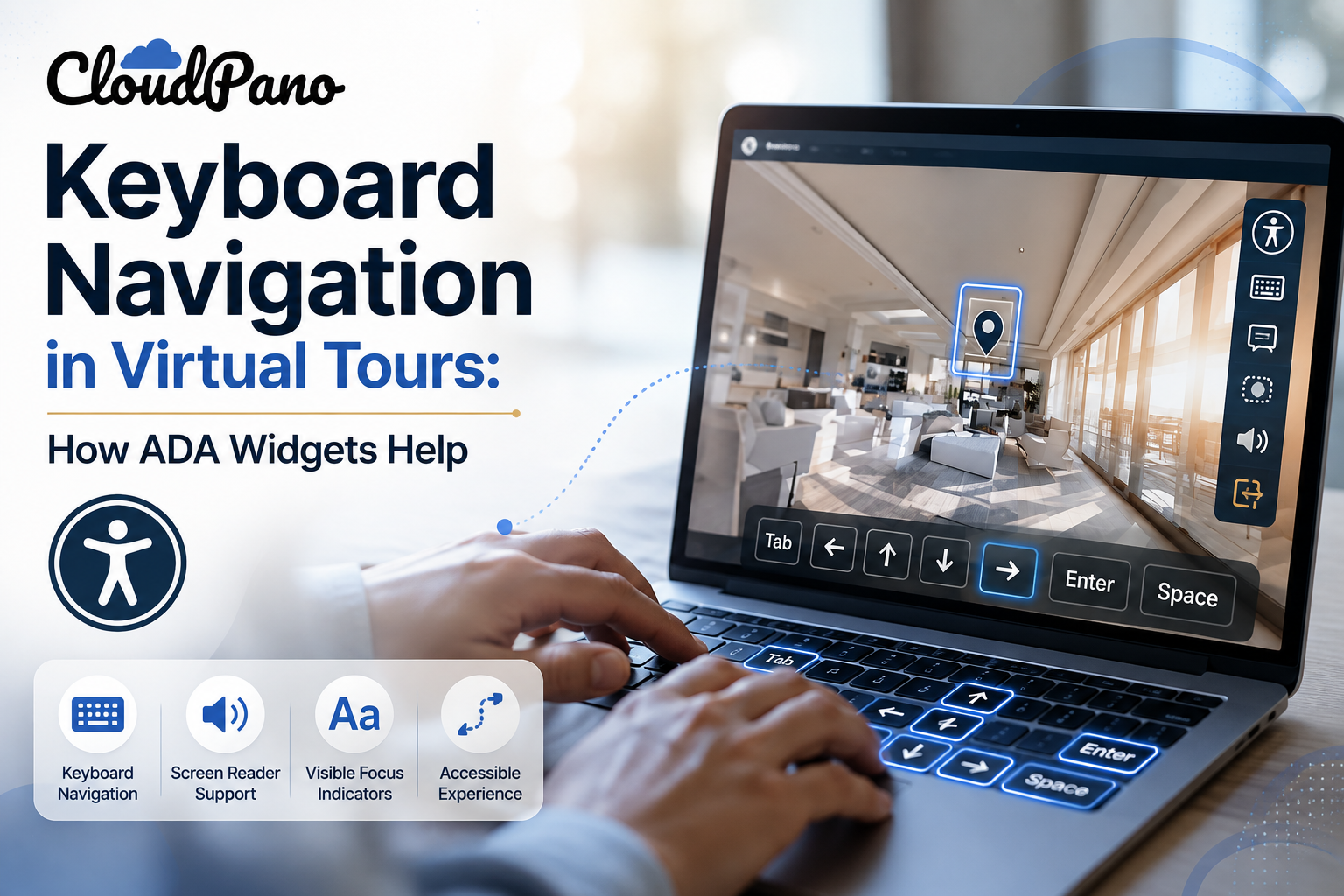
Mouse-based interaction is so deeply built into how most people think about virtual tours — click and drag to look around, click a hotspot to move — that it's easy to forget that a meaningful number of visitors can't use a mouse at all. This may be due to a permanent motor impairment, a temporary injury, the use of assistive technology, or simply a preference for keyboard-based browsing. Keyboard navigation for virtual tours isn't a minor add-on feature; it's a fundamental part of making a tour accessible to more users.
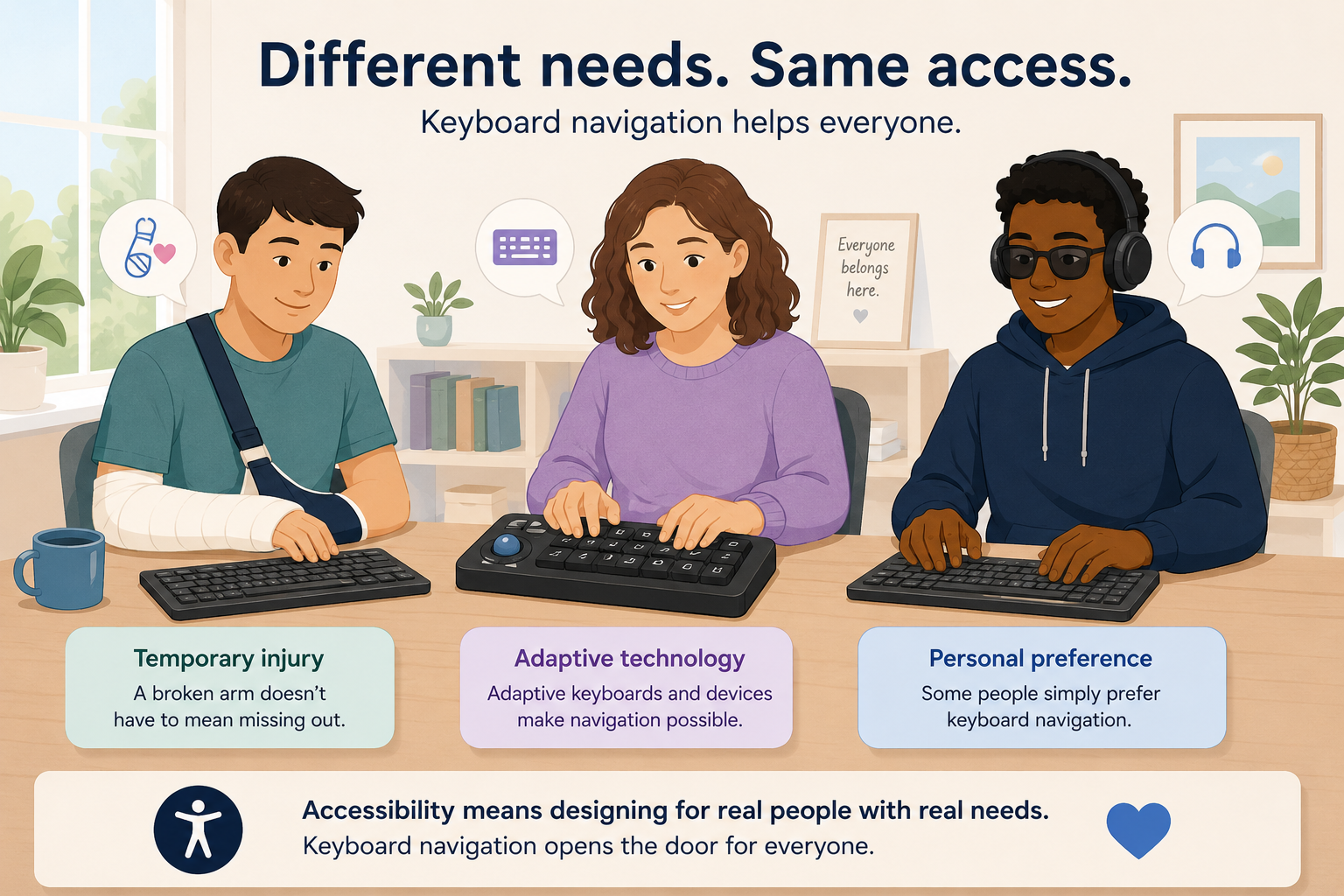
Keyboard-only navigation matters for a broader group of people than many initially assume:
This overlap is a good example of how accessibility features can benefit people beyond their originally intended audience — a principle reflected throughout WCAG's accessibility guidelines.
Standard webpages often have a relatively linear structure that keyboards handle well — Tab moves users from link to link, button to button, and form field to form field in a logical sequence. A 360° virtual tour is different. It's a spatial environment where a sighted mouse or touchscreen user typically looks freely in different directions and selects hotspots wherever they appear within the scene.
Without deliberate accessibility design, there's no obvious way to translate "look around freely in 3D space" into a logical sequence of keyboard interactions. This is one of the accessibility challenges that a properly designed ADA widget or accessibility system can help address.
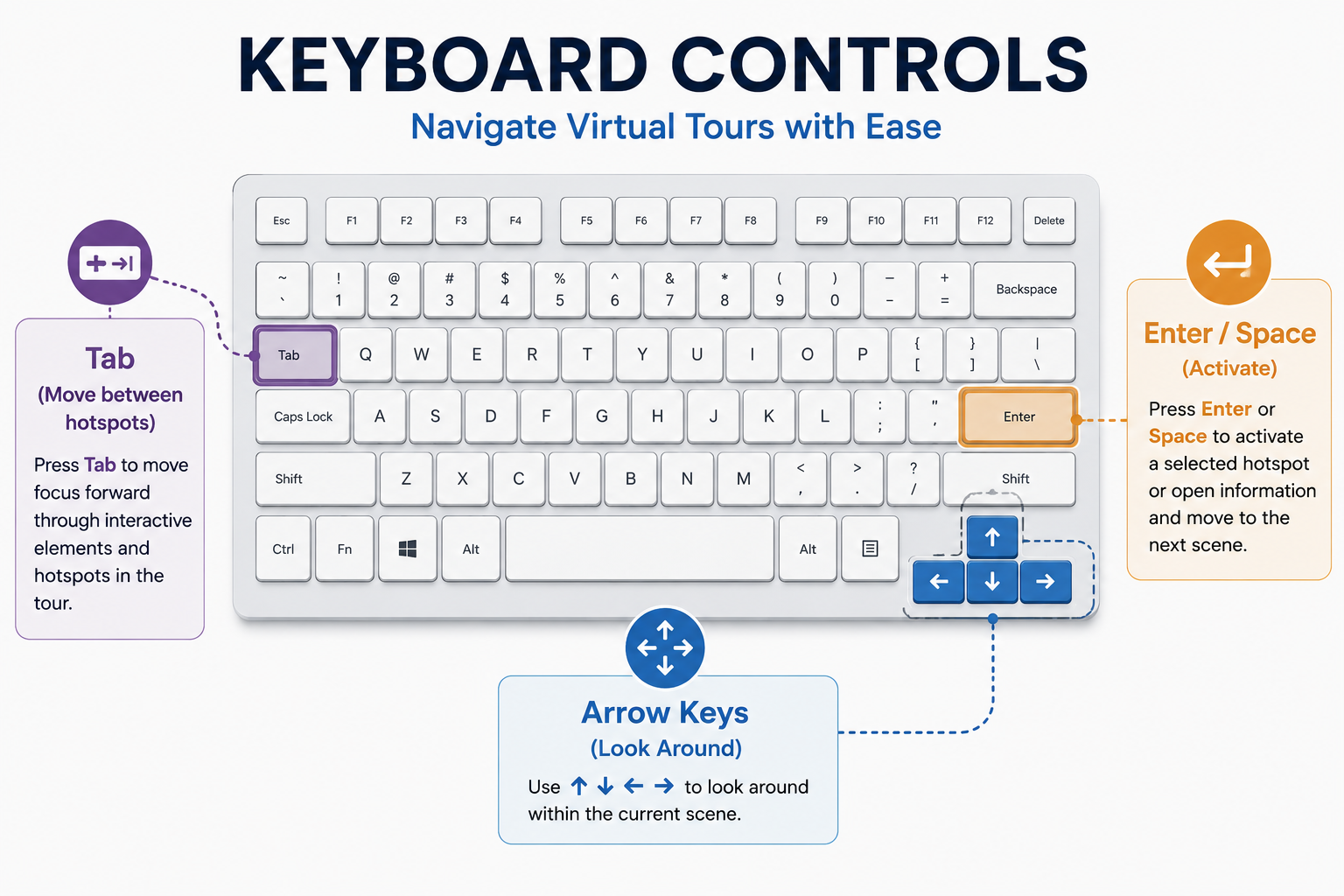
A well-built ADA widget for virtual tours can support keyboard navigation through several core mechanisms:
Logical focus order through hotspots. Rather than requiring free-form mouse or touchscreen exploration, keyboard users can move through available hotspots and interactive elements in a predictable, logical order.
Keyboard activation. Once focus reaches a hotspot or control, users should be able to activate it using standard keyboard commands, such as Enter or Space where appropriate. This follows familiar web accessibility conventions.
Arrow-key scene navigation, where supported. Some implementations may allow arrow keys or other keyboard controls to adjust the current scene view, giving keyboard users a way to explore the environment without relying on mouse dragging or touch gestures.
Visible focus indicators. As users move through interactive elements, a clear visual indicator should show which element currently has focus. This is important for sighted keyboard users who need to keep track of their position within the interface.
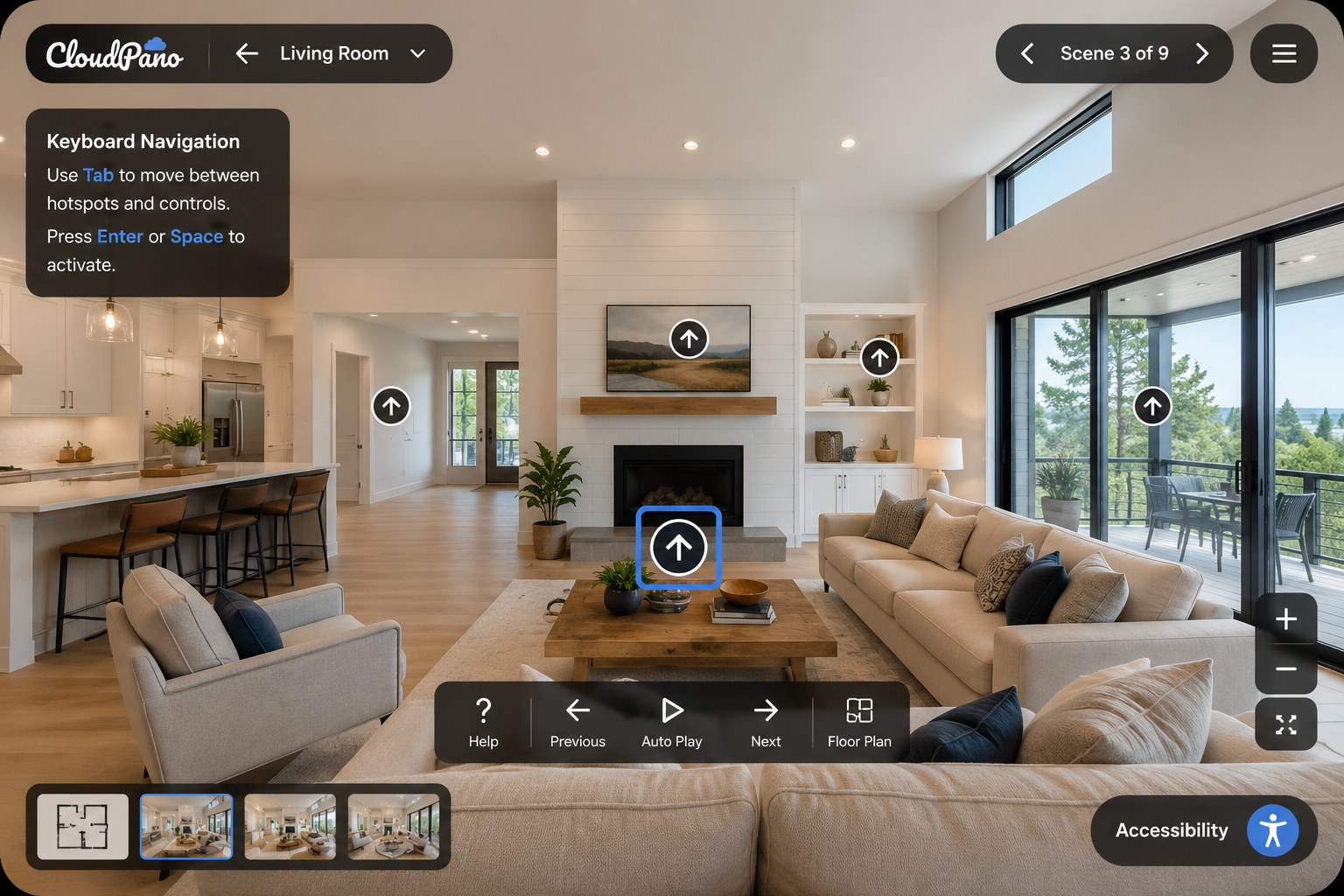
Skip and exit options. Keyboard users should have a straightforward way to bypass repetitive content and move into or out of interactive areas without becoming trapped in the tour interface.
Picture a visitor who can't use a mouse arriving at a virtual tour with no keyboard support. They press Tab, but nothing useful happens — there's no visible change and no clear indication of how to interact with the experience.
From their perspective, the tour may be effectively unusable even though it renders perfectly well visually. That's the practical, everyday impact of missing keyboard accessibility. Resources from organizations such as WebAIM provide additional guidance on keyboard accessibility and other common barriers users encounter across the web.
This is one of the easiest accessibility checks you can perform yourself, with no special tools required. Open your published tour, put your mouse aside entirely, and try to:
If you get stuck at any point, someone who relies entirely on keyboard navigation may encounter the same barrier.
Of all the accessibility features a virtual tour can have, keyboard navigation is one of the most foundational. Many users of assistive technologies, including screen reader users, rely heavily on keyboard interaction to navigate digital experiences.
Getting keyboard accessibility right therefore supports more than one feature or group of users. It creates a stronger foundation for other accessibility features to work effectively alongside the tour.
If your virtual tour currently has limited or no keyboard support, a purpose-built accessibility solution can help add essential functionality without requiring every feature to be developed from scratch.
Learn more on CloudPano's ADA compliance page, or explore CloudPano's full platform to see how accessibility can be incorporated into the virtual tour experience from the start.
This article is for general informational purposes and isn't legal advice.


Compact, ready to go anywhere
Interchangeable lens that’s upgradeable
Dual 1-inch sensors for improved clarity and low light performance
Dynamic range and 6K 360° capture
360° photo resolution at 21MP

8K 360° video recording for ultra-detailed visuals.
4K single-lens mode for traditional wide-angle shots.
Invisible selfie stick effect for drone-like perspectives.
2.5-inch touchscreen with Gorilla Glass protection.
Waterproof up to 33ft for underwater shooting.

360° photo resolution in 23MP
Slim design at 24 mm thick
Built-in image stabilization for smooth video capture.
Internal 19GB storage for photo and video storage.
Wireless connectivity for remote control and sharing.

60MP 360° still images for high-resolution photography.
5.7K 360° video recording at 30fps.
2.25-inch touchscreen for intuitive control.
USB Type-C port for fast charging and data transfer.
MicroSD card slot for expandable storage.
.png)

.png)

Try it free. No credit card required. Instant set-up.






.svg)


.svg)