


.png)


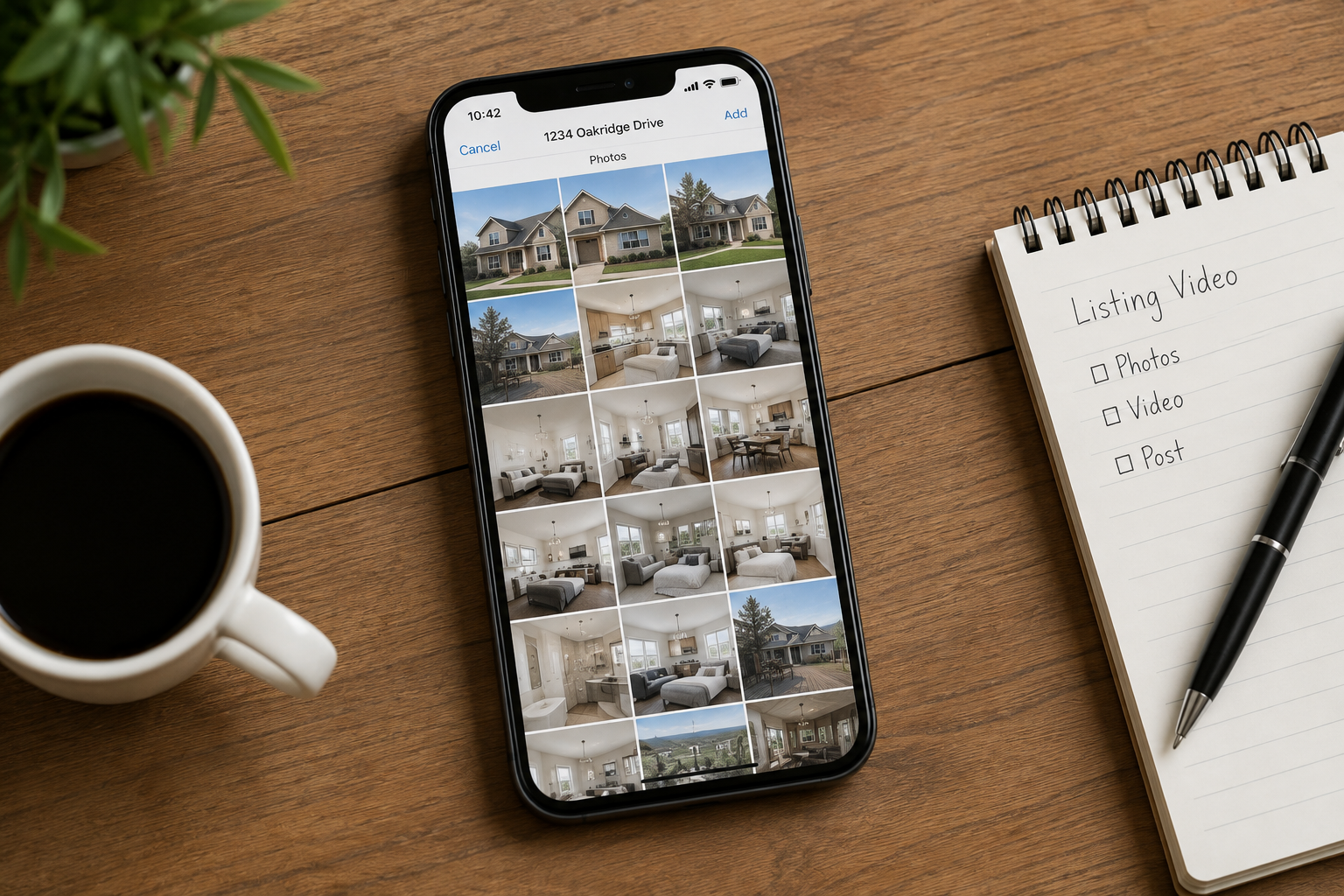
Every real estate listing starts with the same raw material: a set of photos. What happens next is where most agents stop — the photos go straight onto the MLS and social media exactly as they are, one static image at a time. Turning that same set of photos into a single AI-generated video uses the exact same source material while giving buyers something more immersive to scroll through, without requiring a camera crew or traditional editing software.
This is a practical, step-by-step walkthrough of how to do that on Android, using Photo AI Video as the example — from picking the right photos to exporting a video that's ready for social media.
A photo carousel asks a buyer to imagine the movement between rooms on their own. A video does some of that work for them, creating a sense of flow through the property that a series of static images can't replicate on their own.
That difference isn't just aesthetic — it can affect engagement and behavior. Wyzowl's research on video marketing found that a large majority of people say video has influenced a purchase decision, and marketers widely report positive results from using video (Wyzowl). A listing is, functionally, something you're marketing to prospective buyers, so many of the same principles apply.
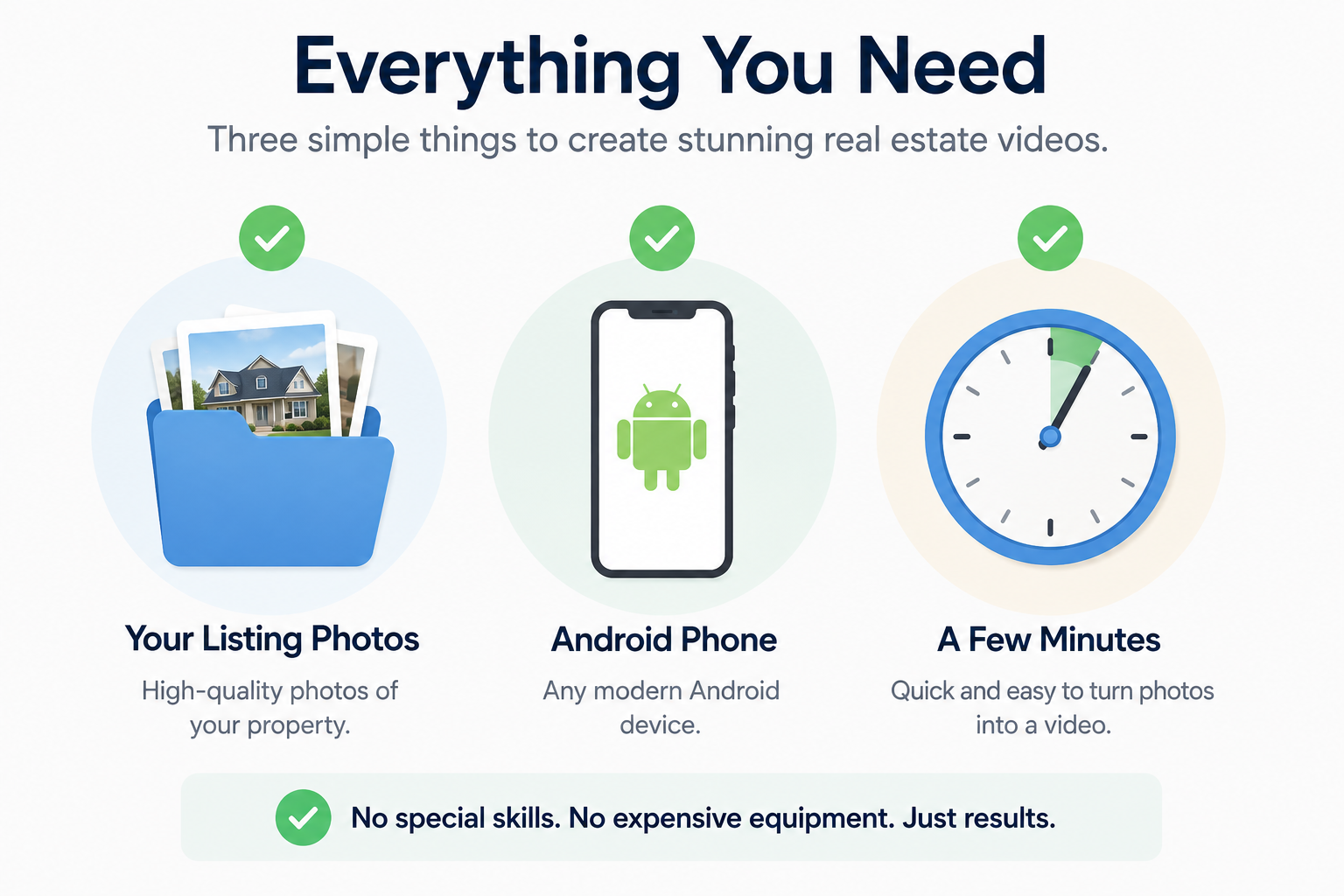
You don't need much: a set of listing photos already on your phone (or a quick transfer from your camera if you shot with a separate device), an Android phone with Photo AI Video installed, and a few minutes to put everything together. You don't need a script, a shot list, or prior video editing experience — the workflow is designed around turning your existing listing photos into video.
If you're taking the photos yourself rather than working from a photographer's set, a few basics go a long way. Use good natural light where possible, keep your framing consistent, and capture each room from angles that clearly show the space. A strong, cohesive set of source photos gives the AI better material to work with.
Search “Photo AI Video” on Google Play, or go directly to the listing.
Before installing, it's worth taking a quick look at the Data safety section on the listing, which provides information about how the developer says the app handles user data — a standardized disclosure required for apps distributed through Google Play (Google Play Help).
Once installed, open the app and you're ready to start your first project.
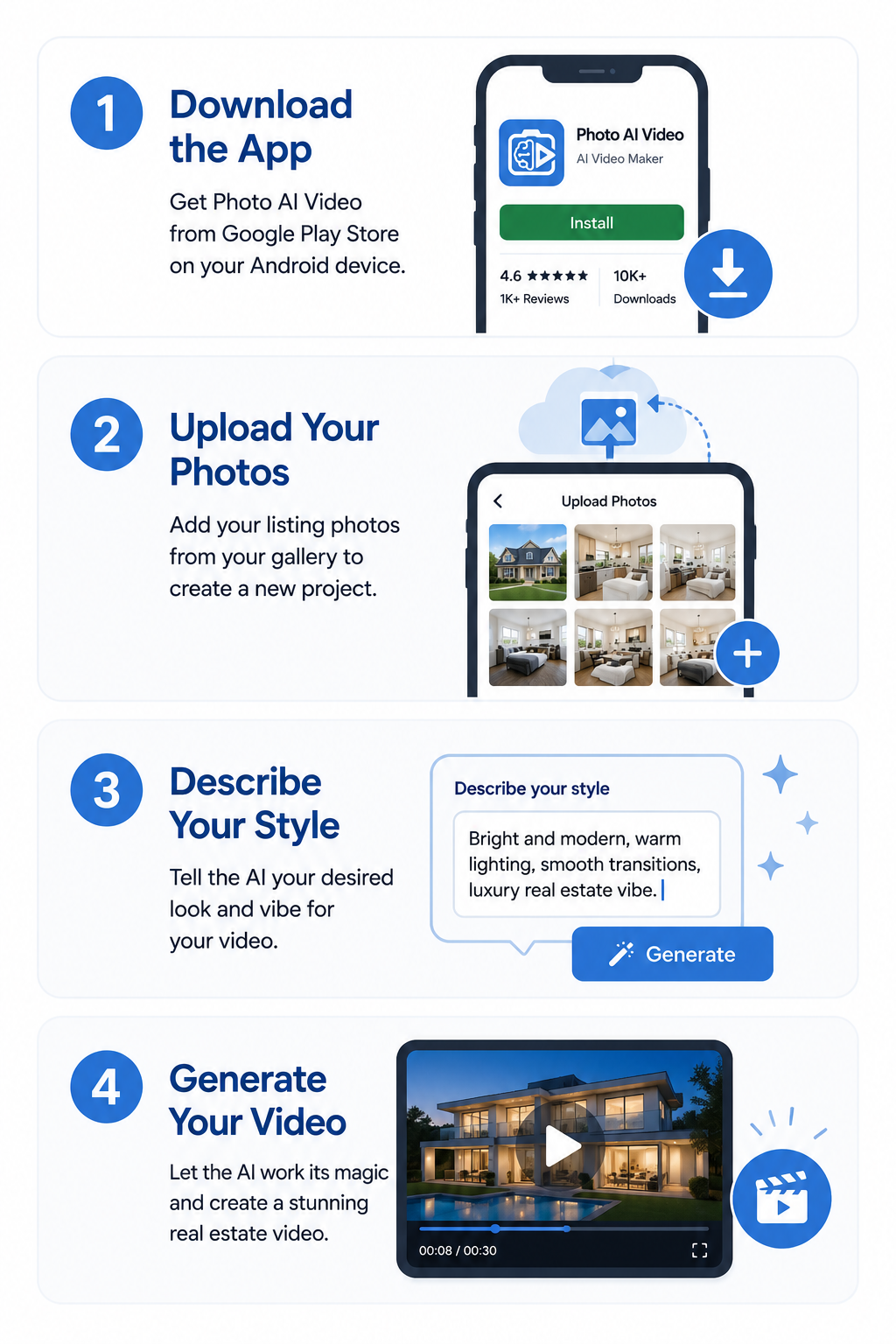
Create a new project and name it something you'll recognize later, such as the property's street address. Upload a curated photo set for that listing, covering important areas such as the exterior, main living spaces, kitchen, primary bedroom, and any standout features like a pool, view, or renovated bathroom.
If you manage multiple active listings, keeping each property organized separately also makes it much easier to find the right photos and videos later.
This is where AI replaces much of the traditional manual editing process.
Instead of arranging clips on a timeline and selecting transitions yourself, describe the tone or style you want — bright and modern, warm and traditional, sleek and high-end, cozy and inviting — and let the app generate the video.
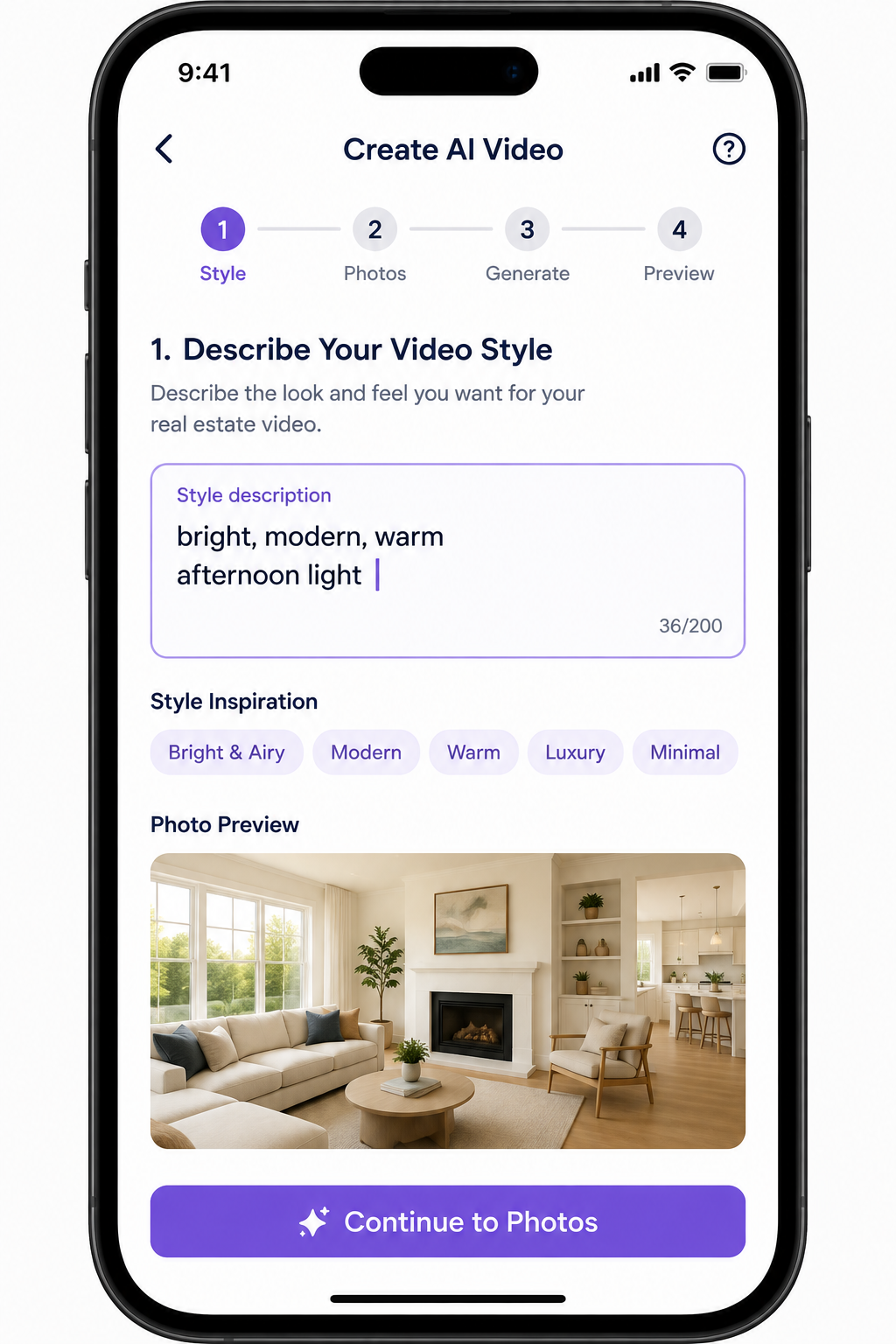
Try to be specific. Rather than simply writing “professional,” describe the visual feeling you're after. For example:
“Warm, elegant luxury real estate video with smooth motion and a relaxed, sophisticated feel.”
If the first result doesn't match what you had in mind, adjust your description and try another generation where your plan and available credits allow.
Once you're happy with the result, export the video in the format you need for your marketing channel. Vertical video is particularly useful for platforms such as Instagram Reels, TikTok, Facebook, and YouTube Shorts, where mobile-first viewing dominates.
From there, you can upload the finished file to your social channels, send it to your marketing coordinator, add it to your website, or use it anywhere else you promote the listing.
A few small habits can noticeably improve your results.
First, curate your photo set before uploading. A smaller collection of strong, varied images can work better than filling the project with repetitive shots of the same rooms.
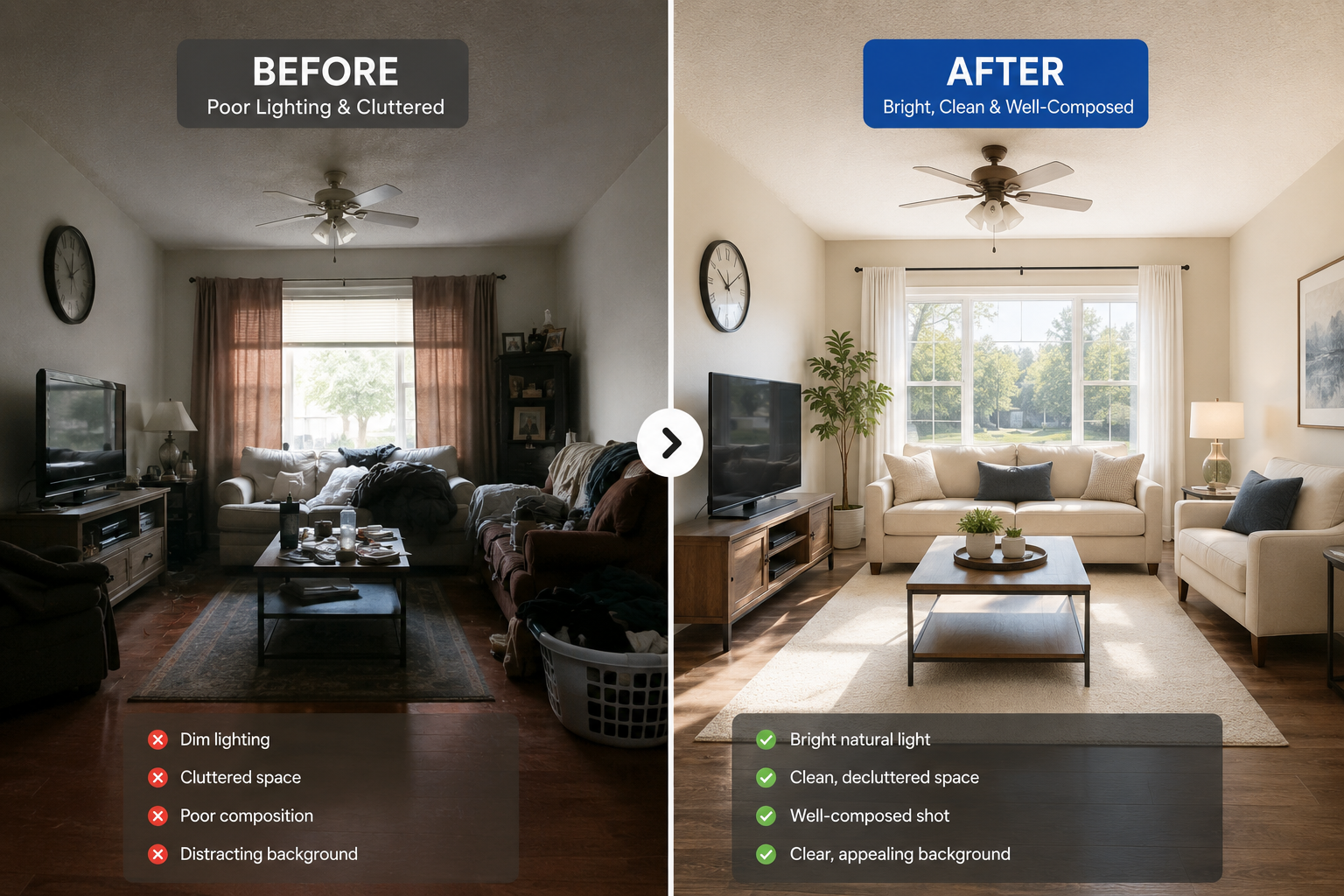
Second, be specific in your style description rather than generic. “Warm, golden-hour feel with smooth, relaxed pacing” gives the AI more creative direction than simply writing “nice.”
Third, if a generated video doesn't quite land, adjust your description and try again rather than immediately settling for the first result.
And if you're shooting your own photos specifically for this purpose, pay attention to lighting, framing, and stability. Google's own Pixel camera tips offer useful general guidance for getting better results from smartphone photography.
A few first-attempt mistakes are easy to avoid once you know what to watch for.
The biggest is uploading every photo from a shoot rather than selecting the strongest ones. A room photographed from four slightly different angles doesn't necessarily give the AI four useful perspectives — it may simply add repetitive material to the sequence.
Another mistake is writing a style description that's really just a vague mood, such as “nice” or “professional,” rather than something concrete the AI can interpret. More descriptive language can help communicate the look and feel you're trying to achieve.
It's also worth resisting the urge to treat your first generated video as automatically final. If the result isn't quite right, experiment with your description and generate another version where your account allows it.
For a particularly large or visually varied property, you might also consider whether one video is the best way to showcase everything. A five-bedroom estate with a pool house and separate garage apartment, for example, could potentially work well as a main property video accompanied by shorter feature-focused clips.
This workflow can work across a wide range of properties.
A modest starter home can benefit because buyers may be scrolling quickly through many similar listings, and video gives you another format for capturing their attention. A high-end property can benefit from a polished video that reinforces its premium positioning. Rentals can benefit too, particularly when property managers need to create marketing content for multiple units efficiently.
The common thread is simple: almost every listing is competing for attention.
You're already using the photos to market the property. Turning those same assets into video gives you another piece of content that can be distributed across social media, your website, email campaigns, and other marketing channels.
And even when a property sells quickly, the video doesn't necessarily lose its value. It can become part of your portfolio, giving prospective sellers another example of how you market your listings.
How many photos do I need?
There isn't necessarily one ideal number for every property. Focus on a curated selection that covers the property's most important rooms, features, and selling points without including too many repetitive images.
Can I redo the style if I don't like it?
You can adjust your style description and generate another version where your current plan and available generation credits allow.
Does it work offline?
Check the app's current requirements on the Google Play listing. AI video generation generally relies on online processing, so an internet connection may be required for some or all of the generation workflow.
For a device-specific version of this workflow, see our guide on the best AI real estate photo-to-video app for Pixel phones, and for the bigger picture, check our roundup of the best mobile apps for turning real estate photos into AI video.
Ready to try it on your next listing? Download Photo AI Video free on Google Play.


Compact, ready to go anywhere
Interchangeable lens that’s upgradeable
Dual 1-inch sensors for improved clarity and low light performance
Dynamic range and 6K 360° capture
360° photo resolution at 21MP

8K 360° video recording for ultra-detailed visuals.
4K single-lens mode for traditional wide-angle shots.
Invisible selfie stick effect for drone-like perspectives.
2.5-inch touchscreen with Gorilla Glass protection.
Waterproof up to 33ft for underwater shooting.

360° photo resolution in 23MP
Slim design at 24 mm thick
Built-in image stabilization for smooth video capture.
Internal 19GB storage for photo and video storage.
Wireless connectivity for remote control and sharing.

60MP 360° still images for high-resolution photography.
5.7K 360° video recording at 30fps.
2.25-inch touchscreen for intuitive control.
USB Type-C port for fast charging and data transfer.
MicroSD card slot for expandable storage.
.png)

.png)

Try it free. No credit card required. Instant set-up.





.svg)


.svg)