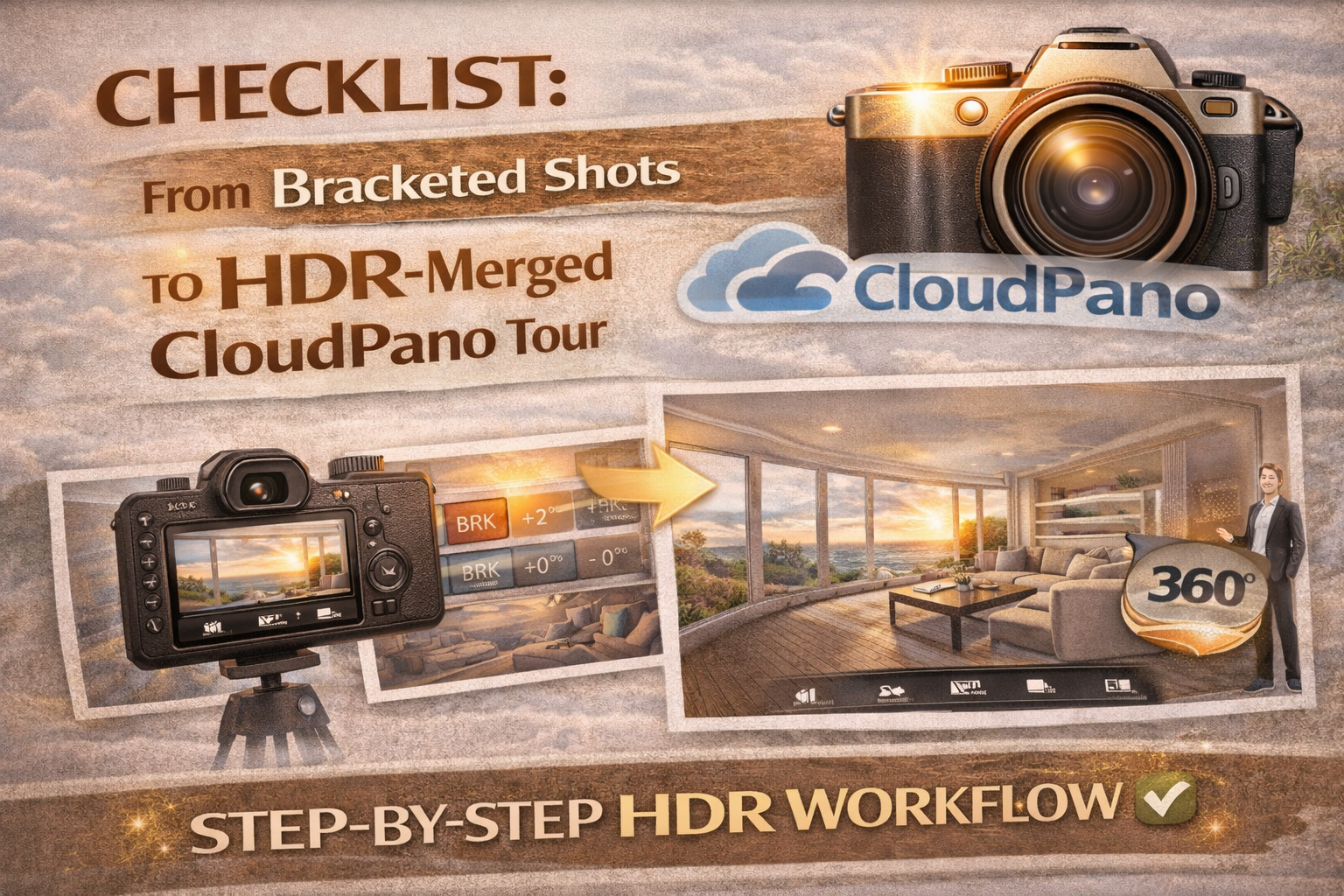
Checklist: From Bracketed Shots to HDR-Merged CloudPano Tour

Cloudpano
January 26, 2026
5 min read
Share this post

Checklist: From Bracketed Shots to HDR-Merged CloudPano Tour 📸🌐

Your Complete HDR Workflow Checklist for Smooth CloudPano Tour Preparation

Creating a professional virtual tour doesn’t start at the computer — it starts the moment you set up your camera. A smooth, efficient HDR process ensures your final tour looks bright, natural, and immersive. Whether you’re new to HDR or refining your system, having a reliable HDR workflow checklist keeps every shoot consistent.

When your goal is a polished virtual walkthrough, proper CloudPano tour preparation makes all the difference. From capturing bracketed images to uploading finished panoramas, each step builds toward a seamless viewer experience.

Here’s your step-by-step guide from bracketed shots all the way to an HDR-merged CloudPano tour. Let’s walk through it. 🚀
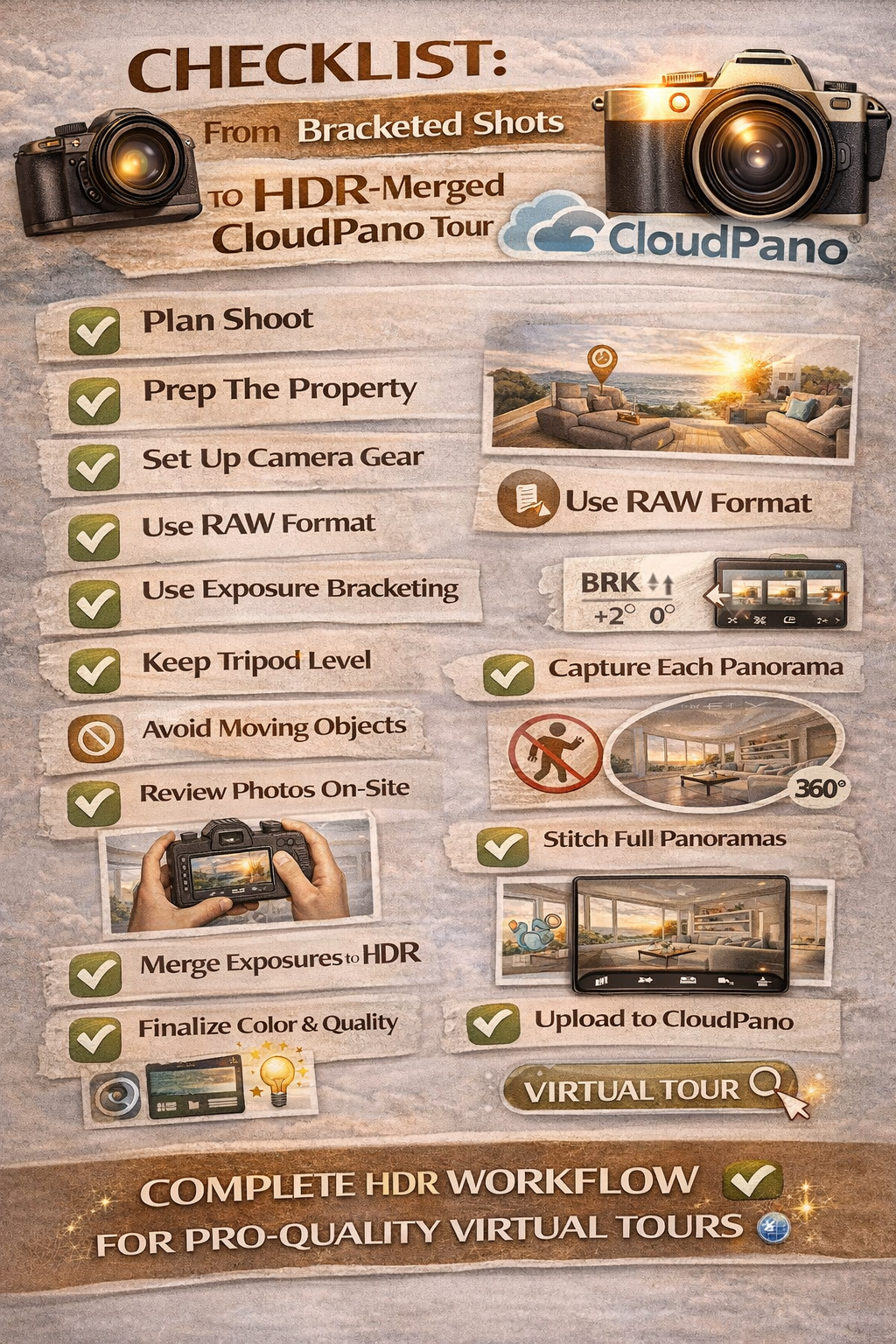
Step 1: Plan Your Shoot Before You Arrive 🗺️

Every great HDR process starts with preparation.

Before the shoot:

✔ Confirm property access
✔ Check lighting conditions (time of day matters)
✔ Identify key rooms and features
✔ Plan camera positions for each panorama

Thinking ahead reduces mistakes and speeds up your entire HDR workflow checklist.

Step 2: Prep the Space for Photography 🧼

HDR blending works best when the environment is clean and stable.

Before shooting:

🛋 Remove clutter
💡 Turn on interior lights for warmth (unless color mixing is extreme)
🪟 Adjust blinds and curtains
🧽 Wipe reflective surfaces

Good CloudPano tour preparation ensures your HDR images look clean and professional without heavy retouching.

Step 3: Use the Right Gear Setup 🎒

Your gear directly affects the quality of your HDR panoramas.

For best results:

📷 DSLR or mirrorless camera
📐 Sturdy tripod
🔄 Panoramic head (for level rotations)
🖥 Memory cards with plenty of space

Stability is critical in the HDR process, especially when blending multiple exposures.

Step 4: Shoot in RAW Format 📂

RAW files preserve maximum highlight and shadow detail — essential for HDR.

RAW allows:

✨ Better window recovery
✨ Cleaner shadow lifting
✨ More natural color grading

This is a must-have item on any serious HDR workflow checklist.

Step 5: Set Up Exposure Bracketing 📷

Bracketing is the heart of the HDR process.

Typical setup:

📸 3–5 exposures per angle
⬇ One underexposed (for highlights)
⚖ One balanced
⬆ One overexposed (for shadows)

This gives your HDR software enough data to create a natural, balanced result.

Step 6: Keep Your Tripod Perfectly Level 📐

Uneven camera angles make stitching panoramas harder later.

Use:

✔ Built-in tripod level
✔ Hot-shoe bubble level
✔ Digital level in your camera

Level shots = smoother stitching during CloudPano tour preparation.

Step 7: Capture Each Panorama Position Carefully 🔄

For each room:

📍 Place camera in a central or corner position
📷 Rotate smoothly in equal increments
📸 Capture bracketed exposures at every angle

Consistency keeps your HDR workflow checklist efficient and repeatable.

Step 8: Avoid Moving Objects 🚫

HDR blending struggles with motion.

Watch out for:

🚶 People walking
🌬 Curtains blowing
🖥 TV screens changing
💡 Flickering lights

Static scenes produce cleaner HDR merges.

Step 9: Review Images On-Site 🔍

Before leaving a room:

✔ Check for blown-out windows
✔ Ensure shadow detail exists
✔ Confirm all bracketed exposures captured

Catching issues early saves time during your HDR process.

Step 10: Organize Files Immediately After the Shoot 📁

Good organization speeds up CloudPano tour preparation.

After the shoot:

🗂 Create folders by room
🧭 Group exposures per panorama
📝 Rename files logically

A clean file structure keeps your HDR workflow checklist efficient.

Step 11: Merge HDR Exposures 🖥️

Now the editing stage begins.

Use HDR software to:

✨ Blend bracketed exposures
🌤 Balance highlights and shadows
🧼 Keep lighting natural
🎨 Correct white balance

Subtle blending is key. Overprocessed HDR hurts realism.

Step 12: Stitch Panoramas Together 🔄

Once HDR images are ready:

🧩 Stitch them into full 360° panoramas
📐 Ensure lines stay straight
🧼 Remove tripod or nadir if needed

Clean stitching is an essential step in CloudPano tour preparation.

Step 13: Final Color and Exposure Adjustments 🎨

After stitching:

✔ Adjust brightness
✔ Correct color temperature
✔ Balance contrast

These refinements ensure consistency across the entire tour — a key item on your HDR workflow checklist.

Step 14: Export in the Right Resolution 📤

For virtual tours:

📏 Use high resolution for clarity
⚖ Balance file size and quality
🖼 Use proper compression

Correct export settings ensure fast loading without sacrificing image quality.

Step 15: Upload to CloudPano 🌐

Now your CloudPano tour preparation moves into the platform stage.

Upload each HDR panorama:

🏠 Organize scenes by room
🧭 Arrange navigation order
📍 Set starting viewpoints

Good organization enhances the viewer experience.

Step 16: Add Hotspots and Navigation 🔘

Interactive elements make tours engaging.

Add:

➡ Navigation hotspots between rooms
📝 Info spots for features
🎯 Points of interest

This step transforms HDR panoramas into a complete virtual tour.

Step 17: Check Tour Flow and Experience 👀

Preview the tour as a visitor would.

✔ Walk through every scene
✔ Check lighting consistency
✔ Ensure smooth navigation

This quality check is a final step in your HDR workflow checklist.

Step 18: Optimize for Mobile Viewing 📱

Most buyers view tours on phones.

Ensure:

📲 Scenes load quickly
🔍 Text and hotspots are readable
✨ Images stay clear on small screens

Mobile optimization is essential in modern CloudPano tour preparation.

Step 19: Publish and Share 🚀

Once satisfied:

🌐 Publish the tour
🔗 Share with clients
📣 Embed on listings and websites

Your HDR process now delivers real marketing value.

Step 20: Backup Your Files 💾

Never skip backups.

✔ Store RAW files
✔ Keep HDR merges
✔ Save final panoramas

A complete archive protects your work and streamlines future updates.

Why This HDR Workflow Checklist Matters 📈

Following a consistent HDR workflow checklist helps you:

✔ Maintain consistent image quality
✔ Speed up editing
✔ Reduce reshoots
✔ Deliver professional virtual tours

Consistency is what separates hobbyists from professionals.

How the HDR Process Supports Better Virtual Tours 🌟

Balanced HDR lighting ensures:

🪟 Clear window views
🛋 Visible interior detail
🌤 Natural room brightness

These qualities make tours feel more realistic and immersive.

Final Thoughts 🎯

From capturing bracketed exposures to completing full CloudPano tour preparation, every step in the HDR process plays a role in delivering a high-quality virtual experience.

When you follow a structured HDR workflow checklist, you eliminate guesswork, reduce editing headaches, and produce tours that impress clients and attract buyers.

Great virtual tours don’t happen by accident — they happen by following a reliable process from start to finish. 📸🌐✨

🚀 Your All-In-One Virtual Experience Stack Starts Here

Share this post
Cloudpano

Choose The Right 360° Camera

Insta360 ONE RS 1-Inch 360 Edition

  • Compact, ready to go anywhere

  • Interchangeable lens that’s upgradeable

  • Dual 1-inch sensors for improved clarity and low light performance

  • Dynamic range and 6K 360° capture

  • 360° photo resolution at 21MP

Learn More

Insta360 X4

  • 8K 360° video recording for ultra-detailed visuals.

  • 4K single-lens mode for traditional wide-angle shots.

  • Invisible selfie stick effect for drone-like perspectives.

  • 2.5-inch touchscreen with Gorilla Glass protection.

  • Waterproof up to 33ft for underwater shooting.

Learn More

Ricoh Theta Z1

  • 360° photo resolution in 23MP

  • Slim design at 24 mm thick

  • Built-in image stabilization for smooth video capture.

  • Internal 19GB storage for photo and video storage.

  • Wireless connectivity for remote control and sharing.

Learn More

Ricoh Theta X

  • 60MP 360° still images for high-resolution photography.

  • 5.7K 360° video recording at 30fps.

  • 2.25-inch touchscreen for intuitive control.

  • USB Type-C port for fast charging and data transfer.

  • MicroSD card slot for expandable storage.

Learn More
Property Marketing
Allows potential buyers to explore properties in detail from anywhere, enhancing the real estate marketing process.
Automotive Spins
Create an interactive virtual showroom and engage affluent digital buyers with live 360º video calls, all through the CloudPano mobile app for a complete automotive sales solution.
Interactive Floor Plans
Create 2D and 3D floor plans with measurements in 4 minutes or less, all from your phone. Download the Floor Plan Scanner app and get your first scan free.

360 Virtual Tours With CloudPano.com. Get Started Today.

Try it free. No credit card required. Instant set-up.
Try it free
Latest posts

See our other posts

Interviews, tips, guides, industry best practices, and news.

Property Manager Video Hub: Scaling Rental Visibility with AI Photo-to-Video Workflows

This article explains how property managers can use PhotoAIVideo to build a property manager video hub: a repeatable system for turning rental photos, amenity images, floor plans, exterior shots, and neighborhood visuals into reusable rental marketing videos. The main idea is that property managers do not just need more listing exposure. They need clearer visual answers that help renters decide whether to schedule a tour. PhotoAIVideo is positioned as a practical tool for creating: Unit availability videos Amenity highlight videos Neighborhood videos Tour reminder clips Leasing follow-up videos Owner marketing proof videos Social media rental teasers Application or availability reminder videos Key takeaways: Property managers already have the media they need; the challenge is organizing it and turning it into reusable video assets. A video hub helps teams create consistent videos across units, floor plans, amenities, communities, and owner updates. Rental videos can reduce friction by answering renter questions about layout, condition, amenities, parking, pet features, and community feel. One rental photo set can become multiple video outputs for listings, social media, email, text follow-up, tour reminders, and owner reporting. Photographers can sell AI rental video packages to property managers as an upsell. Brokerages with property management divisions can use the same workflow to standardize leasing content. The article ends with a step-by-step process, video hub framework, mistakes to avoid, visual recommendations, FAQs, and a CTA encouraging readers to use PhotoAIVideo to turn rental photos into a scalable video system for rental visibility.
Read post

YouTube Shorts Listing Teasers: The 3-Scene Structure for Higher Property Clicks

This article explains how real estate agents, photographers, brokerages, and property managers can use YouTube Shorts listing teasers to drive more property clicks and showing requests. The main idea is that a YouTube Short should not try to show the entire house. Instead, it should use a simple 3-scene structure: Scene 1: Hook — stop the scroll with the strongest property feature. Scene 2: Proof — show the visuals that support the hook. Scene 3: Click Path — tell the viewer what to do next. The article positions PhotoAIVideo as a practical tool for turning listing photos into short vertical videos for YouTube Shorts, Reels, open house promotion, and listing campaigns. Key takeaways: YouTube Shorts should create curiosity, not replace the full listing video. The strongest property feature should appear first, not necessarily the front exterior. Agents should build each Short around one click reason, such as backyard, kitchen, layout, neighborhood, open house, or price point. One listing can become multiple Shorts instead of one generic video. Photographers can offer YouTube Shorts teaser packs as a video upsell. Brokerages can standardize the 3-scene structure across agents. Property managers can use the same structure to promote rentals and tours. The article ends with practical scripts, visual recommendations, FAQs, a visual placement guide, and a CTA encouraging readers to use PhotoAIVideo to create YouTube Shorts listing teasers from property photos.
Read post

Video Retargeting for Listings: Turning Photo-Based AI Videos into Appointment Follow-Up

This article explains how Realtors, photographers, brokerages, and property managers can use photo-based AI videos as follow-up assets after someone shows interest in a listing. The main idea is that most real estate marketing focuses on getting the first click, but many buyers and sellers need multiple touchpoints before booking a showing or appointment. Video retargeting helps agents re-engage people who already clicked a listing, watched a Reel, opened an email, attended an open house, asked about a property, or went quiet after showing interest. PhotoAIVideo is positioned as a practical tool for turning listing photos into short follow-up videos, including: Feature reminder videos Layout explainer videos Neighborhood fit videos Open house recap videos Price update videos Seller proof videos Showing request videos Rental tour recovery videos Key takeaways: A first-touch listing video introduces the property, while a retargeting video answers the next likely question. Follow-up videos should be short, usually 10–30 seconds, and focused on one action. Agents should send different videos based on behavior, such as email clicks, open house attendance, listing views, or showing interest. A good video follow-up feels helpful, not pushy. Photographers can package retargeting video clips as an upsell. Brokerages can standardize video retargeting workflows across agents. Property managers can use the same strategy to recover rental leads and book tours. The article ends with a simple retargeting sequence, visual recommendations, FAQs, and a CTA encouraging readers to use PhotoAIVideo to turn listing photos into appointment-driving follow-up videos.
Read post