How to Use AI Automation Mode to Create Real Estate Videos in Minutes

Cloudpano
December 10, 2025
5 min read
Share this post

🏡 How to Use AI Automation Mode to Create Real Estate Videos in Minutes

Speed is everything. Whether you’re a busy real estate agent, a media creator juggling multiple clients, or a content marketer trying to stay ahead, one thing is clear: you don’t have time to manually edit videos. That’s where AI Automation Mode comes in.

Imagine this 👉 Upload your listing photos, press a single button, grab a coffee ☕, and return to a fully edited, branded real estate video ready for download. That’s the power of Automation Mode on PhotoAIVideo.

In this guide, we’ll break down exactly how Automation Mode works, why it’s a game-changer for real estate professionals, and how you can use it to close deals faster.

🚀 What is Automation Mode?

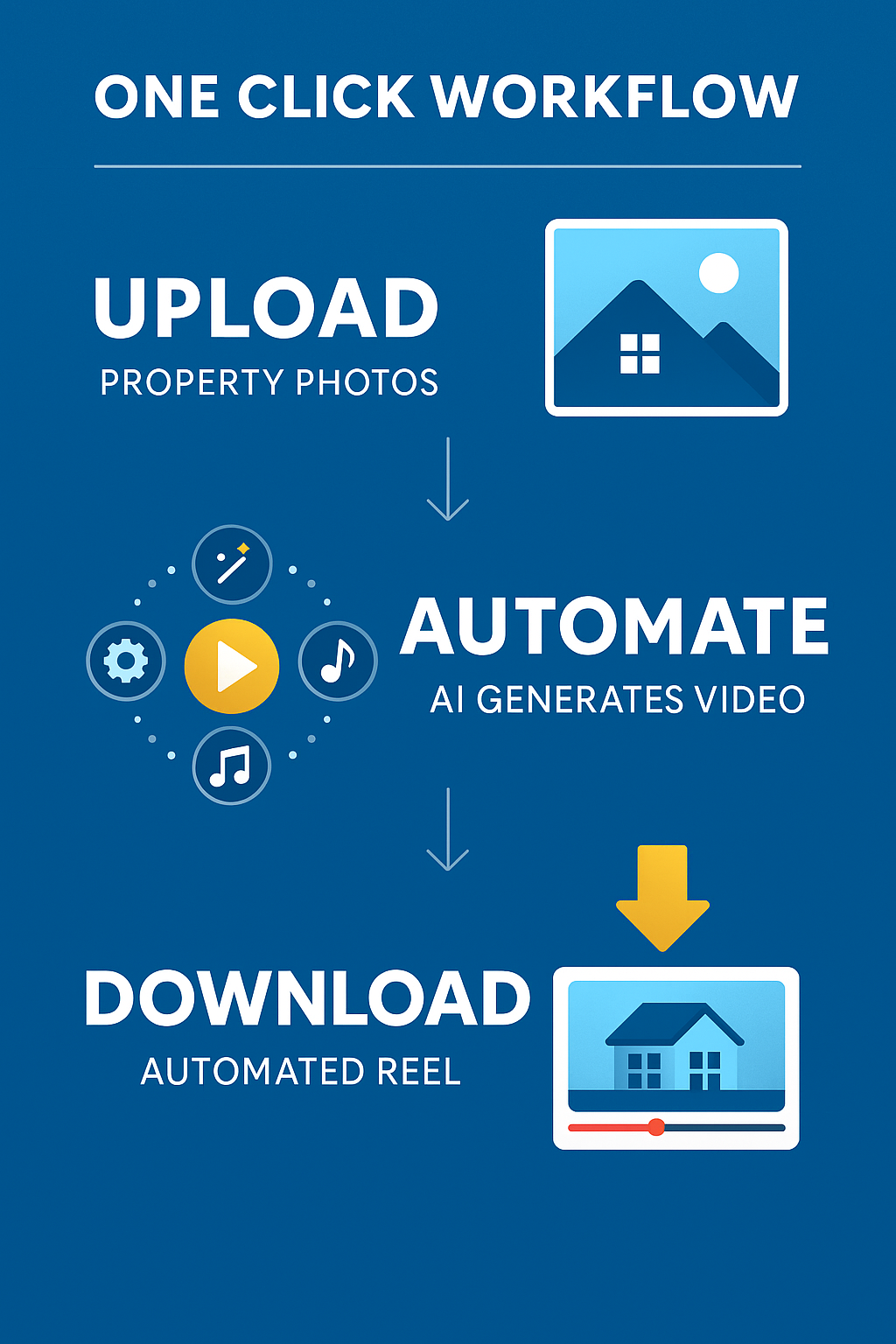
Automation Mode is an AI-powered feature that instantly transforms your property photos into professional real estate videos. Instead of manually selecting movements, music, and transitions for each photo, AI does it for you—automatically.

Here’s what happens when you hit the Automation Mode button:

  • ✅ AI analyzes each uploaded photo
  • ✅ Generates motion effects (pans, zooms, transitions)
  • ✅ Selects music and pacing
  • ✅ Combines everything into a polished reel
  • ✅ Outputs your ready-to-download video 🎬

No extra steps. No waiting on editors. Just one click → one video.

📸 Step 1: Upload Your Best Photos

Before using Automation Mode, make sure you’re uploading your best listing photos. Since AI generates movements automatically, you’ll want to use only the shots you love.

📌 Pro Tip: 12 photos = ~1 minute of video. Perfect for Instagram Reels, TikTok, YouTube Shorts, and MLS property showcases.

🎶 Step 2: Pick Your Style

Once your images are uploaded, select:

  • 🎬 Format → Landscape (YouTube), Vertical (Reels/TikTok), or Square (social ads)
  • 🎵 Music track → From modern upbeat to calm background themes
  • 🖼 Video settings → Automated transitions, zoom effects, and overlays

Then hit Start Automatic Reel. That’s it.

⚡ Step 3: Let AI Do the Heavy Lifting

After confirming payment (pro tip: save your payment info to make it one-click easy), Automation Mode goes to work:

  • Each photo gets AI-selected movement
  • The system auto-generates a smooth, high-quality video
  • Final rendering combines everything into a downloadable file

By the time you’ve finished your coffee ☕, your video is ready.

✨ Why Real Estate Agents Love Automation Mode

Here’s why Automation Mode is a must-have for real estate pros:

  • 🕒 Saves Time – No manual editing = more listings marketed
  • 💸 Affordable – Only a few dollars per project (vs $100+ for outsourced edits)
  • 📱 Social-Ready – Export in vertical, landscape, or square formats instantly
  • 🎯 High Volume Friendly – Perfect for agents with multiple listings weekly
  • 🔥 Client Impressive – Deliver polished videos fast = win more business

🔄 Editing After Automation

Even though Automation Mode is designed for speed, you’re not locked in. You can still:

  • Reorder photo sequences
  • Change background music 🎵
  • Regenerate individual clips
  • Export in multiple formats

This means you get the best of both worlds: automation + flexibility.
📈 Why This Matters

Video is no longer optional in real estate—it’s the standard. According Real Estate Marketing Trends Report 📊, listings with video get:

  • 403% more inquiries
  • 2.5x more time spent on-page
  • 3x higher chance of closing

With AI tools like PhotoAIVideo, real estate professionals can finally keep up with the demand—without burning out or overspending.

🏆 Anchor Resources

If you’re serious about real estate video marketing, check out these guides next:

✅ Final Thoughts

Automation Mode is built for speed, simplicity, and impact. In just minutes, you can go from a folder of photos → to a professional real estate video that’s ready to wow clients, post on social, and help sell properties faster.

If you’re a busy realtor or media pro, this is the ultimate growth hack. 🚀

👉 Ready to try it?

Share this post
Cloudpano

Choose The Right 360° Camera

Insta360 ONE RS 1-Inch 360 Edition

  • Compact, ready to go anywhere

  • Interchangeable lens that’s upgradeable

  • Dual 1-inch sensors for improved clarity and low light performance

  • Dynamic range and 6K 360° capture

  • 360° photo resolution at 21MP

Learn More

Insta360 X4

  • 8K 360° video recording for ultra-detailed visuals.

  • 4K single-lens mode for traditional wide-angle shots.

  • Invisible selfie stick effect for drone-like perspectives.

  • 2.5-inch touchscreen with Gorilla Glass protection.

  • Waterproof up to 33ft for underwater shooting.

Learn More

Ricoh Theta Z1

  • 360° photo resolution in 23MP

  • Slim design at 24 mm thick

  • Built-in image stabilization for smooth video capture.

  • Internal 19GB storage for photo and video storage.

  • Wireless connectivity for remote control and sharing.

Learn More

Ricoh Theta X

  • 60MP 360° still images for high-resolution photography.

  • 5.7K 360° video recording at 30fps.

  • 2.25-inch touchscreen for intuitive control.

  • USB Type-C port for fast charging and data transfer.

  • MicroSD card slot for expandable storage.

Learn More
Property Marketing
Allows potential buyers to explore properties in detail from anywhere, enhancing the real estate marketing process.
Automotive Spins
Create an interactive virtual showroom and engage affluent digital buyers with live 360º video calls, all through the CloudPano mobile app for a complete automotive sales solution.
Interactive Floor Plans
Create 2D and 3D floor plans with measurements in 4 minutes or less, all from your phone. Download the Floor Plan Scanner app and get your first scan free.

360 Virtual Tours With CloudPano.com. Get Started Today.

Try it free. No credit card required. Instant set-up.

Try it free
Latest posts

See our other posts

Interviews, tips, guides, industry best practices, and news.

Car Photo Background Automation: How It Works

This blog post explains car photo background automation and how it transforms dealership inventory photos into clean, professional listing images at scale. It breaks down the full automation workflow step-by-step, including AI vehicle detection, background removal, edge refinement, background replacement, shadow generation, cropping, and export optimization. The article also covers why background consistency improves buyer trust and click-through rates, common dealership mistakes to avoid, and the ROI dealerships can expect by automating photo background editing.
Read post

Bulk Photo Editing for Dealerships: How to Save Hours Each Week

This blog post explains how dealerships can save hours each week by implementing a streamlined bulk photo editing dealership workflow. It covers why bulk photo editing matters for inventory speed and lead generation, what edits make the biggest impact, common mistakes to avoid, and the step-by-step system dealerships can follow to standardize photos, improve listing consistency, and publish inventory faster across multiple marketplaces. The article also outlines what to look for in bulk editing tools and how to measure ROI through time saved and improved engagement.
Read post

How to Make Car Photos Look Brighter and Cleaner

This post explains how to make car photos look brighter and cleaner using a simple, repeatable workflow that improves clicks, trust, and leads. It covers the best lighting conditions for capturing photos, fast staging tips that instantly improve cleanliness, and a practical editing process (exposure, shadows, highlights, white balance, clarity). It also explains how background cleanup/replacement and consistent angles help make car photos look better across the entire inventory and improve listing conversions.
Read post