


.png)


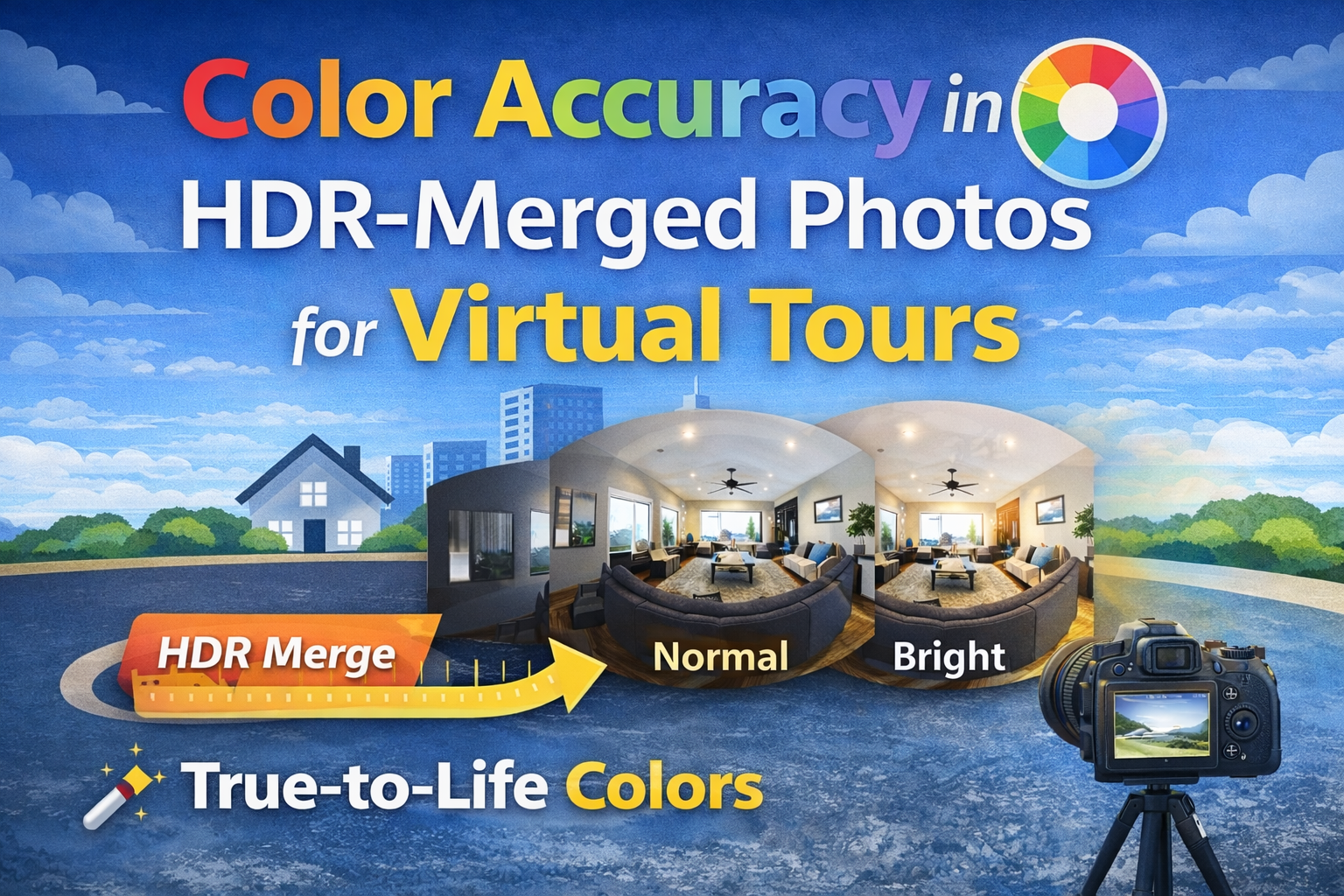
When viewers explore a virtual tour, they expect the space to look real. If walls appear too blue, wood floors look orange, or lighting feels unnatural, trust drops instantly. That’s why Color Accuracy HDR Photos is one of the most important factors in delivering professional, believable virtual tours.
This guide explains how to achieve True-to-Life Colors Virtual Tours using proper capture, careful HDR merging, and smart editing decisions. Whether you create tours for real estate, hospitality, retail, or commercial spaces, strong color accuracy directly improves Virtual Tour Image Quality and viewer confidence.
Let’s break it down step by step. 🚀
Virtual tours are immersive. Viewers don’t just glance at a single photo — they look around the entire space. That makes color problems more noticeable than in standard photography.
Poor color accuracy can cause:
Accurate color builds trust. Buyers, customers, and clients rely on virtual tours to make decisions. When colors feel natural and believable, the experience feels closer to being there in person.

HDR Merging for Virtual Tours involves combining multiple exposures of the same scene to capture detail in both bright and dark areas. This improves lighting balance, but it can also introduce color issues if not handled carefully.
Each exposure in a bracketed set may record light differently:
When these are merged, the software blends brightness levels — but color blending isn’t always perfect. Without careful control, HDR merges can lead to color shifts, flat tones, or unnatural saturation.
Maintaining Color Accuracy HDR Photos means guiding the merge process rather than relying on automatic settings alone.
Good color begins at capture. Editing can fix many things, but starting clean makes everything easier.
Never use auto white balance when shooting bracketed exposures. Each exposure may shift color slightly, creating inconsistencies during HDR merging.
Instead, choose a fixed white balance that matches the dominant light source:
Consistent white balance is the foundation of True-to-Life Colors Virtual Tours.
High ISO can introduce color noise and reduce clarity. Use the lowest ISO possible for cleaner, more accurate color.
RAW files retain more color data than JPEGs. This extra information helps maintain smoother tones and better adjustments during HDR Photo Editing Tips.
Mixed lighting is one of the biggest threats to color accuracy.
Interior scenes often include:
Each light source has a different color temperature. When HDR merging blends exposures from different brightness levels, these color differences can become exaggerated.
To manage this:
Controlling mixed lighting helps ensure Virtual Tour Image Quality stays consistent from room to room.
Aggressive HDR processing is a common cause of color distortion.
Overdone HDR can create:
When merging HDR photos:
The goal of HDR Merging for Virtual Tours is balanced lighting, not dramatic effects. Subtle merges preserve True-to-Life Colors Virtual Tours.
Even with good capture technique, minor color adjustments are almost always needed.
Use editing tools to:
A good rule: whites should look neutral, not tinted. Once whites are correct, other colors usually fall into place.
This step is one of the most important HDR Photo Editing Tips for maintaining realistic tones.
HDR merging can unintentionally boost color intensity. While vibrant images can look appealing, oversaturation makes spaces feel fake.
Watch for:
Use global and local adjustments to fine-tune saturation. The aim is natural vibrancy, not exaggerated color.
Color accuracy isn’t just about a single panorama. In virtual tours, viewers move from scene to scene. Sudden shifts in color temperature or tone can be jarring.
To maintain consistency:
Consistent color improves Virtual Tour Image Quality and makes tours feel professionally produced.
Editing on an uncalibrated monitor can lead to incorrect color adjustments.
If your screen is too warm, you may cool images too much. If it’s too cool, you may add unnecessary warmth.
Using a calibrated monitor helps ensure that Color Accuracy HDR Photos appear correct across devices and platforms.
Clarity and sharpening tools can alter perceived color by increasing contrast in edges.
Too much clarity can make:
Use these tools lightly to maintain smooth, natural transitions between tones.
Heavy edits or low-quality exports can create banding in gradients, especially in skies or softly lit walls.
To avoid this:
Smooth gradients contribute to strong True-to-Life Colors Virtual Tours.
Removing all warmth can make spaces feel sterile. Some warmth is natural and inviting.
Outdoor light should feel natural, not overly blue or gray.
HDR merges often cool shadows. Add subtle warmth back if needed.
A kitchen that looks cool and a living room that looks warm can feel disconnected.
Avoiding these issues keeps HDR Merging for Virtual Tours visually cohesive.
Viewers subconsciously compare what they see in a virtual tour to real-world expectations.
Accurate color helps:
High Virtual Tour Image Quality doesn’t just look good — it drives results.
HDR technology and software continue to improve. Modern tools offer:
Even as technology evolves, the fundamentals remain the same: consistent capture, careful merging, and subtle editing.
Mastering Color Accuracy HDR Photos ensures your virtual tours remain competitive and professional for years to come.
Color accuracy is not an optional detail — it’s a core part of professional virtual tour creation.
By following strong HDR Photo Editing Tips and a careful approach to HDR Merging for Virtual Tours, you can consistently produce images that feel natural, balanced, and trustworthy.
Remember the formula:
📷 Capture with fixed white balance
🌤 Merge exposures gently
🎨 Correct color with subtle adjustments
🔄 Keep consistency across scenes
Do this, and your virtual tours will deliver the True-to-Life Colors Virtual Tours viewers expect — and that leads to stronger engagement, better impressions, and higher-quality results overall.


Compact, ready to go anywhere
Interchangeable lens that’s upgradeable
Dual 1-inch sensors for improved clarity and low light performance
Dynamic range and 6K 360° capture
360° photo resolution at 21MP

8K 360° video recording for ultra-detailed visuals.
4K single-lens mode for traditional wide-angle shots.
Invisible selfie stick effect for drone-like perspectives.
2.5-inch touchscreen with Gorilla Glass protection.
Waterproof up to 33ft for underwater shooting.

360° photo resolution in 23MP
Slim design at 24 mm thick
Built-in image stabilization for smooth video capture.
Internal 19GB storage for photo and video storage.
Wireless connectivity for remote control and sharing.

60MP 360° still images for high-resolution photography.
5.7K 360° video recording at 30fps.
2.25-inch touchscreen for intuitive control.
USB Type-C port for fast charging and data transfer.
MicroSD card slot for expandable storage.
.png)

.png)

Try it free. No credit card required. Instant set-up.






.svg)


.svg)