


.png)


Most migration advice focuses on the rebuild — getting new tours live on a new platform. This one is about the other side of the process: making sure nothing gets lost on the way out. This virtual tour migration checklist is scoped specifically to backup and preservation, so you have a clear list of what to save and verify before you actually submit a cancellation request.
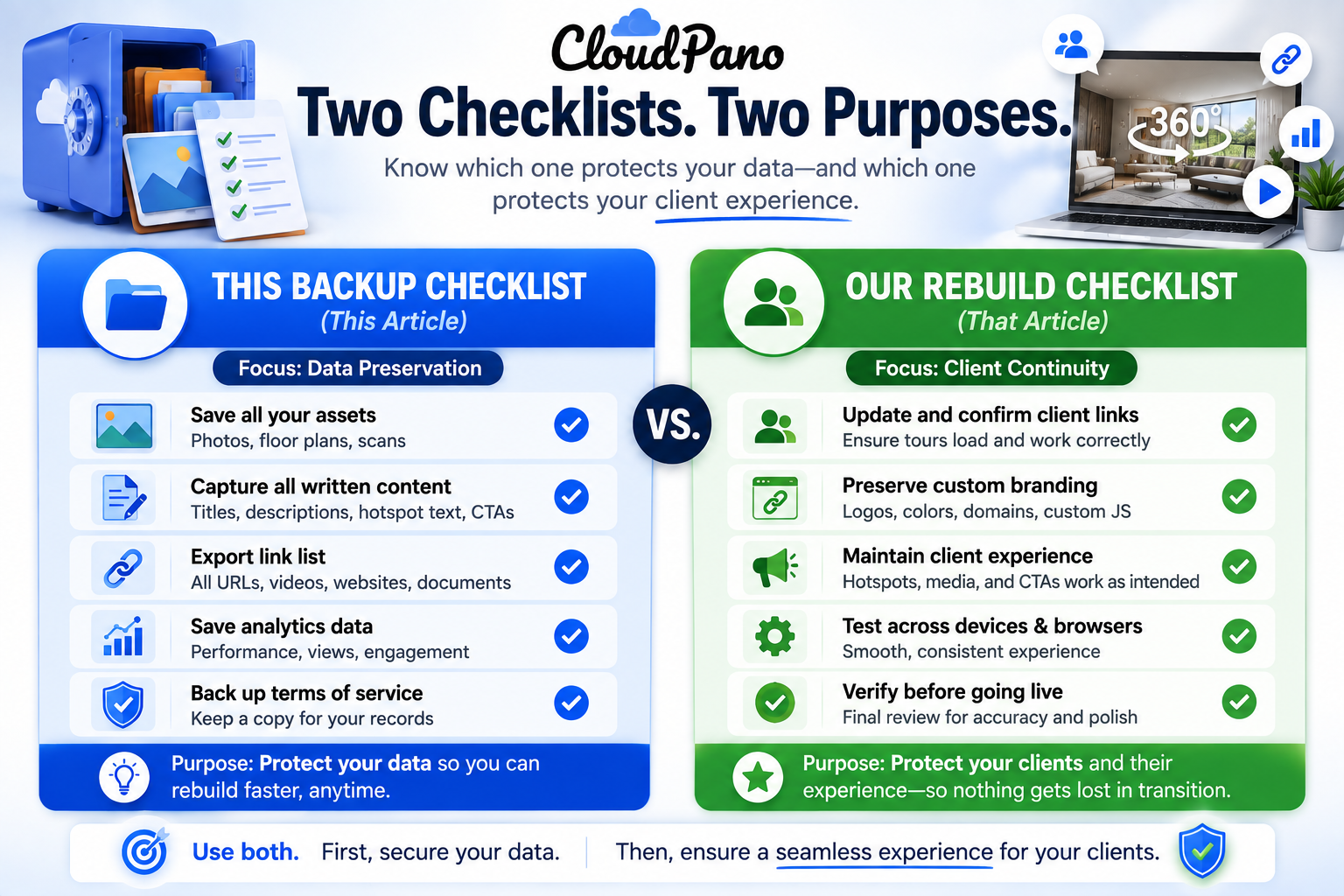
It's easy to treat cancellation as an afterthought once you're focused on getting a new platform up and running. But once an account is closed, recovering something you forgot to save is often difficult or impossible, while saving it beforehand takes a few minutes. This asymmetry — cheap to do in advance, potentially impossible to fix after — is exactly why backup deserves a dedicated pass rather than being an assumed side-effect of the broader migration.
Before backing anything up, get clear on what you actually still need — not everything you've ever created, just what's genuinely relevant going forward. Archived, inactive tours you have no intention of using again don't need the same careful backup treatment as active, client-facing content. This scoping step is what keeps the rest of this checklist manageable rather than turning into an exhaustive archive of your entire account history.
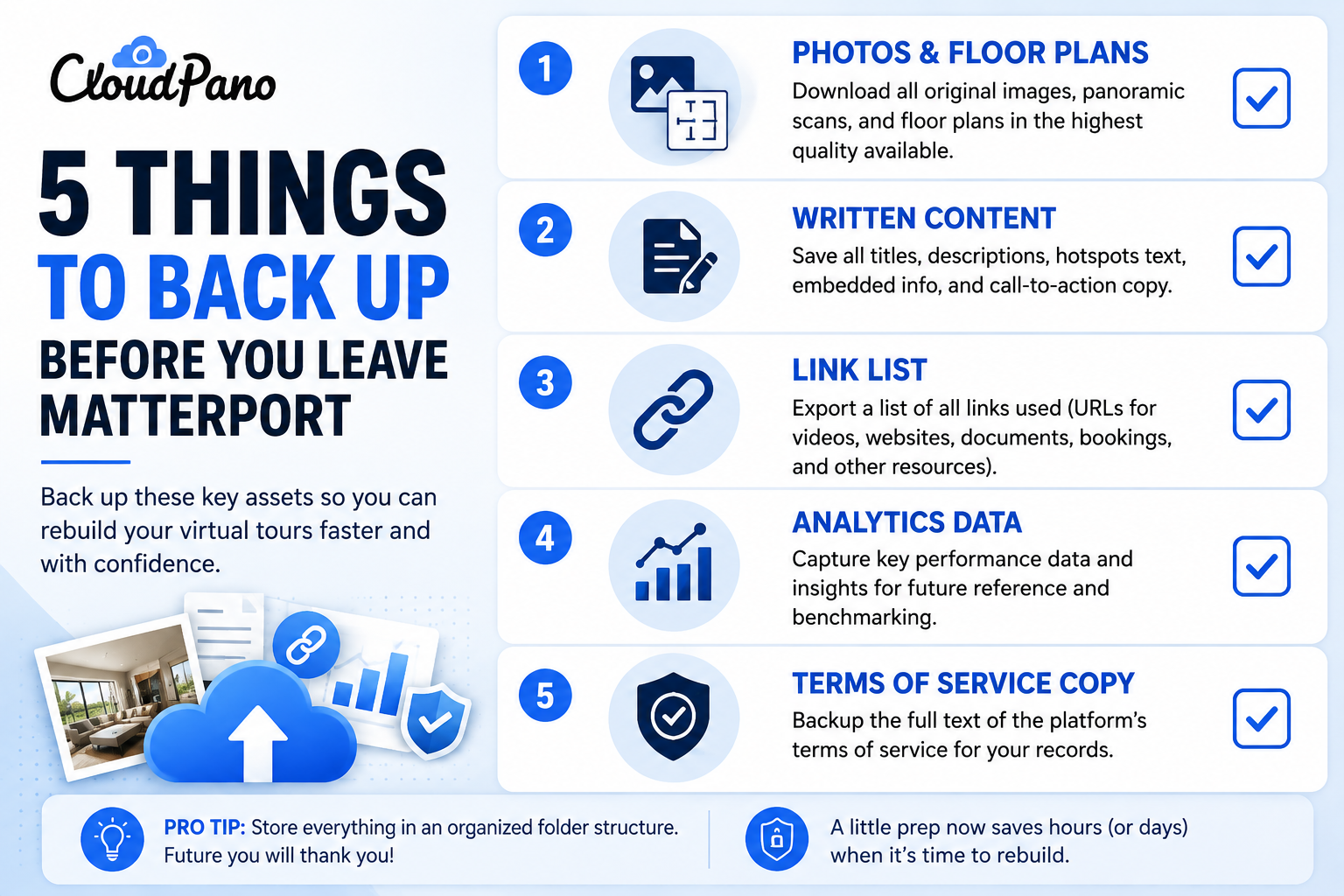
Source photos and floor plans, wherever these exist as separate downloadable assets rather than only embedded inside a rendered tour. These are often the most reusable piece of content going forward, regardless of which new platform you land on.
Written content — descriptions, tags, captions, any text associated with a tour — since this is typically simple to export or copy manually and easy to overlook.
A documented list of every live link, including where each one is embedded (a specific listing, a client's website, an email campaign), so you have a clear record of what needs to be rebuilt and where the new version needs to go.
Analytics history, if you rely on it for reporting, since this is sometimes lost entirely once an account closes and isn't always simple to reconstruct after the fact.
A copy of your account's current terms of service or cancellation policy, specifically the sections covering data ownership and access timelines, so you have your own record if a question or discrepancy comes up later.
It's worth spending a moment on where these backups actually live once you've gathered them, since a backup that's scattered across a dozen browser downloads is barely better than no backup at all. When you backup virtual tour files, create a single, clearly labeled folder structure — organized by property or tour name — rather than letting exported photos, documents, and link lists pile up loosely. Cloud storage (a shared drive your team already uses) works better than local-only storage, since it protects against a single device failure wiping out your only copy.
It's also worth naming files consistently as you backup virtual tour files, so six months from now you can actually find what you're looking for without having to open every file to check its contents. A simple convention — property name, followed by content type, followed by date — is enough to make this searchable later without needing anything elaborate.
The practical way to migrate virtual tours without gaps is to work from a written list rather than relying on memory. Go tour by tour through your active library, and for each one, confirm the five backup items above are actually saved somewhere outside the platform itself — not just theoretically exportable, but actually downloaded or documented on your end.
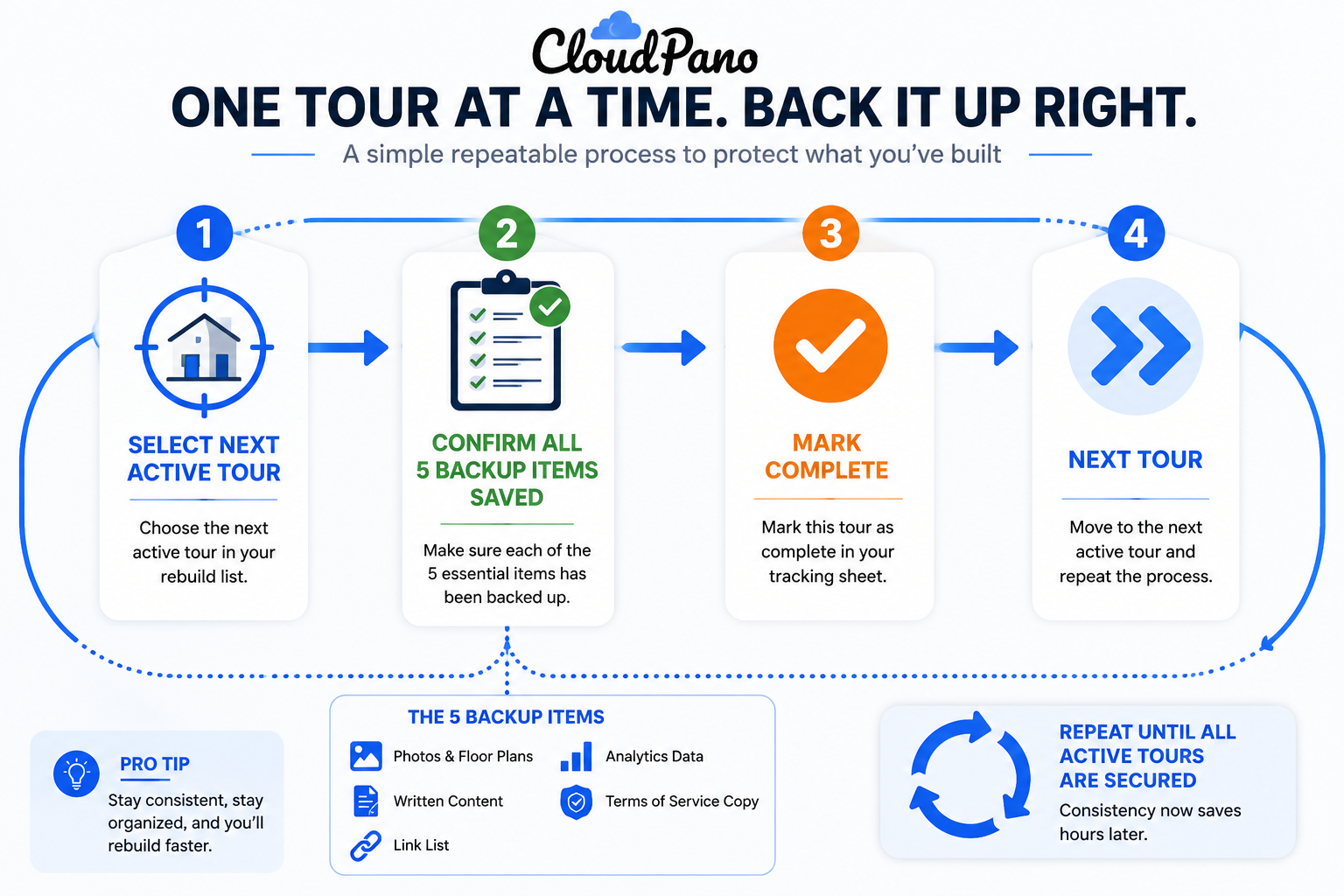
This step-by-step approach is slower than assuming you've covered everything, but it's the difference between a genuinely complete backup and one that feels complete until you discover a gap after the account is already closed.
Timing matters here more than it might seem. Running this backup pass the same day you plan to cancel leaves no room to notice a gap or request help from support if something isn't exporting as expected. Running it weeks in advance, well before you've committed to a specific cancellation date, gives you enough buffer to catch and fix problems — a support ticket that takes a few days to resolve, an export that needs a different format, a piece of content you thought was saved but wasn't.
A reasonable approach: treat this checklist as something you complete before you even schedule a cancellation date, not as a final step right before submitting the request. That way, any issues you discover become a normal part of your planning process rather than a last-minute scramble against a self-imposed deadline.
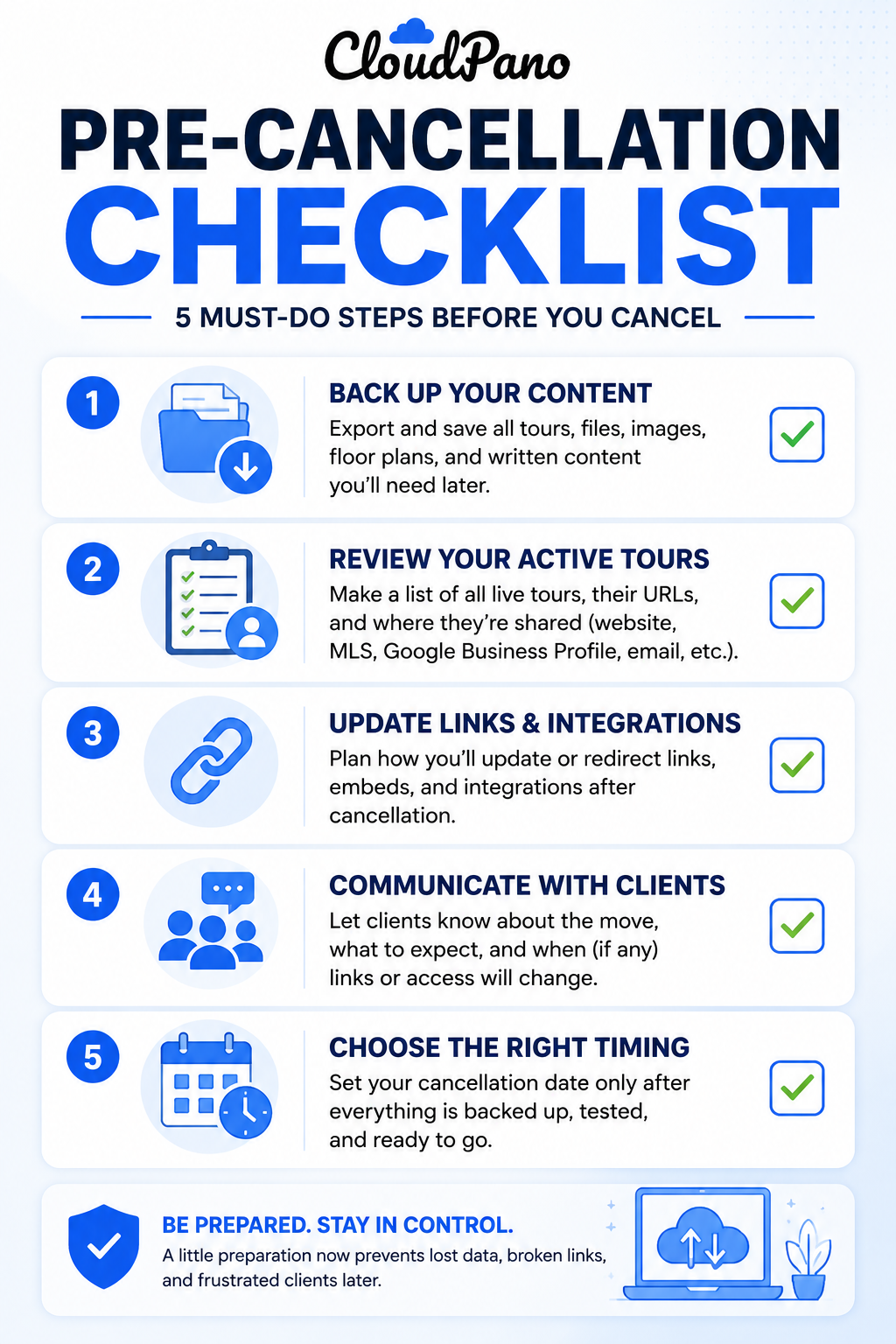
Once your backup pass is complete, the remaining steps form a genuine Matterport cancellation checklist — the specific things to confirm immediately before submitting a cancellation request:
On G2's virtual tour software category page, reviewers occasionally mention discovering a gap in their own backup only after an account had already closed, reinforcing why a deliberate, checklist-driven pass matters more than an assumption that "most things probably transferred."
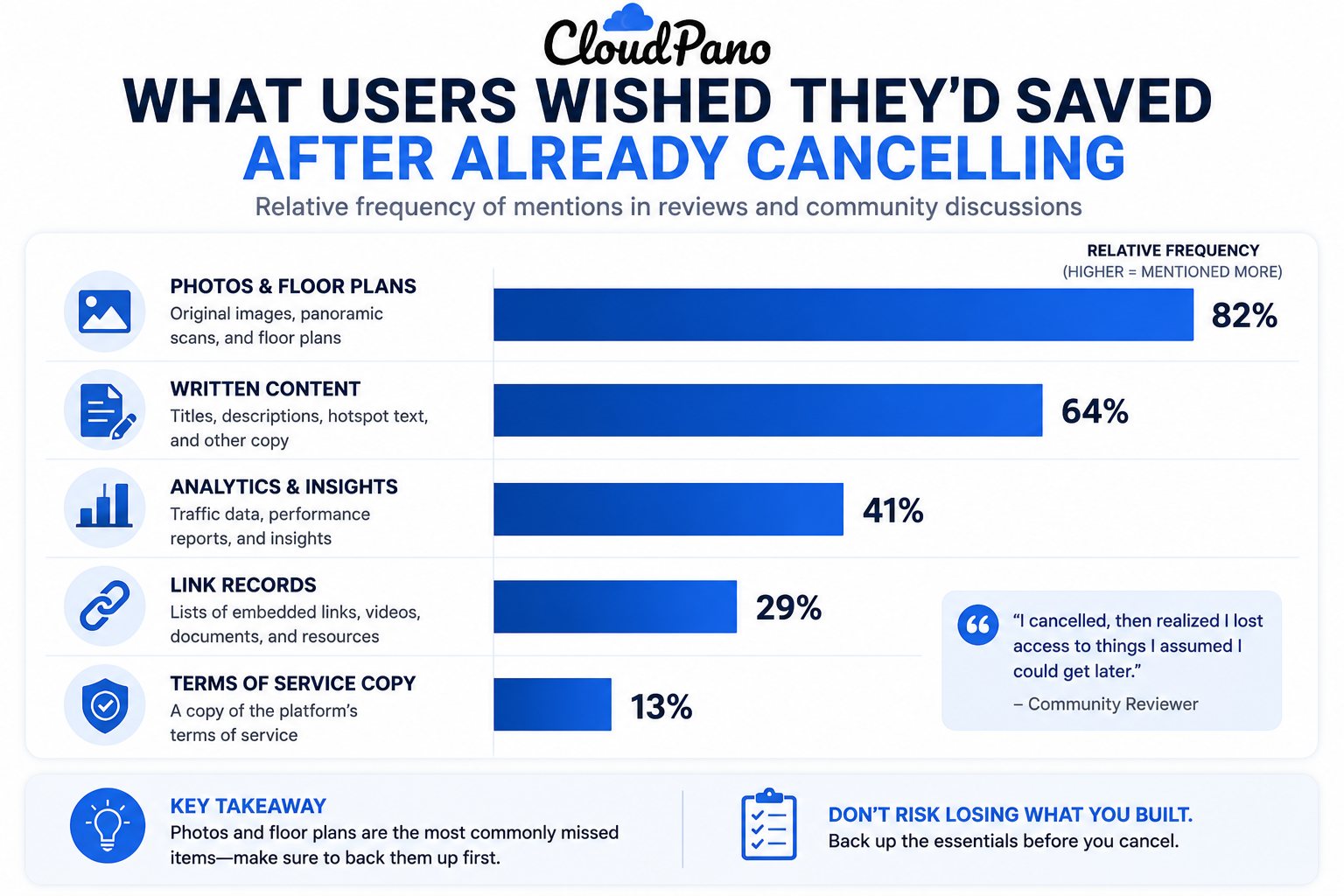
Community discussions on r/Matterport are a useful, current resource specifically for backup and export questions, since users regularly share what they wish they'd saved before cancelling, in hindsight.
"Isn't this overkill for a small tour library?"
If your library is genuinely small, this checklist takes very little time to run through — the effort scales with your library size, but the underlying logic (don't assume, verify) applies regardless of how many tours you have. A quick pass costs little even when your library is small.
"What if I've already cancelled and didn't do this?"
If you're in this position, contact support directly and ask specifically what's still recoverable, since some data may still be accessible for a limited window even after cancellation. This is worth doing immediately rather than assuming everything is already gone.
This checklist is worth running even if you haven't fully committed to leaving Matterport. Backing up your content doesn't require cancelling anything, and having a clean, organized backup in place removes one more piece of friction from an eventual decision, whenever you actually make it. Treating this as routine good practice — something you do periodically regardless of your current plans — is a reasonable habit even for businesses with no immediate intention to switch, since it costs little and protects against a range of scenarios beyond just a planned platform change.
A backup-focused pass before cancelling is a small time investment that prevents most of the regret people report after closing an account too quickly. Scoping what you actually need, saving the specific items outlined above, and working from a written checklist rather than memory is what separates a clean transition from an unpleasant surprise a few weeks later.
If you haven't yet tackled the rebuild side of this process, our migration checklist covers client-facing continuity in depth, and our complete migration guide covers the full process end to end. Together with this backup-focused checklist, these three pieces cover the full arc of a careful migration — what to save before you leave, what to rebuild and test, and how the broader timeline fits together — so nothing important falls through the cracks between the account you're leaving and the one you're moving to.


Compact, ready to go anywhere
Interchangeable lens that’s upgradeable
Dual 1-inch sensors for improved clarity and low light performance
Dynamic range and 6K 360° capture
360° photo resolution at 21MP

8K 360° video recording for ultra-detailed visuals.
4K single-lens mode for traditional wide-angle shots.
Invisible selfie stick effect for drone-like perspectives.
2.5-inch touchscreen with Gorilla Glass protection.
Waterproof up to 33ft for underwater shooting.

360° photo resolution in 23MP
Slim design at 24 mm thick
Built-in image stabilization for smooth video capture.
Internal 19GB storage for photo and video storage.
Wireless connectivity for remote control and sharing.

60MP 360° still images for high-resolution photography.
5.7K 360° video recording at 30fps.
2.25-inch touchscreen for intuitive control.
USB Type-C port for fast charging and data transfer.
MicroSD card slot for expandable storage.
.png)

.png)

Try it free. No credit card required. Instant set-up.







.svg)


.svg)