


.png)


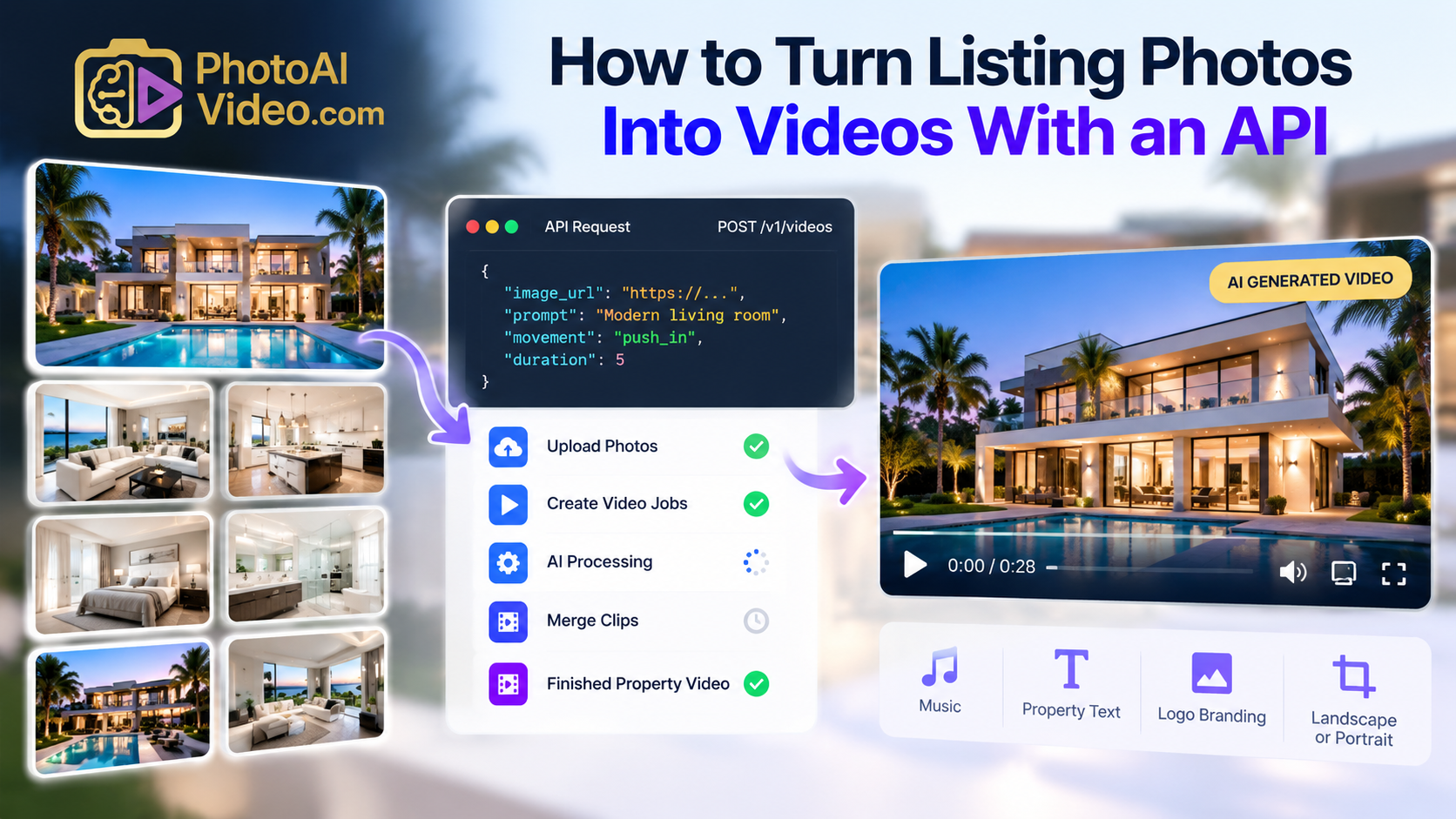
You can turn listing photos into videos with an API by uploading property images, creating individual AI video-generation jobs, monitoring those jobs until processing is complete, and combining the finished clips into a branded property video. The completed video can then be returned to a CRM, MLS platform, property website, photography workflow, or other real estate application.
Professional listing photos are already one of the most valuable marketing assets in real estate. They appear on property websites, MLS listings, brokerage pages, real estate portals, social media, and marketing campaigns.
But those same photos can do more than sit in a gallery.
With a real estate video API, developers can turn existing listing photos into video clips and assemble those clips into property videos automatically. Instead of asking an agent, photographer, or marketing team to manually recreate a listing inside a video editor, the video-generation workflow can become part of the software that already manages the property.
A real estate CRM might generate a video when an agent publishes a listing. A photography platform could create a video after a shoot is delivered. An MLS or property-marketing platform could add a Generate Video button next to an existing photo gallery.
The basic workflow is straightforward:
Listing Photos → Upload → Generate Video Clips → Check Processing → Assemble Clips → Add Branding → Finished Property Video
Here's how to build it.
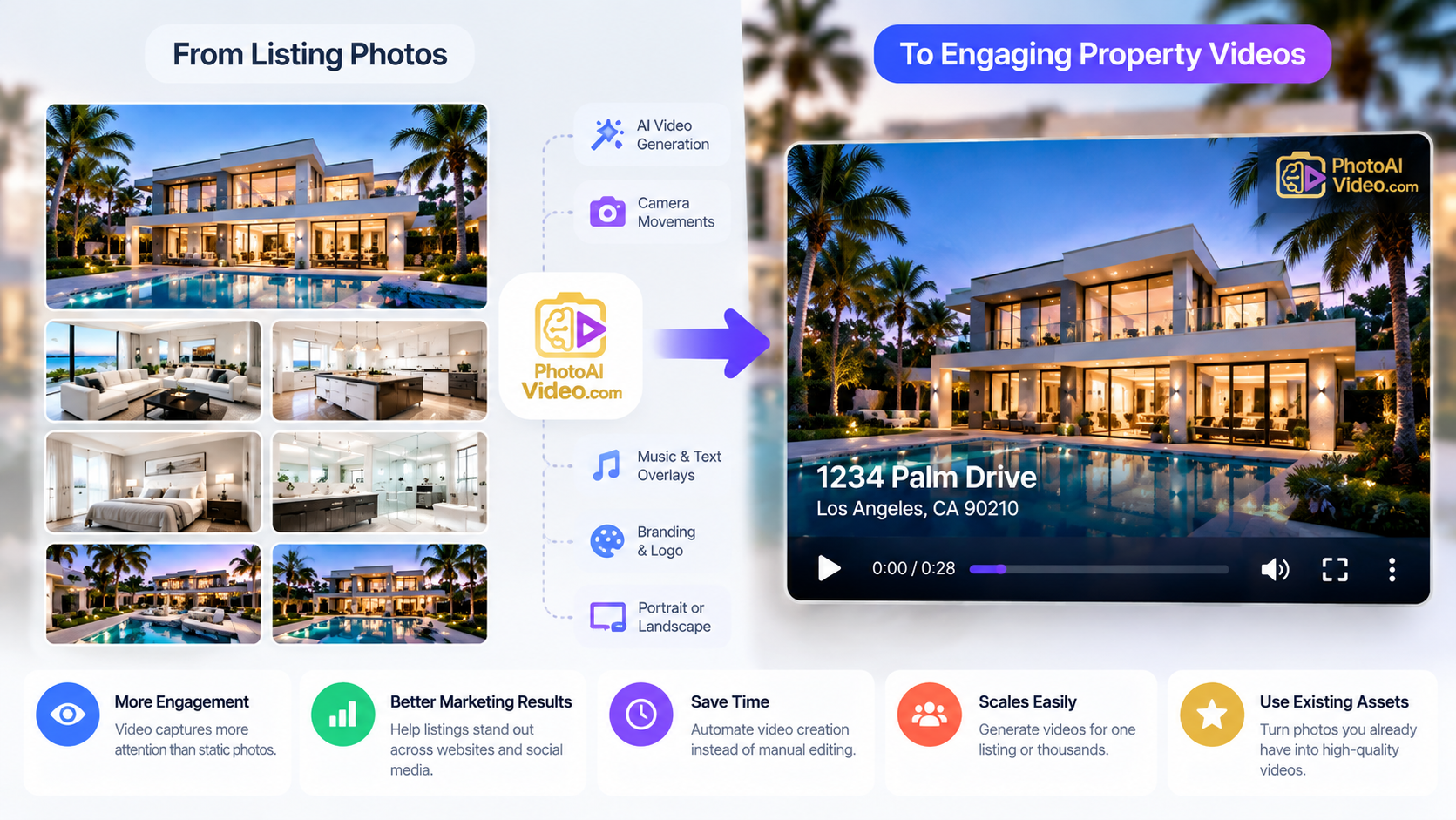
Most real estate workflows already begin with photography.
When a property is prepared for marketing, photos are commonly uploaded to a CRM, MLS, property website, media-delivery platform, or another listing system. Those images may already include nearly everything needed to tell the visual story of the property.
Traditionally, creating a video from those assets requires another workflow.
Someone downloads the photos, uploads them into a video editor, arranges them, adds motion and music, applies branding, exports the finished video, and uploads it again.
That works when you're creating an occasional video.
It becomes much harder when you're building software that needs to create videos across hundreds or thousands of listings.
An API makes the process programmable.
Instead of treating property video as a separate production task, developers can connect video generation directly to listing data and events that already exist inside their applications.
A good automated workflow starts before the API request.
You first need to determine which photos should appear in the property video.
A listing may contain dozens of images, but including every photograph rarely creates the strongest result. Repetitive angles can make the final video unnecessarily long, while important rooms can become lost among less useful images.
A practical selection might include:
Your application can handle selection in several ways.
The simplest option is manual selection. Let the user choose the images and arrange their preferred order before generating the video.
A more automated product could use existing photo labels or metadata to select images according to room type.
The important part is preserving the relationship between every image and its property record. That makes the rest of the workflow—including job tracking and error handling—much easier.
Once the images have been selected, they need to be made available to the video-generation service.
PhotoAiVideo uses presigned URLs for image uploads.
Your application requests upload destinations and then transfers the selected property images to those locations.
Conceptually, the process looks like this:
Your Application → Request Upload URL → Upload Property Photo → Store Image URL
Keeping upload and generation as separate steps has an architectural advantage.
Large media files don't need to be embedded directly inside the request that creates the video job. Instead, the generation request can reference the uploaded image.
For applications processing several property photos, the upload stage can prepare multiple images before generation begins.
After the images have been uploaded, each selected photo can be submitted for video generation.
This is where the still photograph becomes motion.
A generation request identifies the source image and provides the appropriate generation settings.
PhotoAiVideo also provides multiple camera-movement options, allowing the application to control how motion is applied to an image.
This matters because property photographs are not all composed in the same way.
A wide kitchen photograph might benefit from horizontal movement that reveals the room gradually.
A strong exterior image may work well with a subtle push toward the property.
A large living room may benefit from motion that emphasizes depth.
Developers can approach movement selection in several ways.
You can choose a default movement for every image, allow users to select an effect, or build your own logic for choosing movements according to the type of photograph.
The API becomes the generation layer while your application determines how much creative control the user receives.
One of the most important things to understand when building a listing photos to video API workflow is that video generation isn't an instant request.
Rendering takes time.
For that reason, a production application shouldn't expect the finished video to be returned immediately after submitting the image.
Instead, the application creates a video-generation job and receives a job identifier.
That identifier should be stored alongside the corresponding property and source image.
Your internal record might track information such as:
Property ID → Image ID → Video Job ID → Status → Output URL
The application can then continue operating while the video is processed in the background.
This creates a much better experience than forcing the agent or customer to keep a browser request open while rendering occurs.
Once a video job has been created, your application needs to determine when processing finishes.
This is where job-status monitoring comes in.
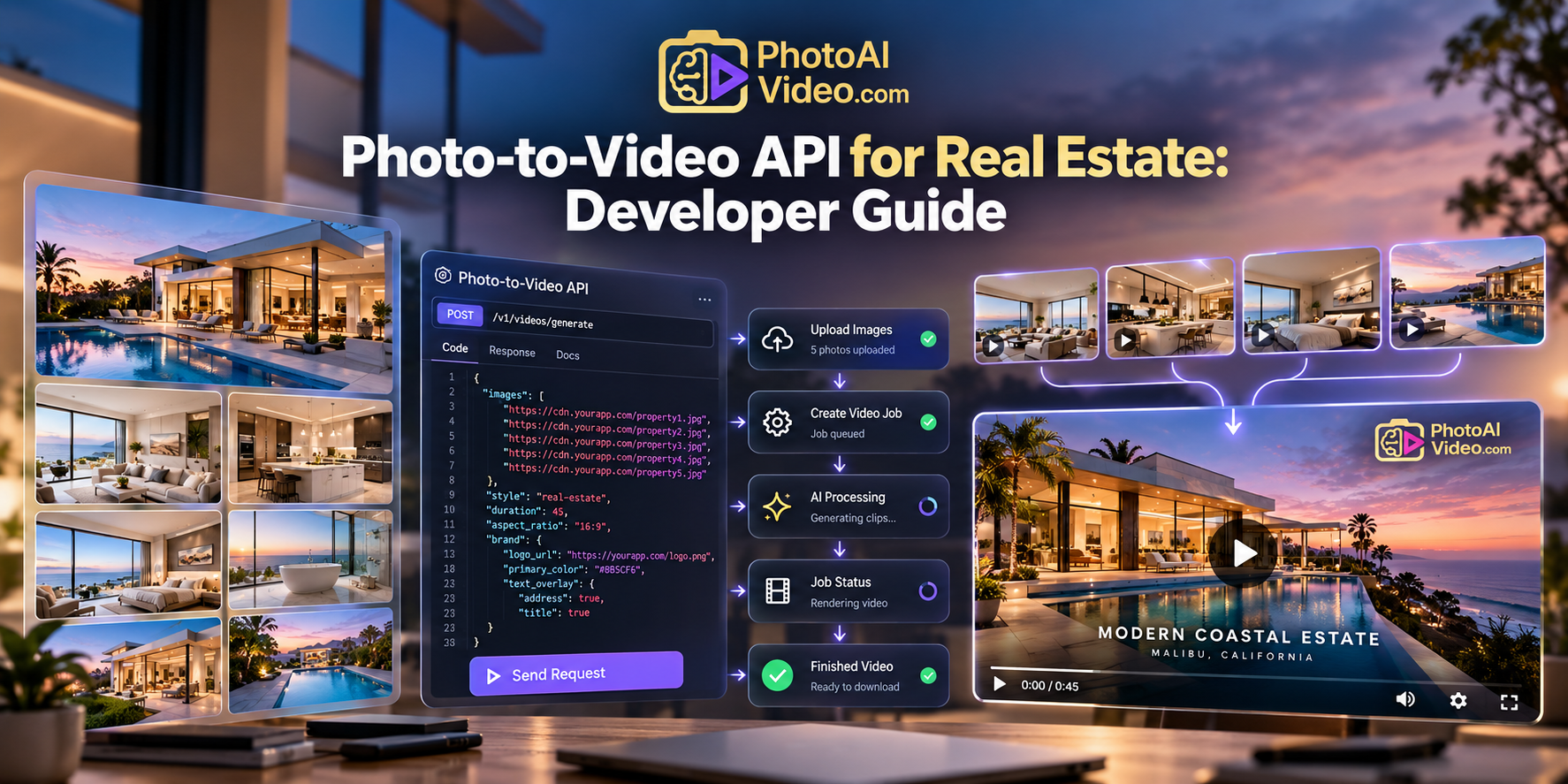
A typical workflow looks like this:
Create Job → Store Job ID → Wait → Check Status → Complete or Continue Waiting
If the video is still processing, your background worker can check again later.
If it has completed successfully, save the resulting video URL and update your application's record.
If it fails, move the job into your failure-handling workflow.
This becomes particularly important when one property has several video clips being generated at the same time.
Your application needs to know which clips are ready before moving on to final video assembly.
Suppose you've selected eight photos for a property video.
A slow implementation would generate the first clip, wait for it to finish, generate the second, wait again, and continue until all eight were complete.
That isn't necessarily how the workflow needs to operate.
Each selected photo can have its own video-generation job.
Conceptually:
Exterior → Video Job A
Living Room → Video Job B
Kitchen → Video Job C
Dining Room → Video Job D
Primary Bedroom → Video Job E
Backyard → Video Job F
Your system tracks the jobs independently and waits until the clips required for the final video are available.
This asynchronous approach becomes increasingly valuable as the number of properties grows.
The same architecture that handles several clips for one listing can eventually support automated video generation across many listings.
Once your video clips are complete, think about sequence.
A property video should feel like a journey through the listing rather than a random collection of rooms.
A simple sequence might look like:
Exterior → Entry → Living Room → Kitchen → Dining → Bedroom → Outdoor Area → Closing Exterior
There is no universal order for every property.
A luxury listing with an exceptional pool might introduce the outdoor space earlier. An apartment could begin with the interior rather than the building exterior. A vacation rental might prioritize views or amenities.
Your software can provide a default sequence while still allowing the user to change it.
This is an important distinction between automating video production and removing creative control entirely.
The best product workflows automate repetitive work while leaving room for meaningful decisions.
Once the required clips have completed and their order has been established, they can be assembled into a finished reel.
This is where individual photo animations become a complete property video.
Instead of requiring your application to download every generated clip, run its own video-processing infrastructure, combine the files, render the result, and upload it again, reel assembly can remain part of the API workflow.
Your application sends the appropriate completed video jobs in the desired sequence and initiates the reel-generation process.
Like individual video generation, reel creation should be treated as an asynchronous operation.
The application stores the reel job identifier, monitors its status, and retrieves the finished output when processing completes.
Video becomes significantly more useful as a real estate marketing asset when it represents the property and the business behind it.
Depending on the workflow, a finished listing video may include:
These elements can be incorporated during reel assembly rather than added manually afterward.
That matters for automated workflows.
Imagine a real estate media company serving 100 brokerage clients. Each client could have its own stored branding preferences.
When a new video is generated, the application can use the appropriate branding settings for that customer.
The photographer or production team doesn't have to manually rebuild those elements for every property.
For a SaaS platform, the same approach can make video generation feel like a native part of the product.
Where will the finished property video be published?
That decision should influence the output format.
A landscape video works naturally on property websites, listing pages, presentations, and traditional video players.
A portrait video is better suited to mobile-first channels such as Instagram Reels, TikTok, and YouTube Shorts.
A property-marketing application might therefore give users two choices:
Listing Video — Landscape
Social Video — Portrait
A more automated platform could select the format based on the destination.
You can also build workflows that create multiple versions of the same property content when appropriate.
This allows the original listing photography to support more than one marketing channel without requiring an entirely separate creative process.
When video processing finishes, the API workflow isn't necessarily over.
The output needs to go somewhere useful.
In a real estate CRM, the finished video could be attached to the property record.
In a photography platform, it could appear alongside the customer's delivered images.
In a property-management system, it could become part of the marketing assets for an available unit.
In a marketing platform, completion could trigger another workflow.
The full pipeline becomes:
Listing Created → Photos Selected → Clips Generated → Video Assembled → Video Returned to Listing
This is what separates an API workflow from a standalone video-generation tool.
The output becomes part of a larger software process.
Failures need to be considered from the beginning when you're designing an automated workflow.
A single failed clip shouldn't leave an entire listing permanently stuck in processing.
Track every generation job individually.
If a job fails, your application can decide whether to retry it, let the user retry manually, select another image, exclude that scene, or flag the property for review.
The exact strategy depends on your product.
A fully automated bulk workflow may favor controlled retries and logging.
A user-driven CRM might simply show that one scene failed and provide a Retry button.
Either way, failure should be treated as a normal possible job state rather than an unexpected event that breaks the entire pipeline.
Turning one listing into a video is different from processing thousands of listings.
Before enabling large automated workflows, calculate the expected generation usage.
If each property video contains several generated clips plus a final reel, your usage grows according to the number of properties and scenes you process.
Your application can control this by setting limits such as:
You can also check account usage before beginning a large batch.
Building these controls early makes scaling much easier than adding them after customers begin generating large volumes of content.
Once the workflow is reliable, it can be connected to events that already happen inside real estate software.
For example:
New listing published → Generate property video
Photography order completed → Generate video add-on
Agent selects “Social Marketing” → Generate vertical reel
Property becomes available → Generate marketing video
Brokerage imports new listings → Queue videos in bulk
The user doesn't necessarily need to think about the API.
They interact with the product they already know while video generation happens behind the scenes.
That is where a real estate photo-to-video API becomes particularly powerful.
It doesn't simply make video creation faster. It makes video creation programmable.
The best way to build an automated listing-video workflow is to start small.
Take one property.
Select several strong listing photos.
Upload them.
Create the individual video jobs.
Track each job until it finishes.
Arrange the completed clips.
Assemble the reel.
Apply the property information and branding.
Return the finished video to the listing.
Once that workflow is reliable, you can begin automating individual steps and eventually scale the same architecture across larger numbers of properties.
PhotoAiVideo's Real Estate Video API provides the generation layer for this workflow, allowing developers to turn existing property photography into cinematic clips and branded listing videos without building the underlying video infrastructure from scratch.
For a deeper look at the broader API capabilities, explore the Real Estate Video API, or review the Photo-to-Video API if your application needs image-to-video generation beyond property-specific workflows.
Yes. A photo-to-video API can take existing property images and programmatically generate video clips from them. Those clips can then be assembled into a complete property video as part of an automated workflow.
Not necessarily. A photo-to-video workflow uses existing still property photographs as the source material for generated video clips, allowing businesses to create video content from assets they may already have.
Yes. Individual listing photos can first be converted into separate video clips. The completed clips can then be arranged in the desired sequence and assembled into a longer property video.
Yes. PhotoAiVideo supports portrait and landscape reel workflows, allowing developers to build videos for property websites as well as vertical social-media content.
Yes. Because generation is controlled through an API, developers can connect the workflow to real estate CRMs, MLS and listing platforms, property-management software, photography systems, and other applications.
PhotoAiVideo — Real Estate Video API
Real Estate Video API
PhotoAiVideo — Developer Implementation Guide
How to Build a Real Estate Video App With the PhotoAiVideo API
YouTube Help — YouTube Shorts
YouTube Shorts Help


Compact, ready to go anywhere
Interchangeable lens that’s upgradeable
Dual 1-inch sensors for improved clarity and low light performance
Dynamic range and 6K 360° capture
360° photo resolution at 21MP

8K 360° video recording for ultra-detailed visuals.
4K single-lens mode for traditional wide-angle shots.
Invisible selfie stick effect for drone-like perspectives.
2.5-inch touchscreen with Gorilla Glass protection.
Waterproof up to 33ft for underwater shooting.

360° photo resolution in 23MP
Slim design at 24 mm thick
Built-in image stabilization for smooth video capture.
Internal 19GB storage for photo and video storage.
Wireless connectivity for remote control and sharing.

60MP 360° still images for high-resolution photography.
5.7K 360° video recording at 30fps.
2.25-inch touchscreen for intuitive control.
USB Type-C port for fast charging and data transfer.
MicroSD card slot for expandable storage.
.png)

.png)

Try it free. No credit card required. Instant set-up.





.svg)


.svg)