How to Ensure Your MLS Floor Plans Display Correctly on Homes.com

Cloudpano
October 7, 2025
5 min read
Share this post

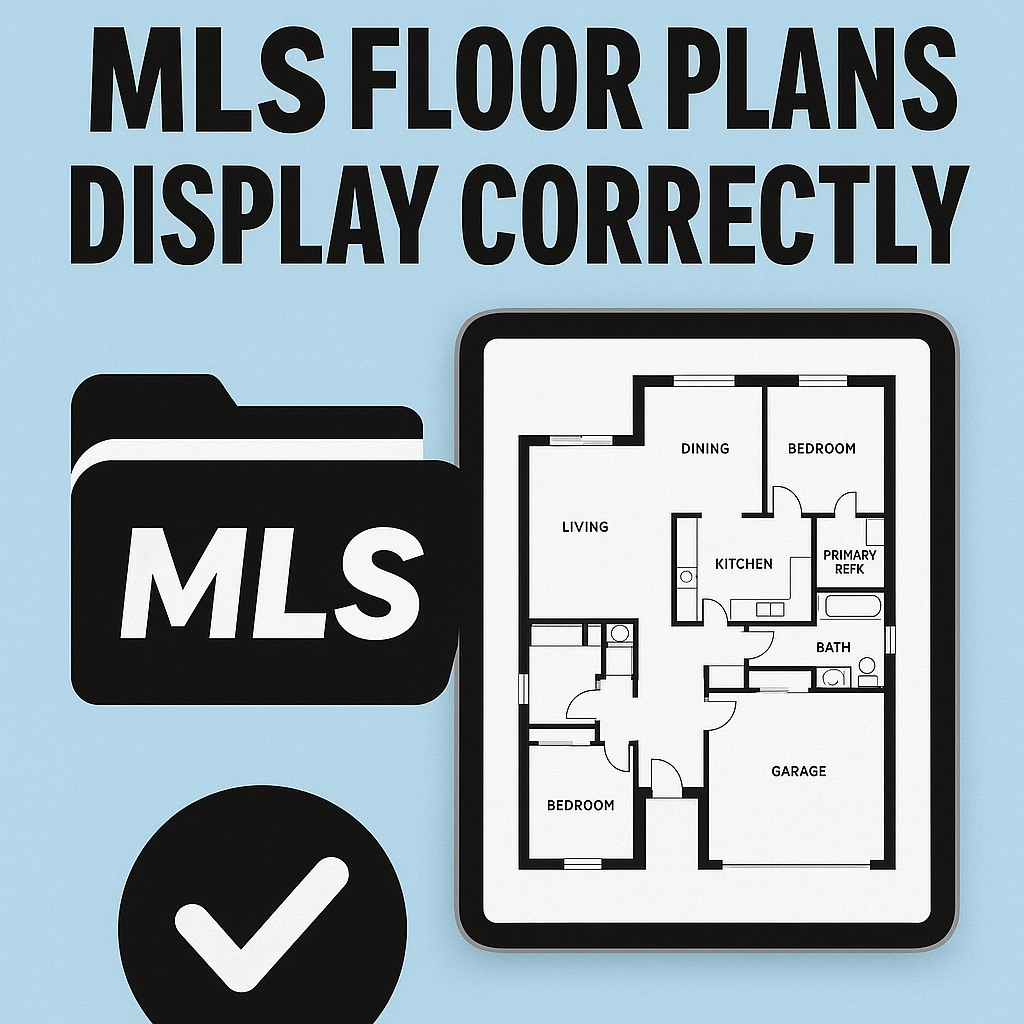
🏡 How to Ensure Your MLS Floor Plans Display Correctly on Homes.com

When buyers and renters browse Homes.com, they don’t just want pretty photos—they want to understand how the space flows. That’s why floor plans are one of the most powerful tools you can add to a listing. Alongside photos and videos, they give buyers the ability to picture life inside the property before they ever step through the door.

In this guide, you’ll learn:

  • How to upload and showcase floor plans on Homes.com listings 📐
  • Why MLS floor plan accuracy matters for your reputation
  • Pro tips to make floor plans professional, clear, and engaging
  • How tools like virtual tours and a real estate video app can multiply your listing performance

✨ Why Floor Plans Matter for MLS + Homes.com Listings

Adding a floor plan isn’t just a checkbox—it’s a trust builder. Studies show listings with floor plans get 30–40% more engagement compared to those without.

Here’s why:

  • 🔑 Clarity – Buyers immediately understand room dimensions and flow.
  • 🖼️ Visualization – People imagine furniture placement, movement, and functionality.
  • 🚀 More Clicks – Homes.com users are drawn to listings with interactive content.
  • 💼 Professional Edge – Sellers see you as an agent who uses advanced marketing.

💡 Related Reading: How to Upload High-Quality Photos to Homes.com

🛠️ Step 1: Prepare Your Floor Plan Files

Before uploading, make sure your floor plans meet MLS and Homes.com standards:

  • 📂 File Type: Use JPG or PNG for images; some MLS systems also allow PDFs.
  • 🔍 Resolution: Minimum 1200px wide so rooms are readable.
  • 🏷️ Labeling: Mark all rooms and dimensions.
  • 🎨 Design: Keep it clean, simple, and neutral. Black-and-white or light shading works best.

➡️ Bonus Tip: Some MLS systems will compress your upload. Test a sample to ensure text stays legible after upload.

🖥️ Step 2: Log Into Your Homes.com Account

  1. Navigate to Homes.com and log into your Agent Dashboard.
  2. Select the property you want to update.
  3. Open the property editor where you manage photos, details, and media.

This dashboard is where you’ll add or edit your MLS photos, video tours, and floor plans.

📂 Step 3: Upload Floor Plans to the Listing

  1. In the listing editor, locate the Media/Photos section.
  2. Select Add Floor Plan (this option often appears beside photo and video uploads).
  3. Upload your prepared floor plan file.
  4. Verify orientation (portrait vs. landscape).
  5. Save changes and preview the listing.

👉 Related: How to Add Listing Videos to Homes.com Property Pages

💡 Step 4: Optimize Your Floor Plans for Engagement

Simply uploading isn’t enough—you want floor plans that convert browsers into buyers:

  • ✏️ Add Captions – “Spacious Open Living Room Flow” draws more attention than “Living Room.”
  • 🔗 Connect Media – Link your floor plan to virtual tours when available.
  • 📲 Mobile Check – Homes.com is heavily mobile-driven; preview on a phone.
  • 📐 Show Multiple Options – For new builds or condos, upload alternative layouts.

💡 Pro Move: Pair your floor plans with a real estate video app. Tools like PhotoAIVideo.com transform your photos into engaging walkthrough videos that make floor plans feel alive.

🚩 Common Mistakes to Avoid

❌ Uploading blurry or low-res floor plans
❌ Forgetting to label rooms/dimensions
❌ Using dark, confusing colors
❌ Not previewing on both desktop and mobile

Fixing these simple mistakes can immediately boost click-through rates on Homes.com.

📊 Why Floor Plans Help You Win More Deals

Floor plans aren’t just for buyers—they help you win more listings.

Here’s how:

  • Sellers want agents who go above and beyond.
  • Buyers spend longer on listings that include floor plans.
  • Listings with photos, videos, and floor plans rank better in Homes.com searches.

This creates a growth loop:

  • More buyers → More seller confidence → More closings.

👉 Related: How Property Video Apps Can Boost Your Real Estate Business

🎥 Adding Video + Floor Plans = MLS Power Combo

Today’s MLS allows multiple media formats—and you should use all of them:

  • 📸 Professional Photos – The baseline for every listing.
  • 🏡 Virtual Tours (360° Walkthroughs) – CloudPano helps you create immersive tours in minutes.
  • 🎥 Real Estate Video Apps – Convert photos into videos with PhotoAIVideo.com, making your MLS listings stand out instantly.
  • 📐 Floor Plans – Give context and clarity for buyers comparing homes.

Buyers expect this level of detail in 2025. If you’re not offering it, another agent is.

✅ Final Checklist Before Publishing

  • ✔️ Floor plan is clear, labeled, and high-res
  • ✔️ File type supported (JPG/PNG/PDF)
  • ✔️ Uploaded in the correct Homes.com section
  • ✔️ Captions optimized for SEO keywords
  • ✔️ Mobile preview tested

Once you’ve confirmed all the above—hit publish and watch engagement rise 🚀.

📌 Conclusion

Adding floor plans to your Homes.com MLS listings is one of the easiest ways to stand out. They provide buyers with valuable context, help sellers trust your expertise, and make your listings more competitive.

When paired with virtual tours and real estate video apps, your Homes.com listings transform from static photos into complete digital experiences. That’s what drives clicks, leads, and closed deals.

🔥 CTA

Ready to elevate your MLS listings?

Share this post
Cloudpano

Choose The Right 360° Camera

Insta360 ONE RS 1-Inch 360 Edition

  • Compact, ready to go anywhere

  • Interchangeable lens that’s upgradeable

  • Dual 1-inch sensors for improved clarity and low light performance

  • Dynamic range and 6K 360° capture

  • 360° photo resolution at 21MP

Learn More

Insta360 X4

  • 8K 360° video recording for ultra-detailed visuals.

  • 4K single-lens mode for traditional wide-angle shots.

  • Invisible selfie stick effect for drone-like perspectives.

  • 2.5-inch touchscreen with Gorilla Glass protection.

  • Waterproof up to 33ft for underwater shooting.

Learn More

Ricoh Theta Z1

  • 360° photo resolution in 23MP

  • Slim design at 24 mm thick

  • Built-in image stabilization for smooth video capture.

  • Internal 19GB storage for photo and video storage.

  • Wireless connectivity for remote control and sharing.

Learn More

Ricoh Theta X

  • 60MP 360° still images for high-resolution photography.

  • 5.7K 360° video recording at 30fps.

  • 2.25-inch touchscreen for intuitive control.

  • USB Type-C port for fast charging and data transfer.

  • MicroSD card slot for expandable storage.

Learn More
Property Marketing
Allows potential buyers to explore properties in detail from anywhere, enhancing the real estate marketing process.
Automotive Spins
Create an interactive virtual showroom and engage affluent digital buyers with live 360º video calls, all through the CloudPano mobile app for a complete automotive sales solution.
Interactive Floor Plans
Create 2D and 3D floor plans with measurements in 4 minutes or less, all from your phone. Download the Floor Plan Scanner app and get your first scan free.

360 Virtual Tours With CloudPano.com. Get Started Today.

Try it free. No credit card required. Instant set-up.

Try it free
Latest posts

See our other posts

Interviews, tips, guides, industry best practices, and news.

Step-by-Step Drone Profit Secrets: Build a Successful Drone Services Business

This guide breaks down the step-by-step Drone Profit Secrets system for building a profitable drone services business from scratch. It explains how to choose a niche, price your services, attract clients, build a strong online presence, and scale using automation and recurring revenue. Packed with strategies for drone entrepreneurs, the article outlines a complete drone business blueprint covering marketing, sales, service packaging, growth tactics, and long-term success principles. If you want to turn drone flying skills into consistent income, this summary reveals the essential strategies needed to launch and grow a thriving drone business. 🚁💼📈
Read post

Drone Profit Secrets Review: Zach Calhoon’s Guide to Making Money with Drones

Drone Profit Secrets is a powerful, step-by-step drone entrepreneur guide created by Zach Calhoon to help pilots turn their flying skills into real income. This review breaks down the core lessons, including market opportunities, niche selection, pricing strategies, service packaging, and proven drone business growth strategies. You’ll learn how the book teaches a complete drone business blueprint—from landing your first client to scaling with automation and recurring revenue. Whether you're a beginner, side hustler, or established pilot, this book provides clear, actionable insight to build a profitable drone business with confidence.
Read post

Top Lessons from Drone Profit Secrets: Turn Your Drone Skills into Cash

This article breaks down the most valuable lessons from the Drone Profit Secrets book by Zach Calhoon, offering a practical and proven drone entrepreneur guide for anyone looking to turn drone skills into a profitable business. Readers learn how to choose profitable niches, price services correctly, market effectively, and scale using Zach’s drone business blueprint. The guide also explores essential drone business growth strategies, including client acquisition, branding, automation, and service expansion. Whether you're a beginner or seasoned pilot, this summary shows exactly how to turn aerial expertise into predictable revenue.
Read post